How To Setup a Trip Log
1. Navigate to https://air.corrisoft.com/participants
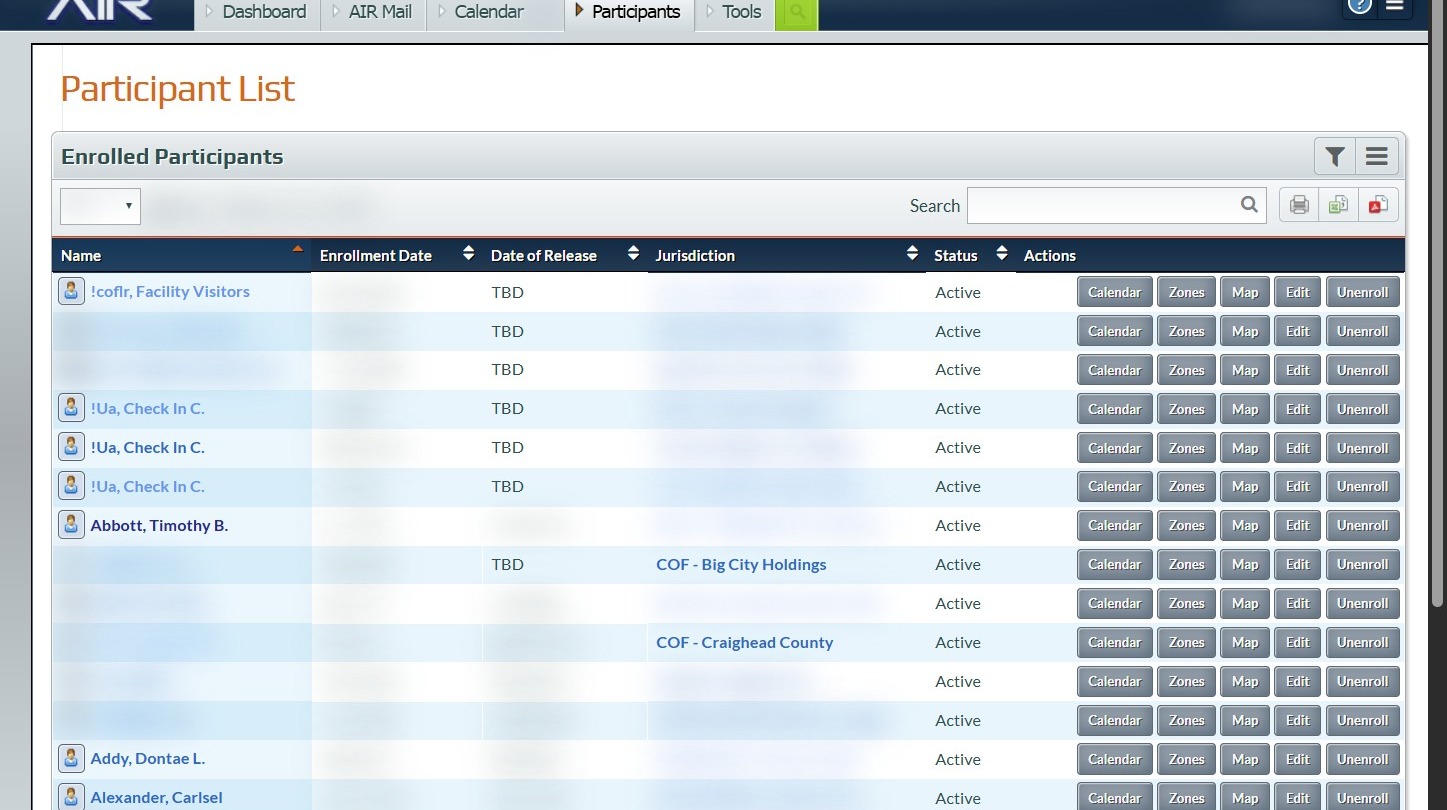
2. Click on the desired Participant
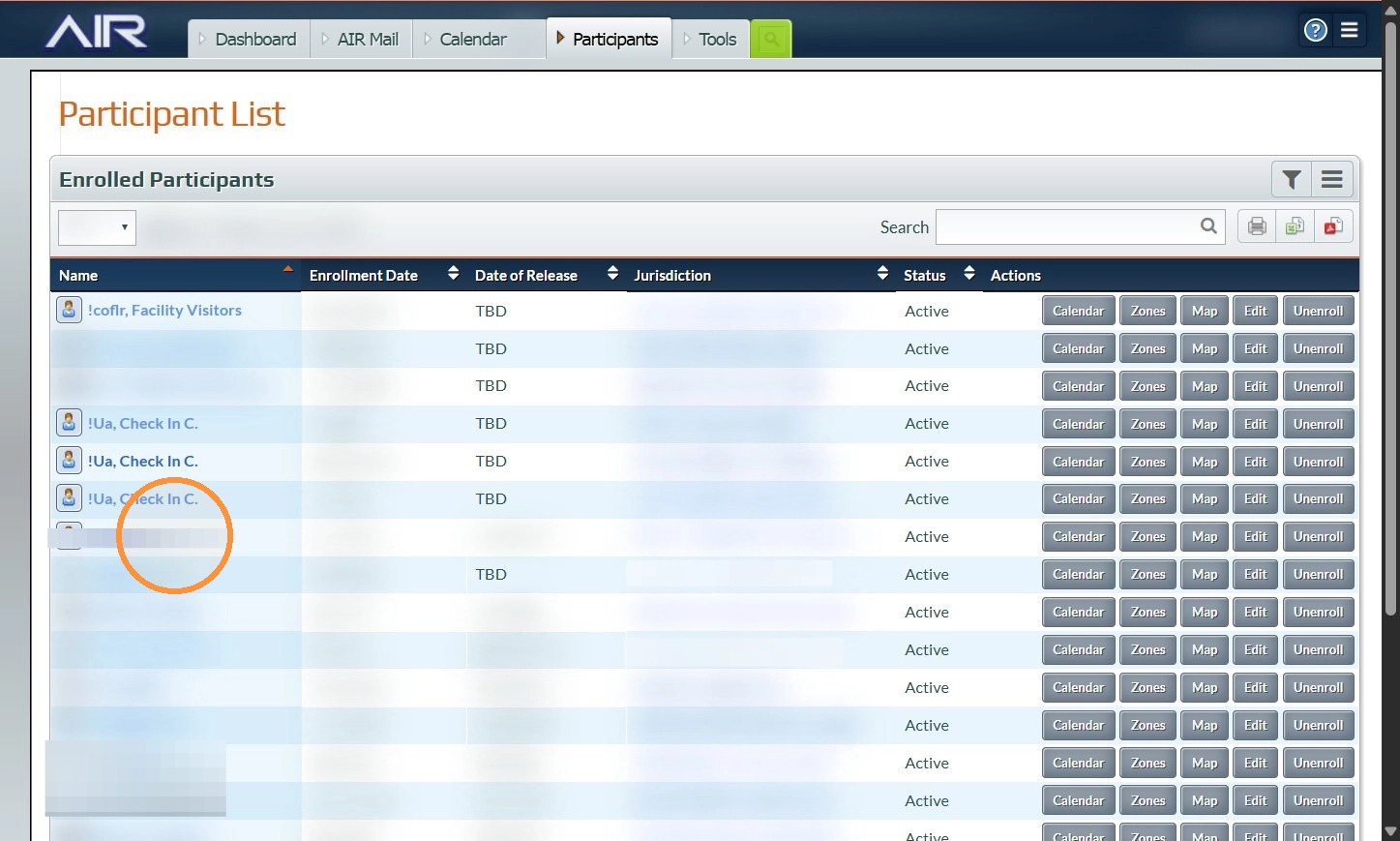
3. Click "Activity"
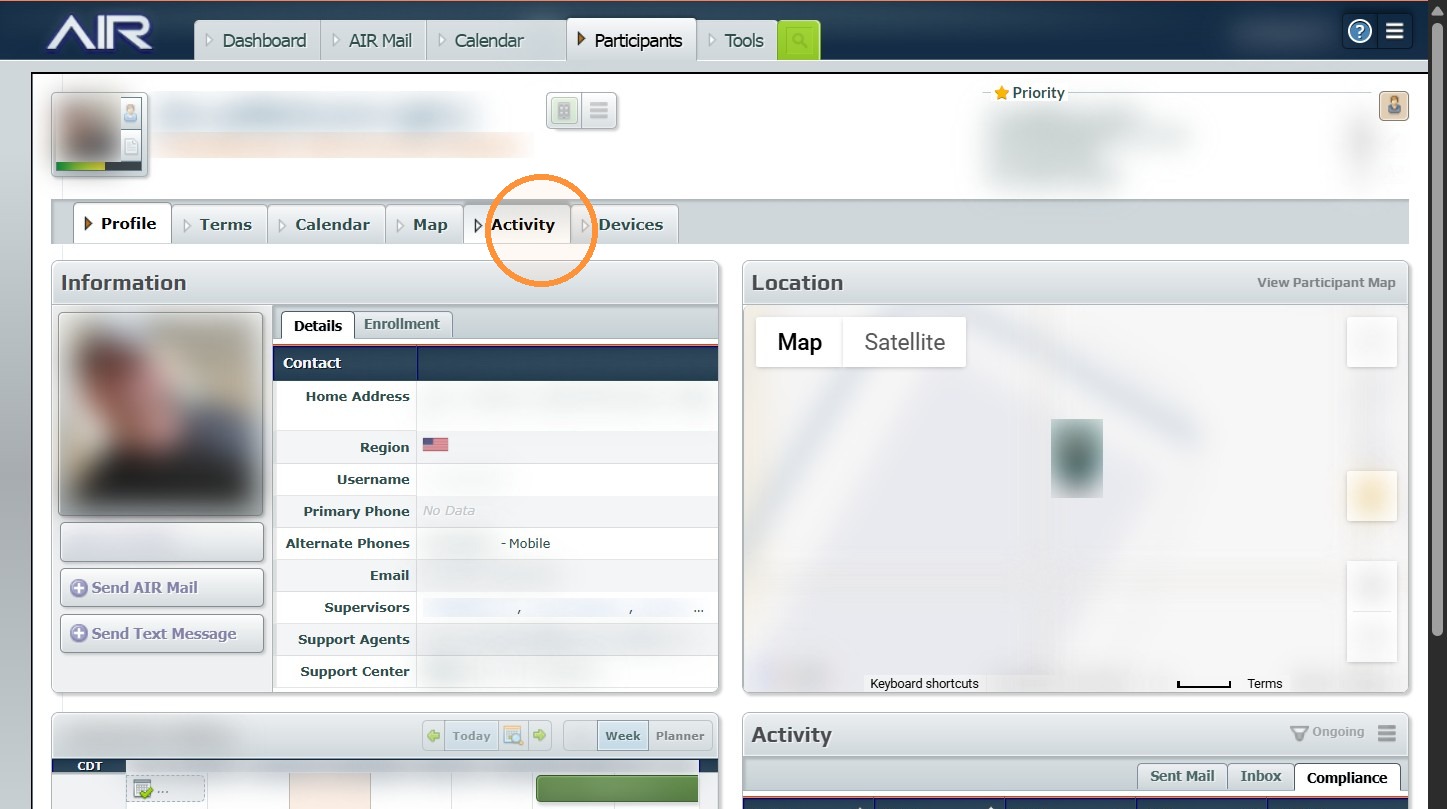
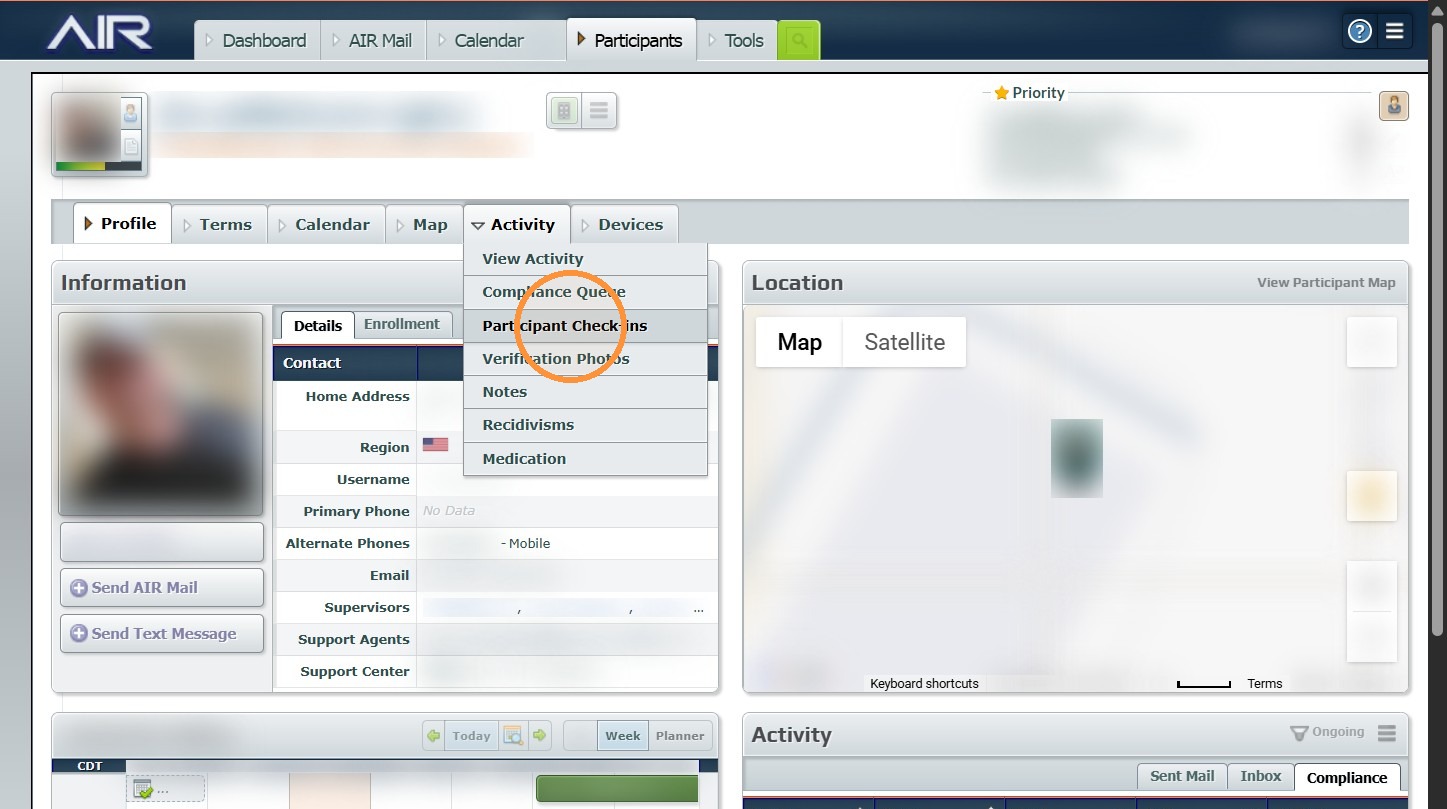
4. Click "Participant Check-ins"
5. Select the date you want to view and click on the Survey Question Collection
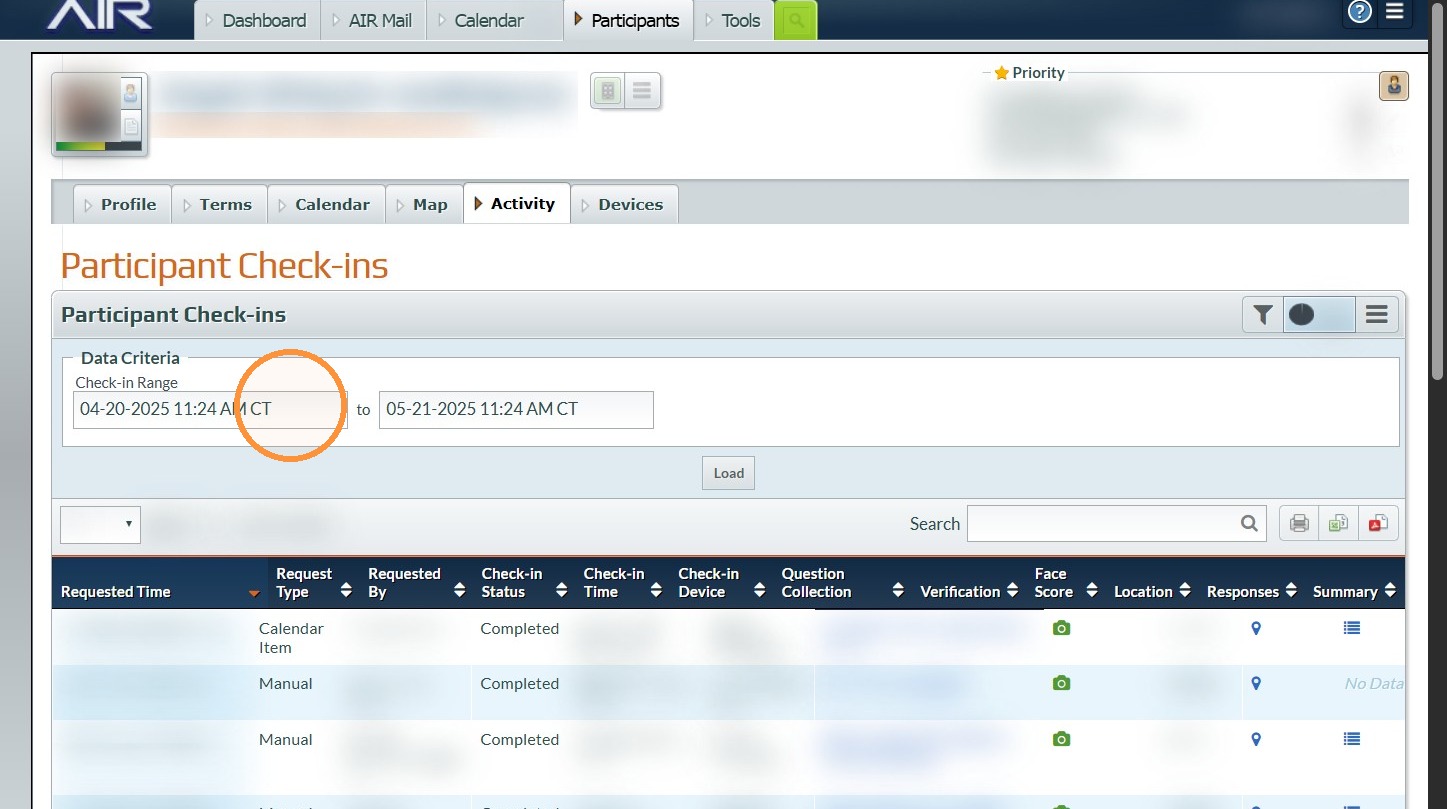
6. Click "Load"
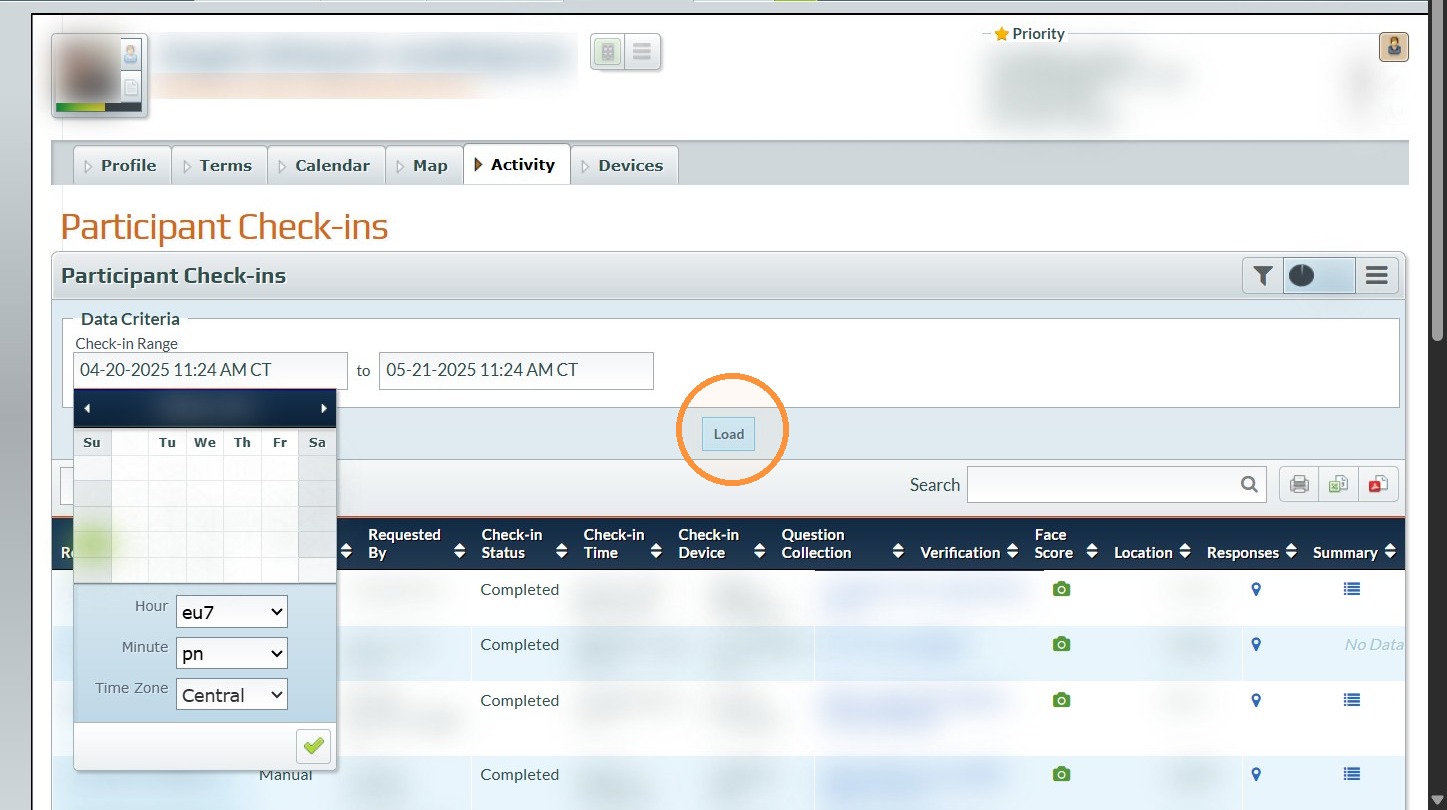
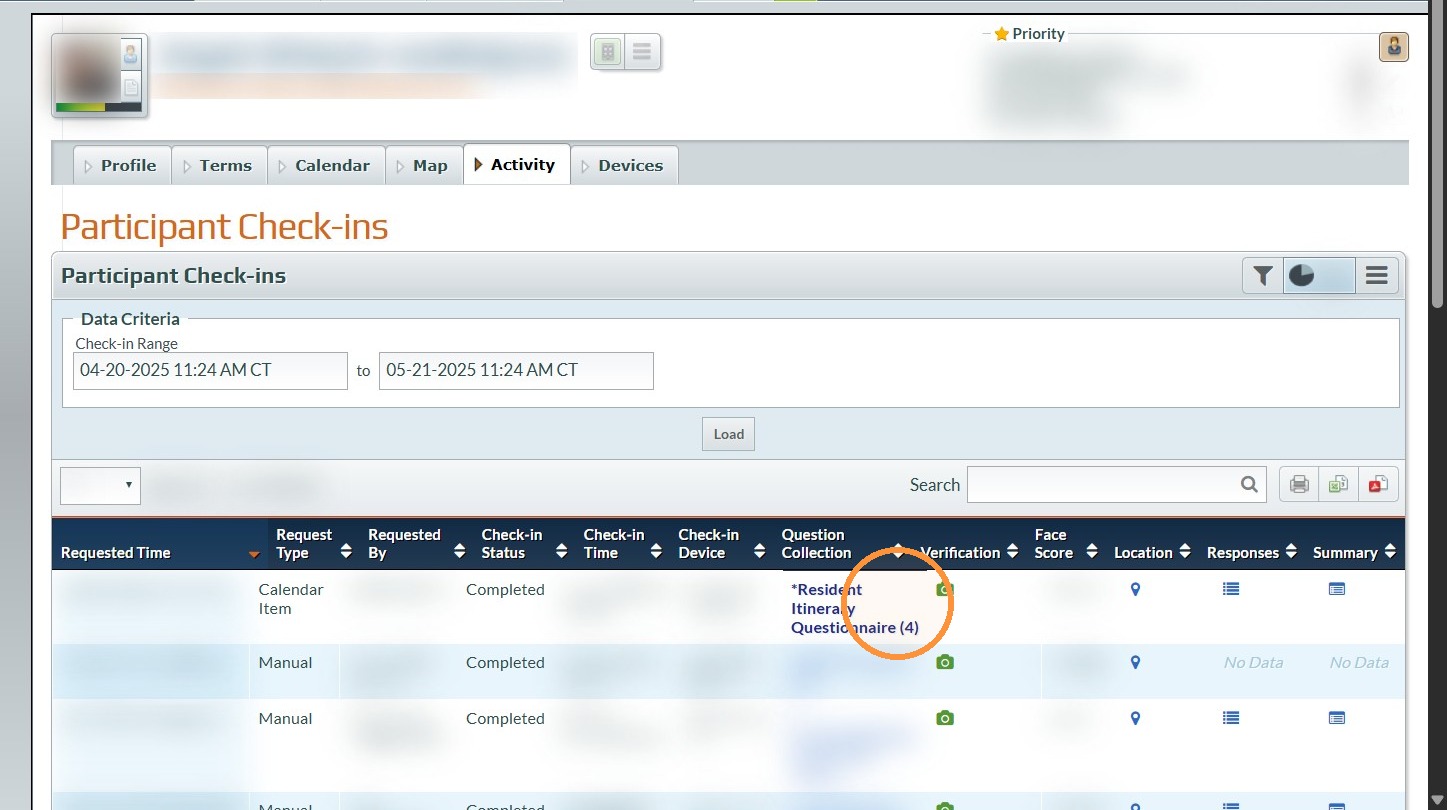
7. Click the desired Question Collection Result
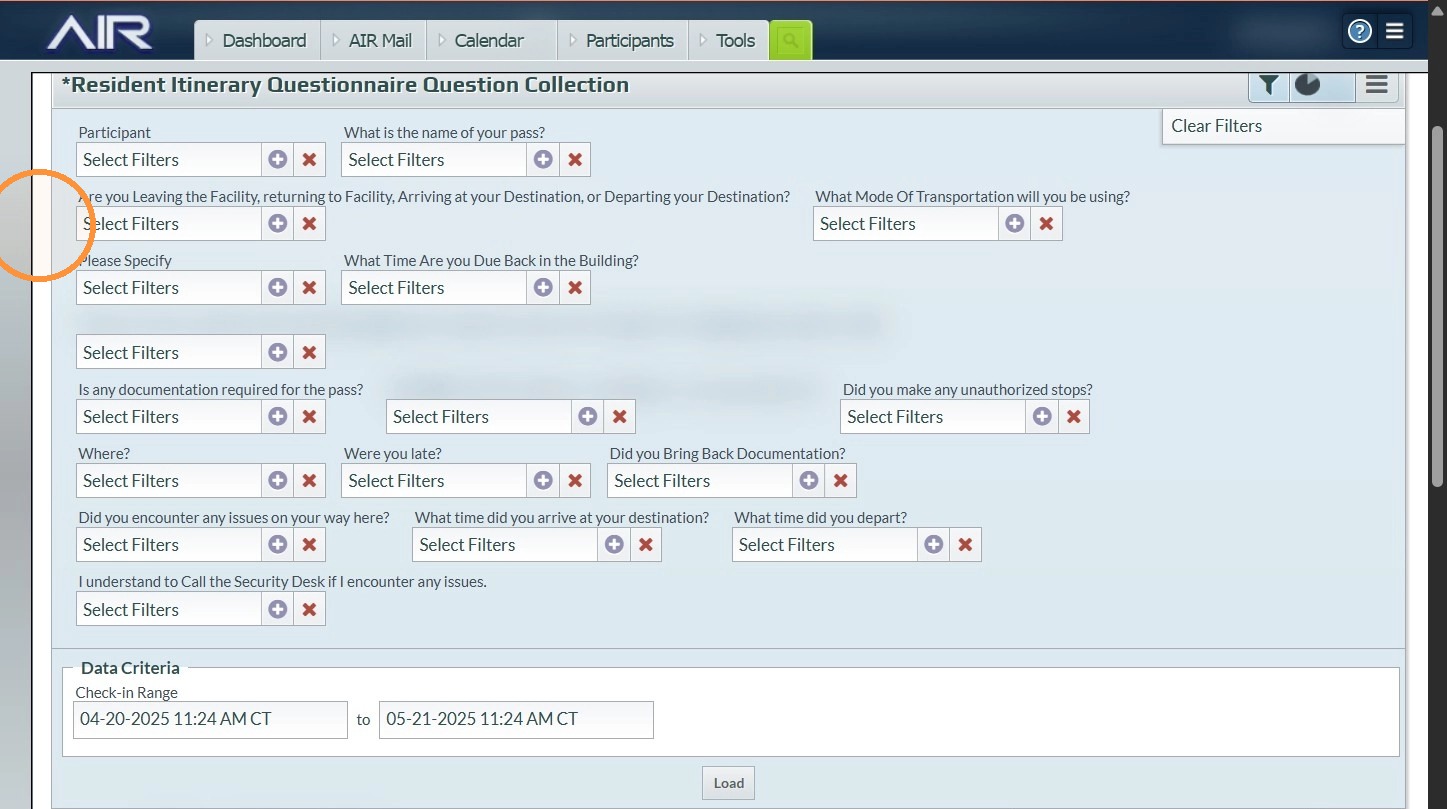
8. Click here to Filter out the Date Range and Passes you Want to View
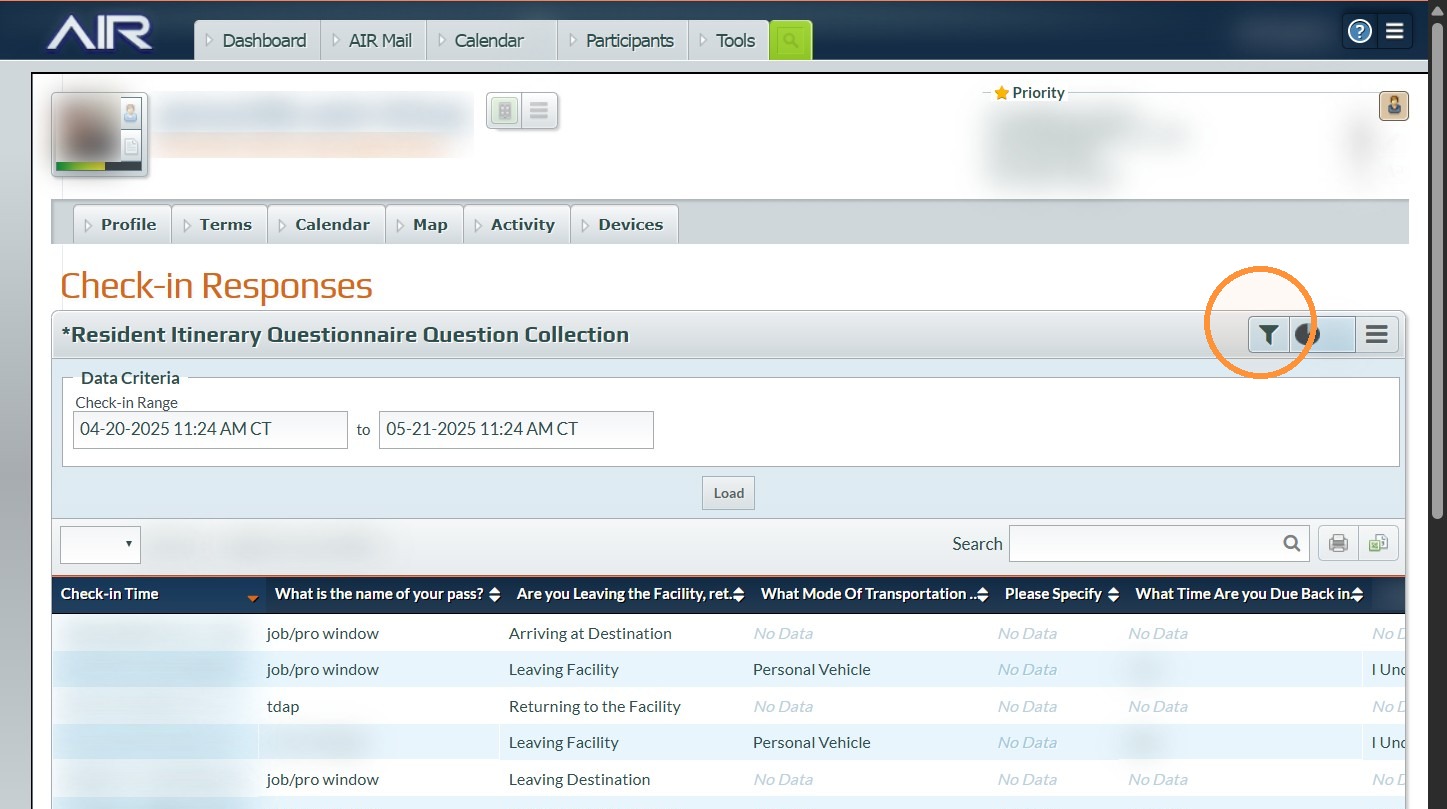
9. Filter by Leaving and Entering
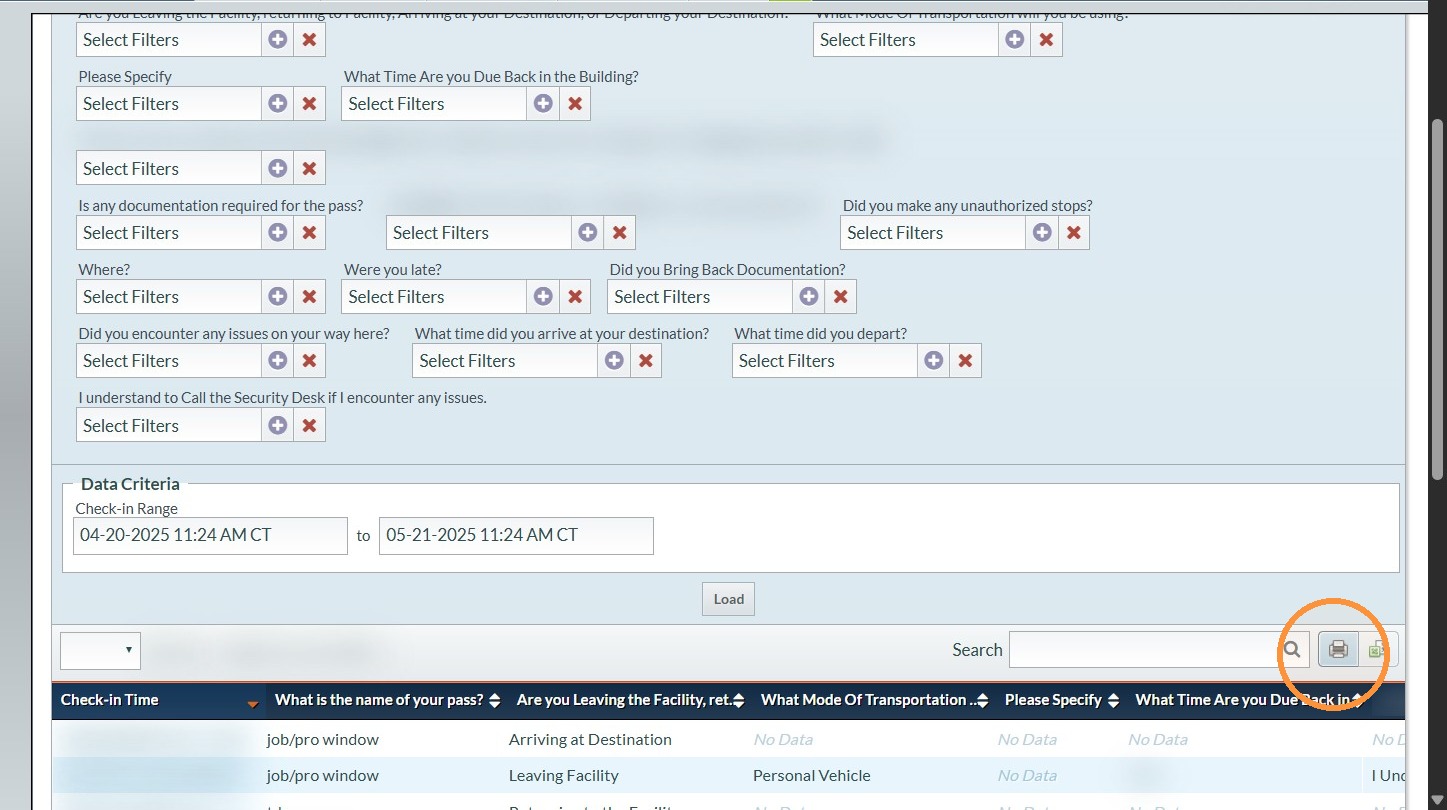
10. To Export Click the Print icon Save as a PDF and Select a large Paper size Oversize A2 works perfectly (Otherwise It will Print scrunched)
To print After Exporting Printing it from Adobe will print it at a normal size without any scrunch Samples Included
Review a Single Check-in
11. Follow Steps 1-9 Above
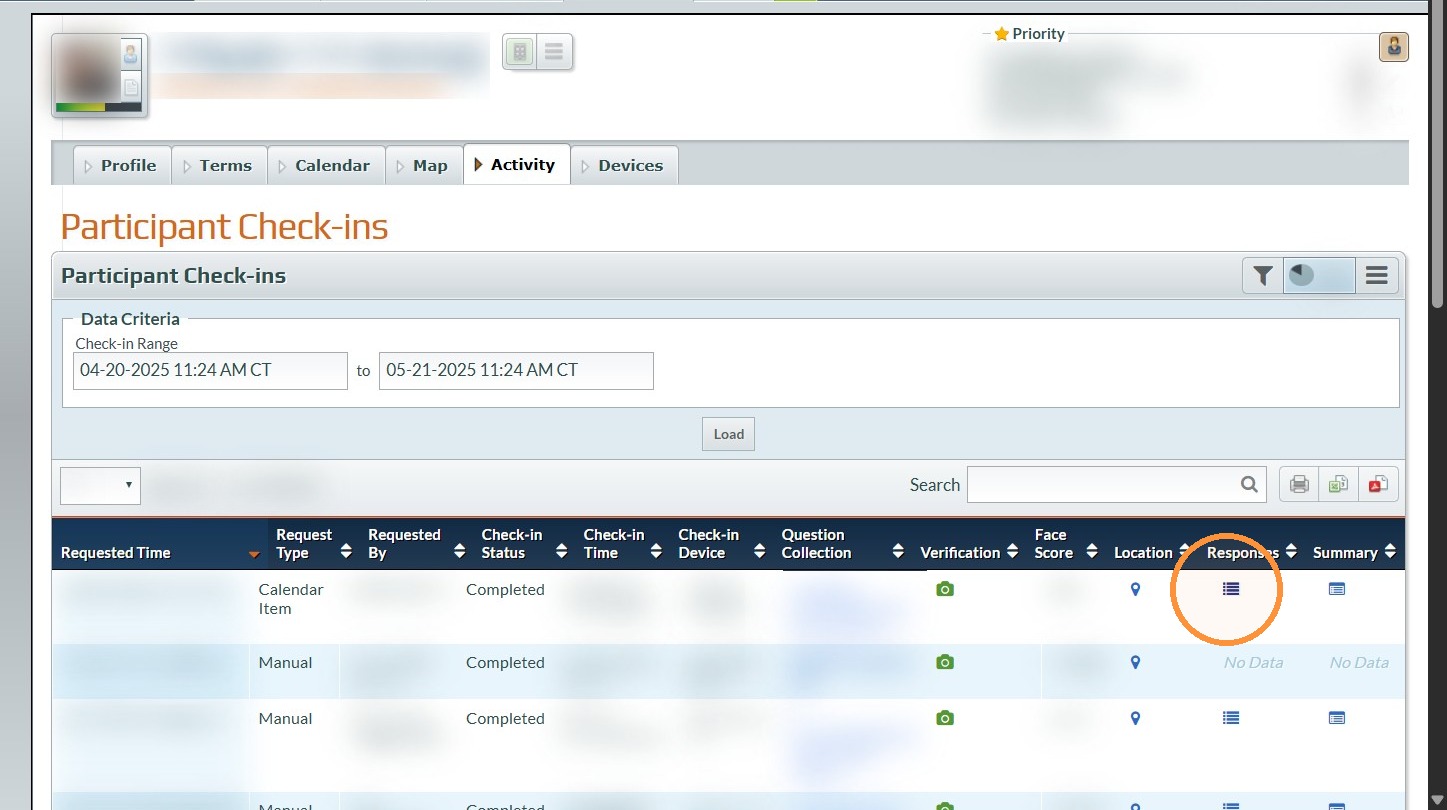
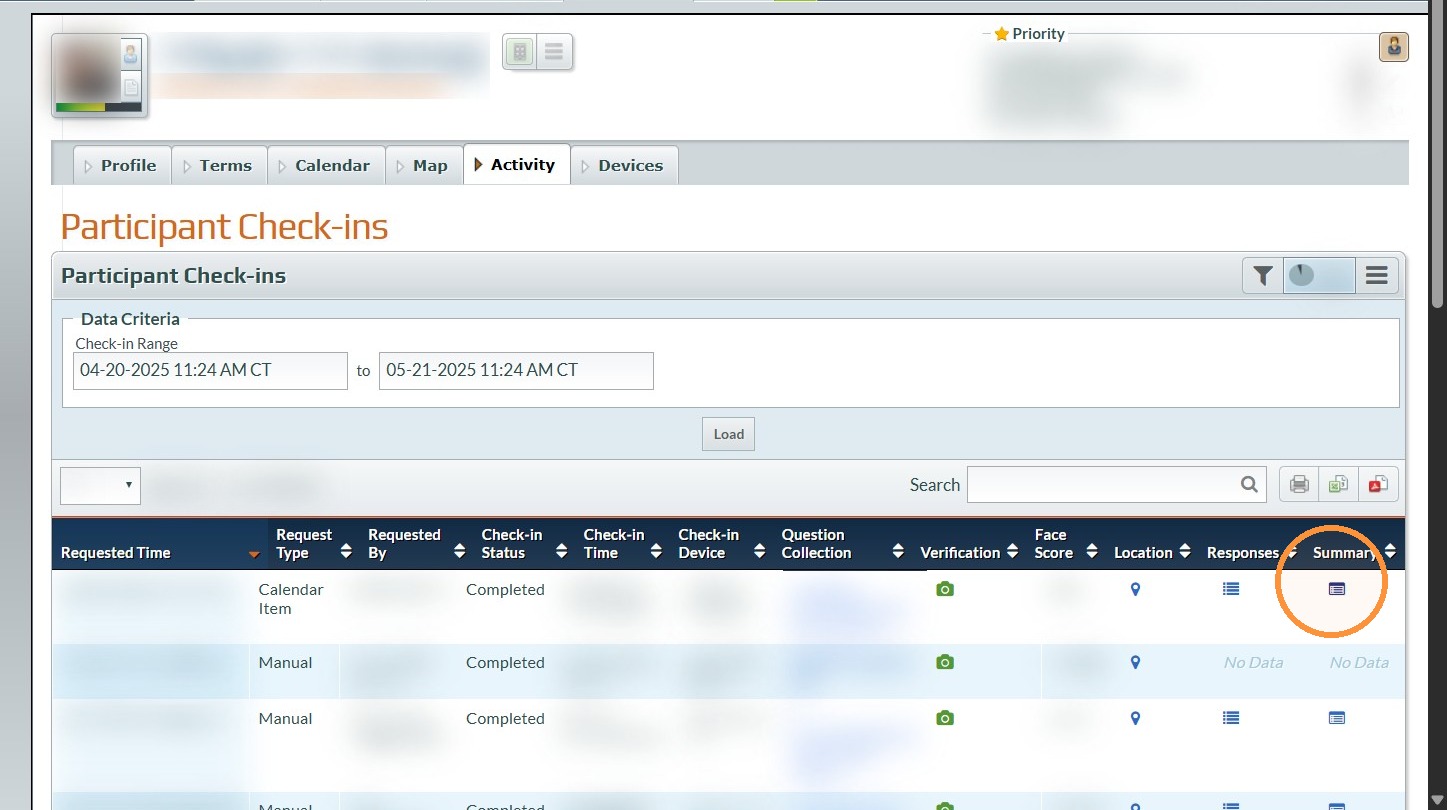
12. Click either the Response, Summary, Location or Camera Buttons
13. Response will only let you view the questions answered at check-in
14. Summary provides the question answers and the map ping
15. Location lets you see the map point and address of location the check in was done at
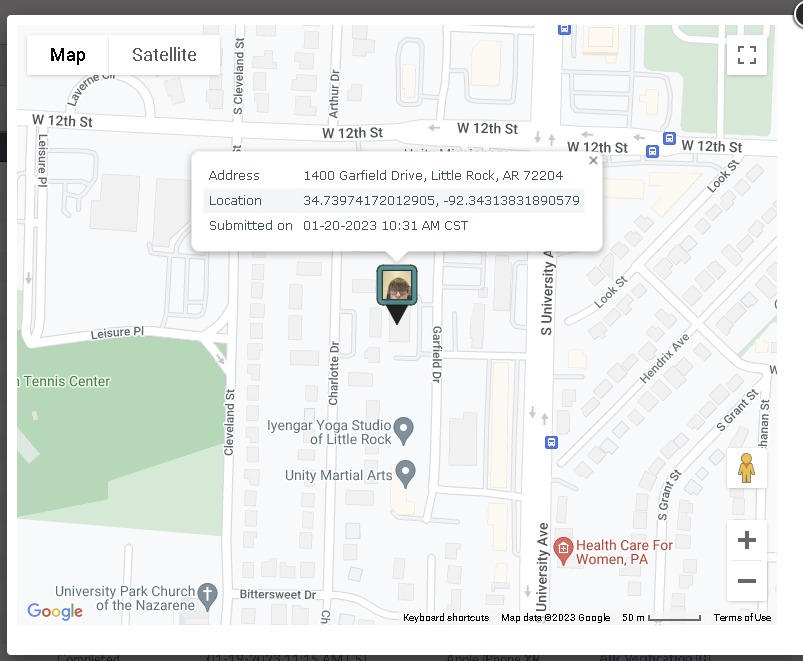
16. And Photo lets you verify the photo or set it as their profile photo.
Tip: Tip! [[Even if they ignore the check in it still captures the data if they open it. If they don't open it it generates a compliance and we use the matrix.]]
[[Remember the compliance notes are what you do to resolve the compliance not what happened. The event tells us what happened we need to know how it was resolved.]]
Was this article helpful?
That’s Great!
Thank you for your feedback
Sorry! We couldn't be helpful
Thank you for your feedback
Feedback sent
We appreciate your effort and will try to fix the article