The Quick Notes Section is essential in Documenting a wide variety of information. Because of this it's important that we use the same language in order to be able to filter down to retrieve information as quickly and effectively as possible.
Logging a Site Visit
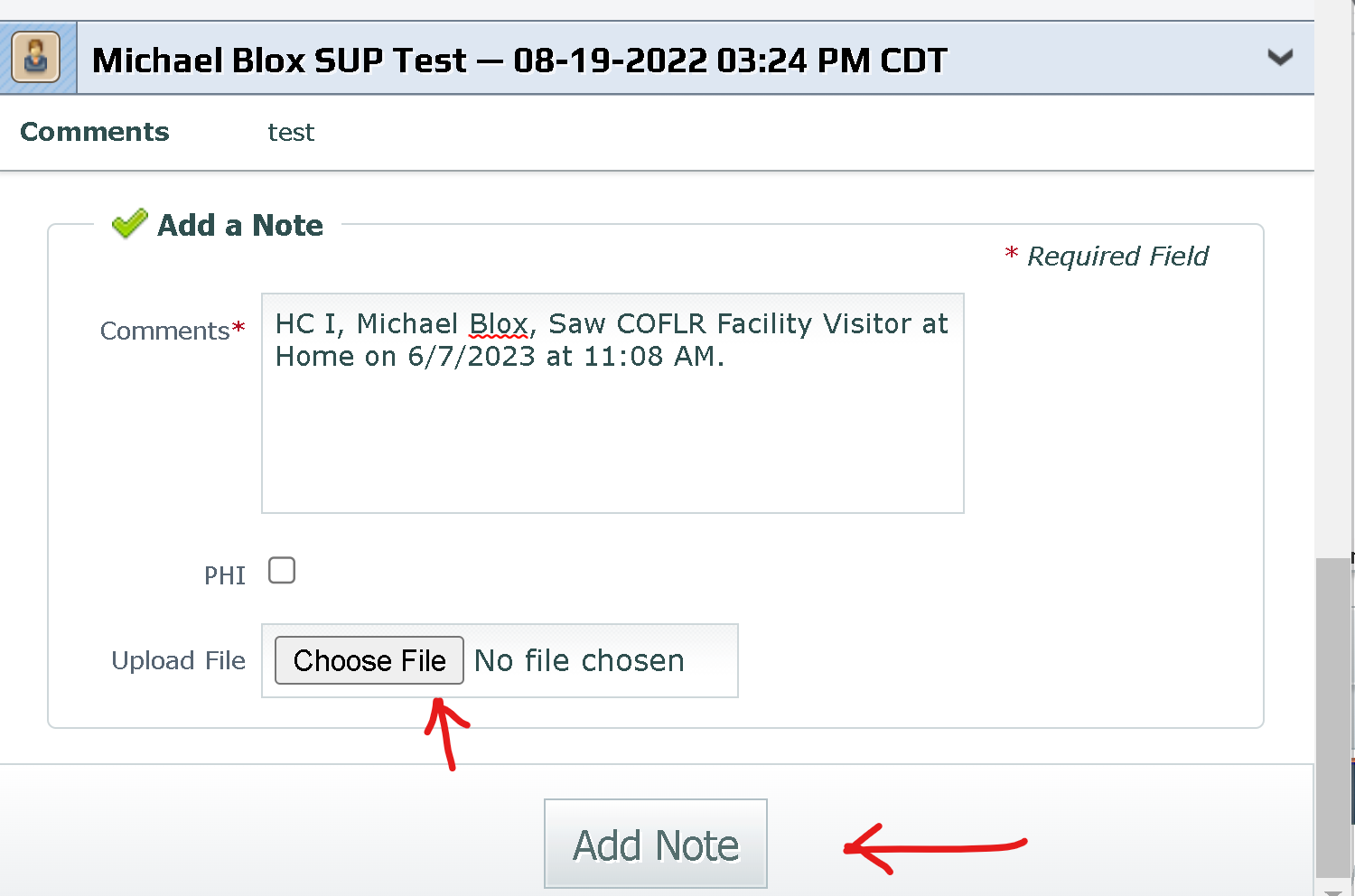
1. Open Quick Notes on the Participant Summary Screen. This can be found on the particpant summary screen.2. Type in your note with the Following Language "HC: I, (your name) saw (Resident Name) at (location site visit took place, home or place of employment) on (Date) at (Time) 3. Upload the photo of the visit and click Add Note
Reviewing a Site Visit
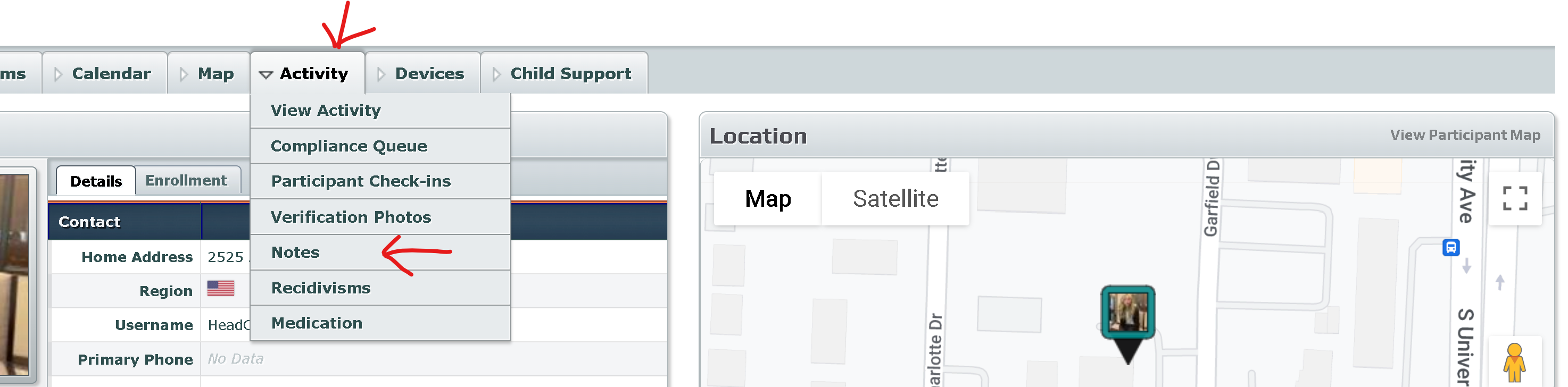
1. Go to Resident Participant Summary Screen and go to Activity and select Notes2. Select the Filter button
3. Set the type of note you're looking for(site Visits are Quick Notes)
4. Set the Author if you know who made the Note you are looking for.
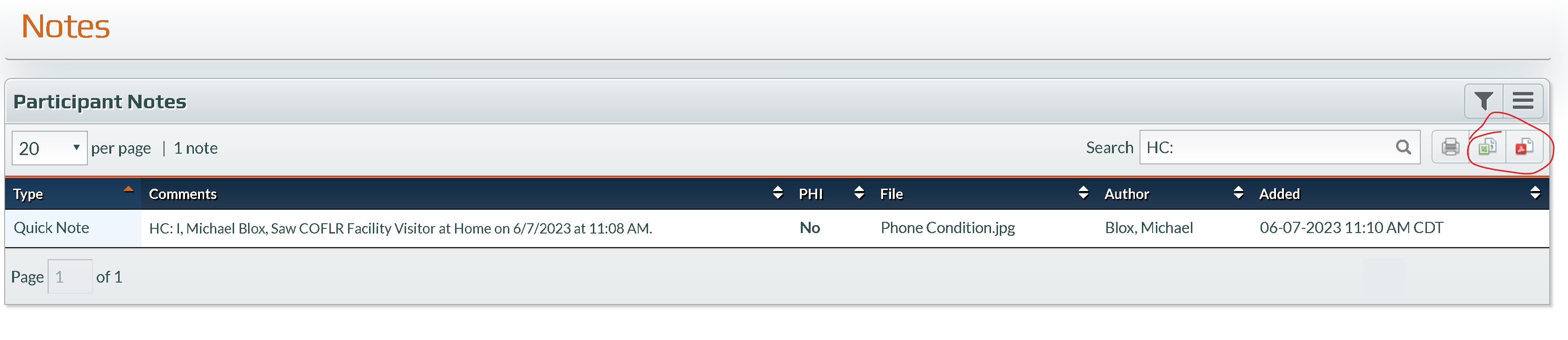
5. Finally type in HC: in the Search Bar What remains will be the site visits for that Resident
6.To Export Select the Adobe or the Excel Icon
Was this article helpful?
That’s Great!
Thank you for your feedback
Sorry! We couldn't be helpful
Thank you for your feedback
Feedback sent
We appreciate your effort and will try to fix the article