Participant Summary Page
1. Navigate to the Participants page
Profile Components
2. Each Section has a specialized function in the Participant Summary Page. Here you will see something similar to what's pictured below. The pieces are as follows
- Action Hub
- Menu Bar
- Information/Demographics
- Maps
- Calendar
- Activity
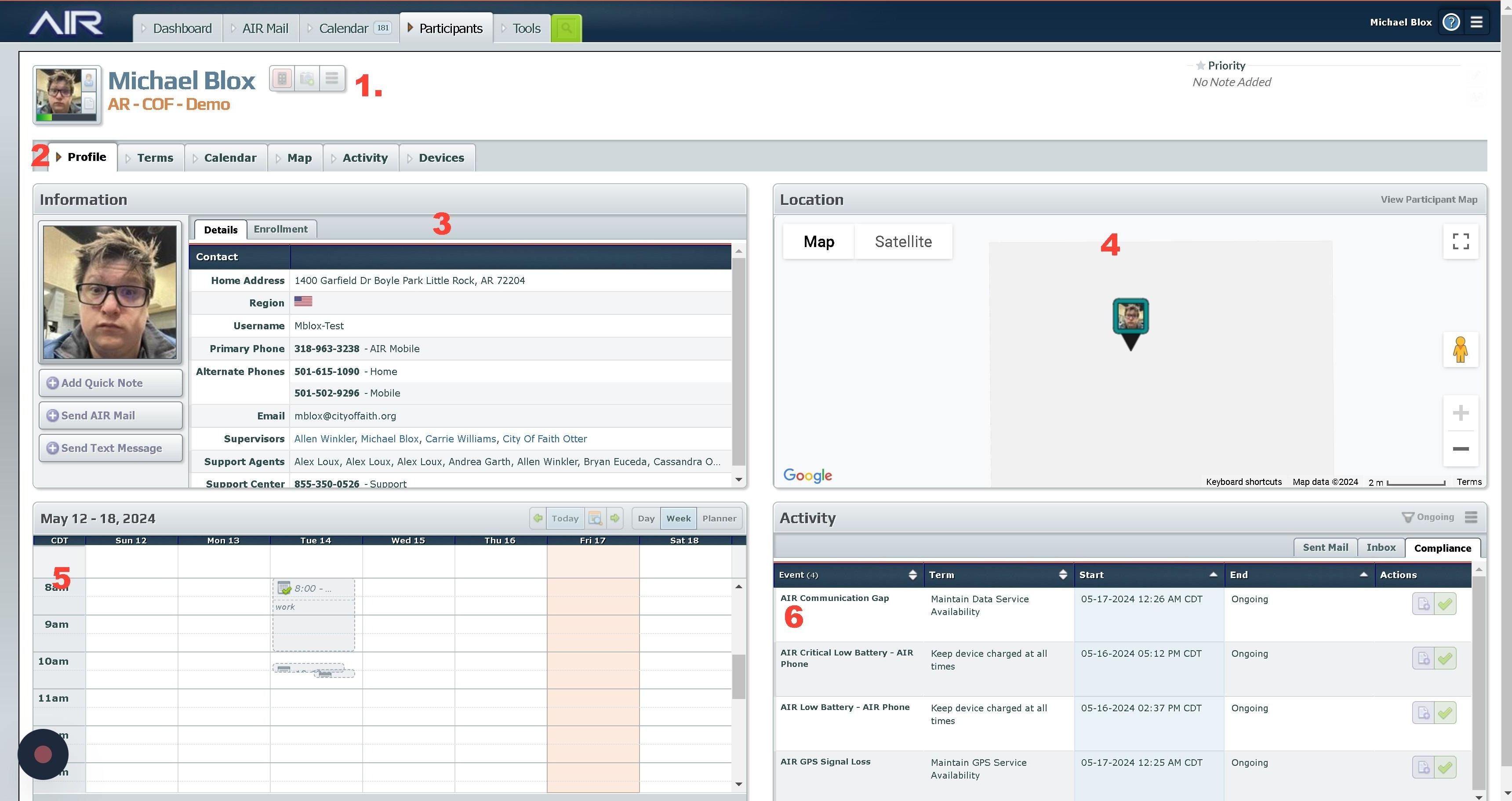
The Action Hub
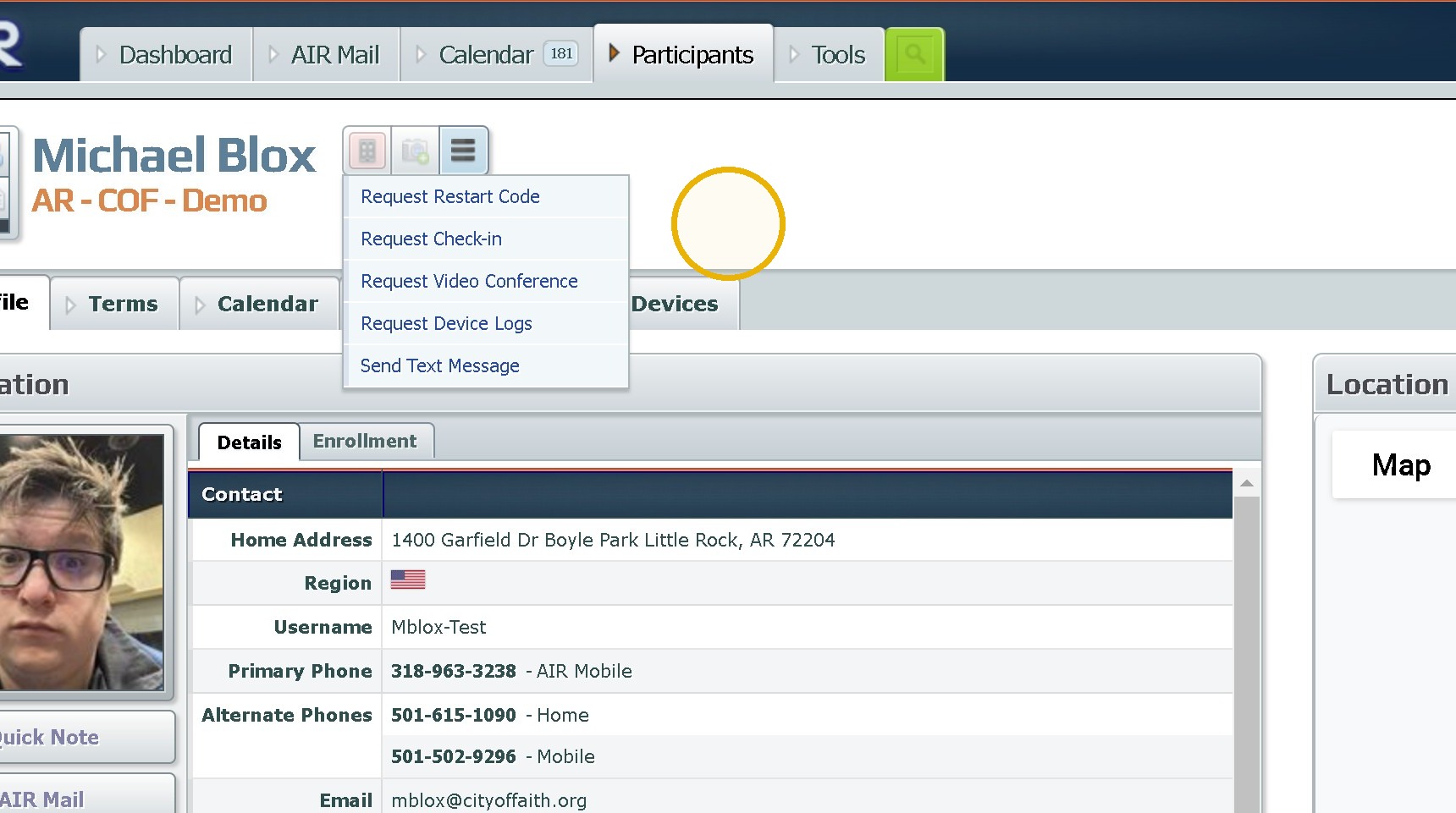
3. The Action Bar next to the particpant name serves as a way to quickly troubleshoot with the participant in regards to their device. The first section is device.
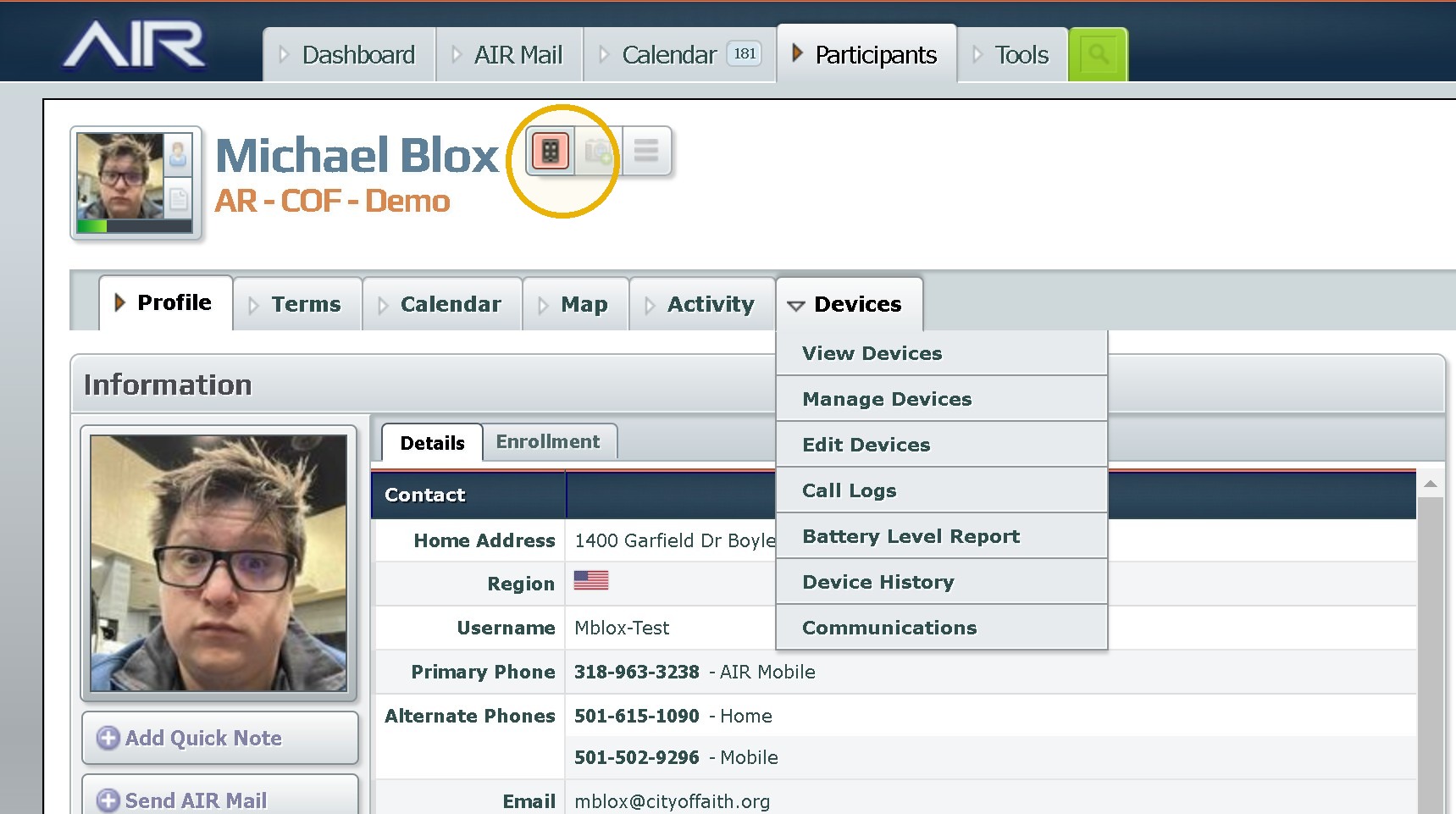
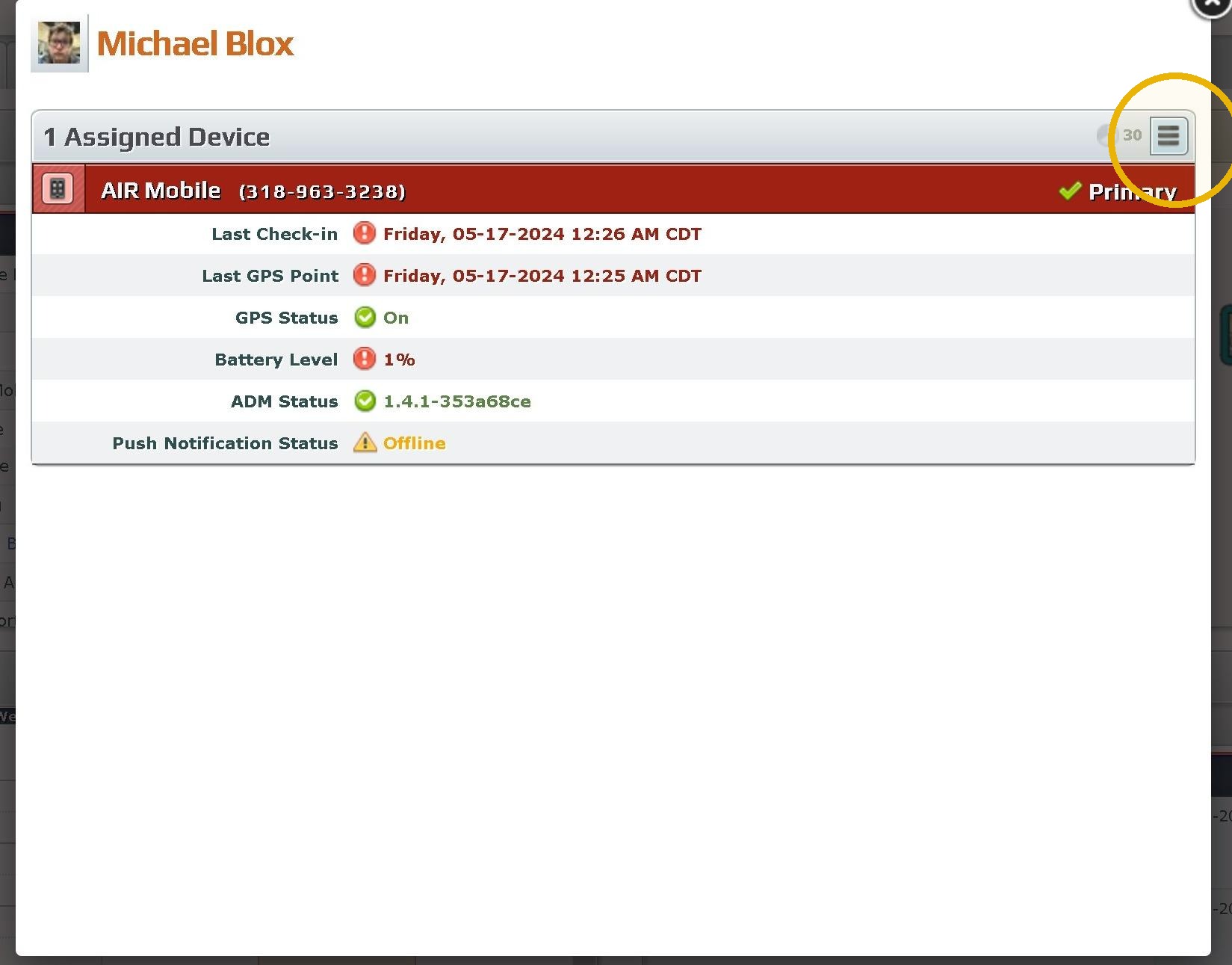
4. This section generates a overview of what the device and when the device is reporting. This could potentially explain issue the participant is encountering.
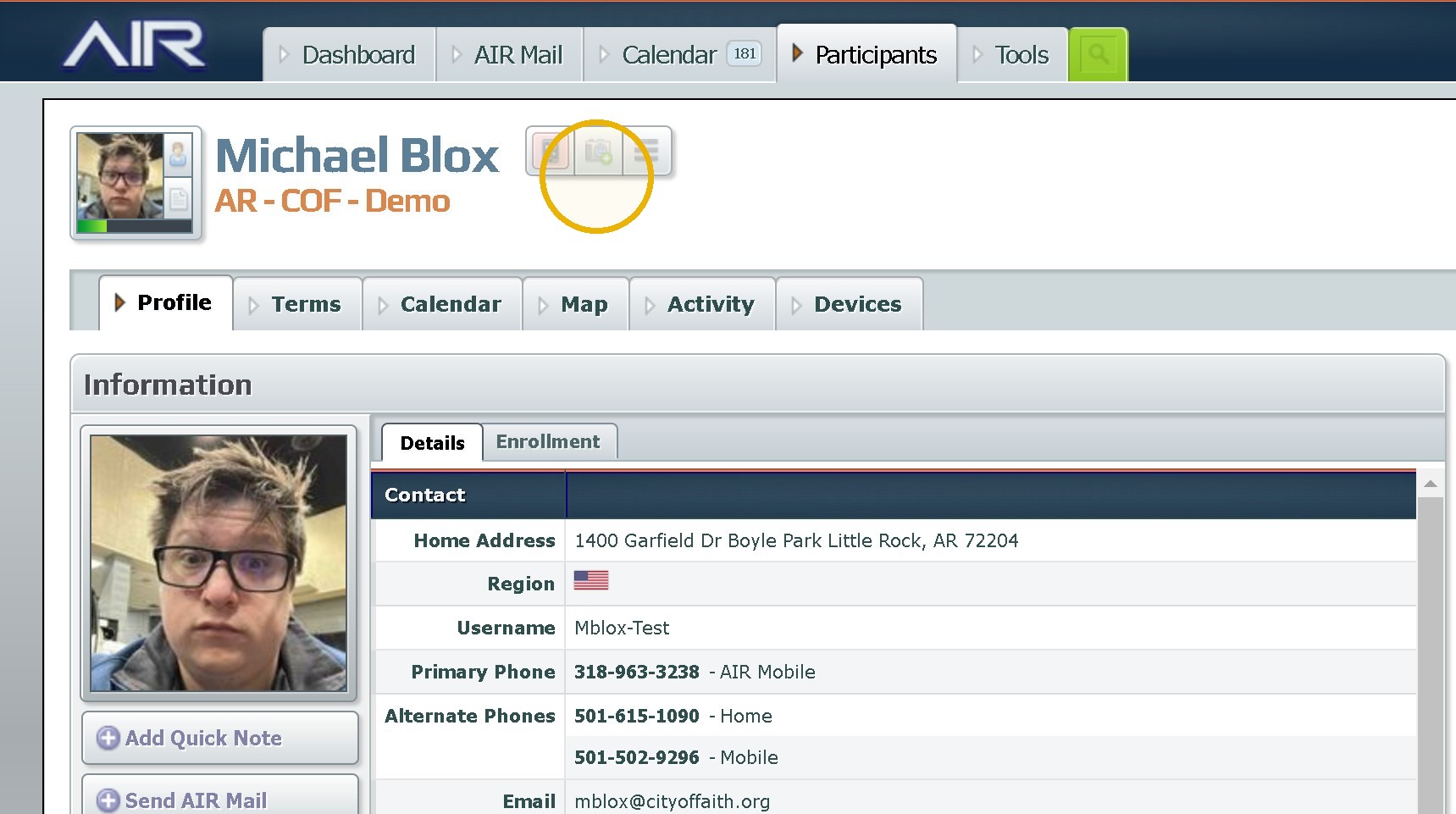
5. The second item is request a photo verification. Make sure you select self or location correctly.
6. The third is device options this section has most of your troubleshooting like restarting the device or Request Device Logs. This also has a couple actions related to compliance with the user like Request Video Confence or Check ins.
The Participant Menu Bar
7. The Menu Bar section has a spot for each section of the Participant Summary.
Profile being the first is related to all forms of enrollment and features a resume builder, allows you to edit enrollment and reset the password(note this can only be done if you are assigned to the person.
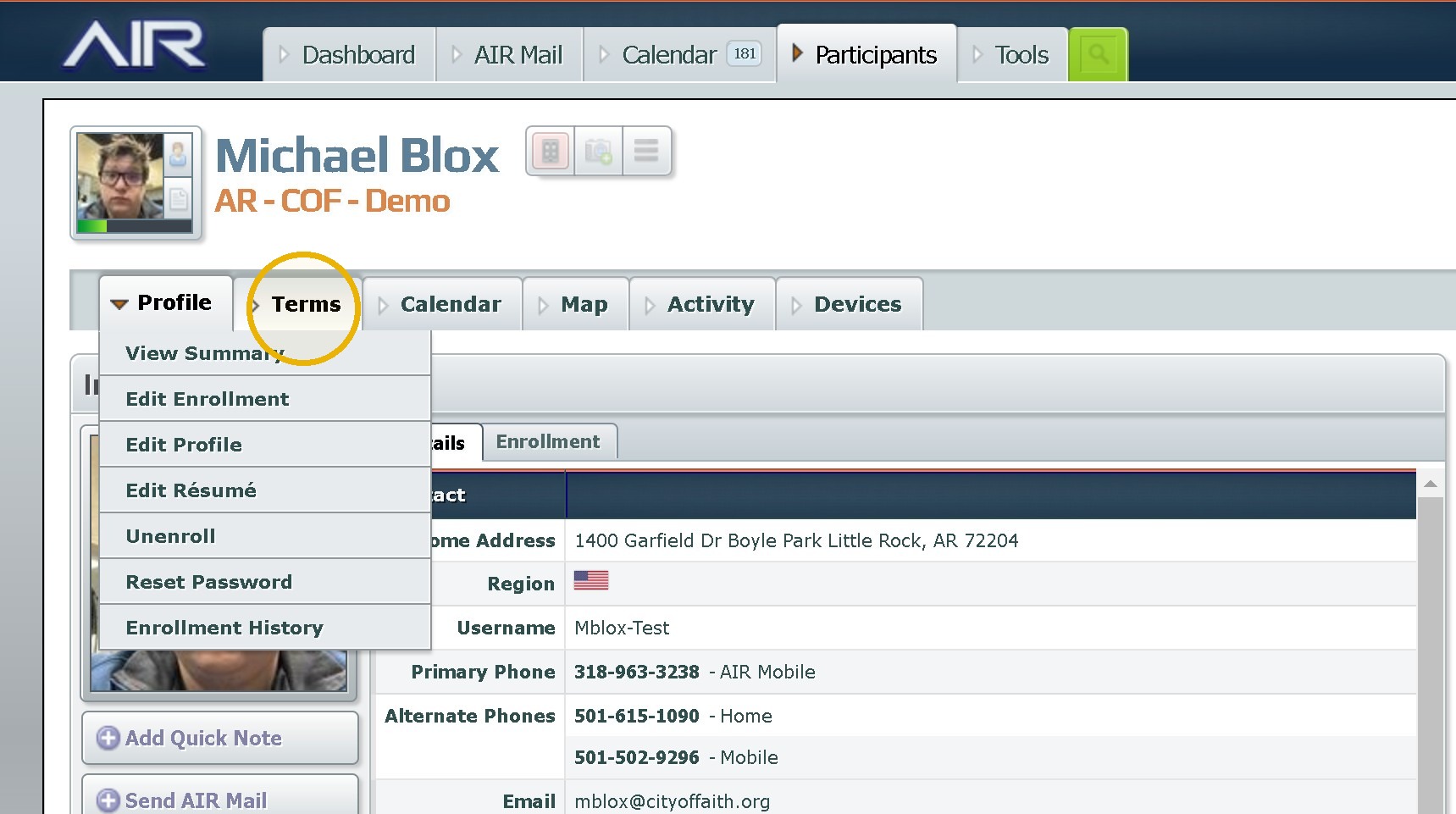
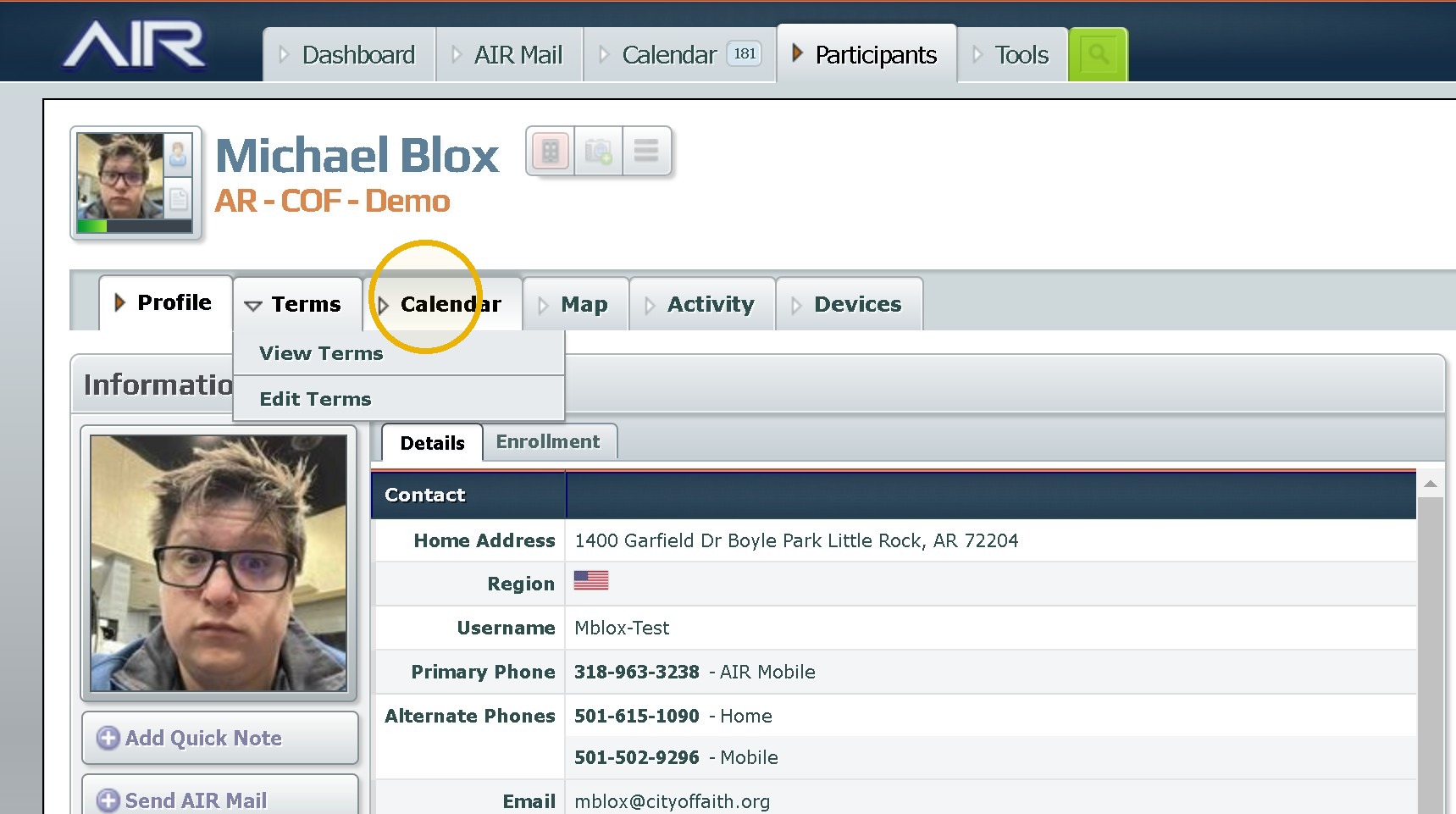
8. Terms allow you to view terms and edit them if necessary(admin only)
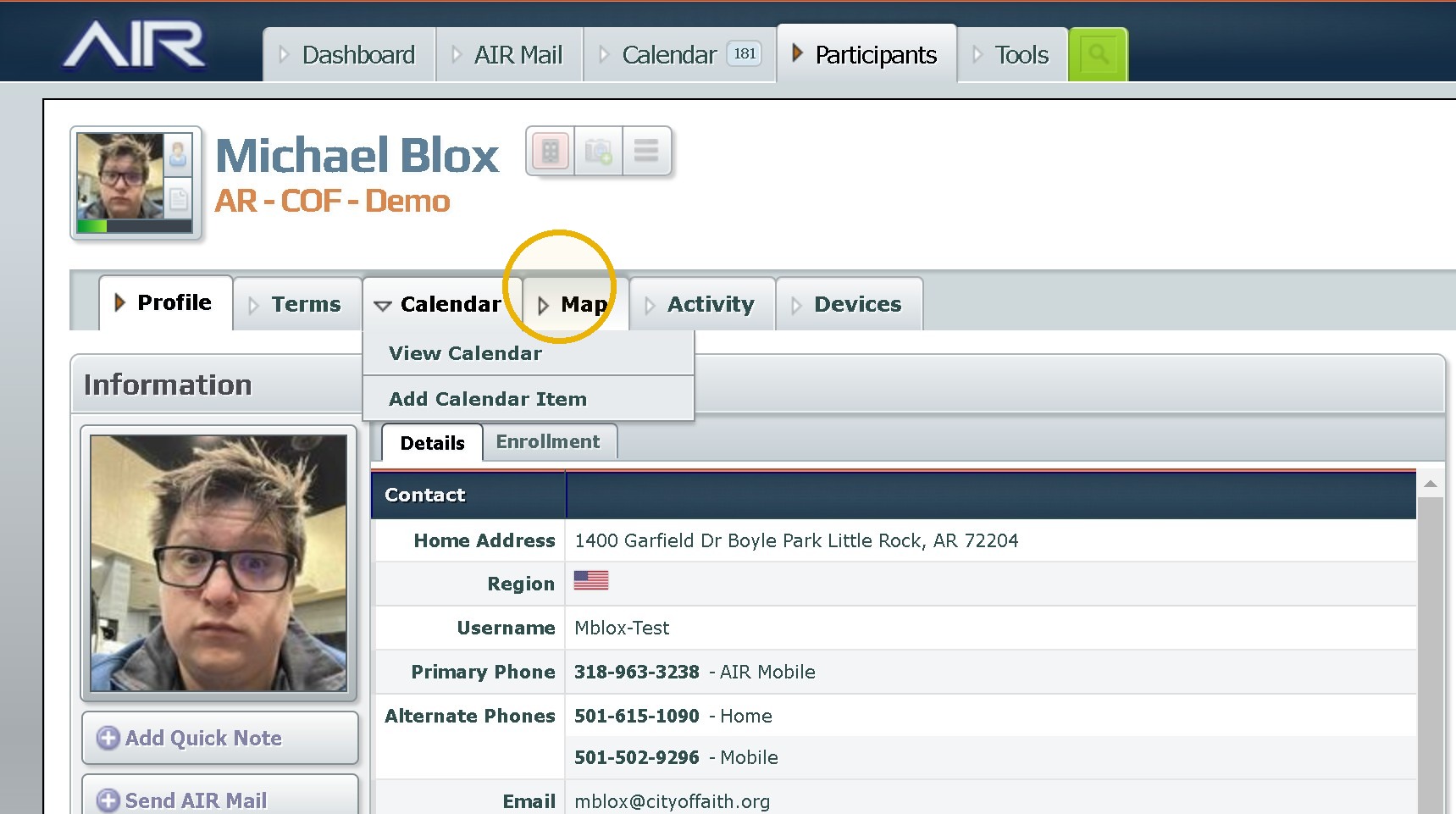
9. Calendar allow you to add random events and view the calendar for the participant.
10. Maps allow you to view zones, add a home zone, review the map, or look at Device Location Clusters(A great tool)
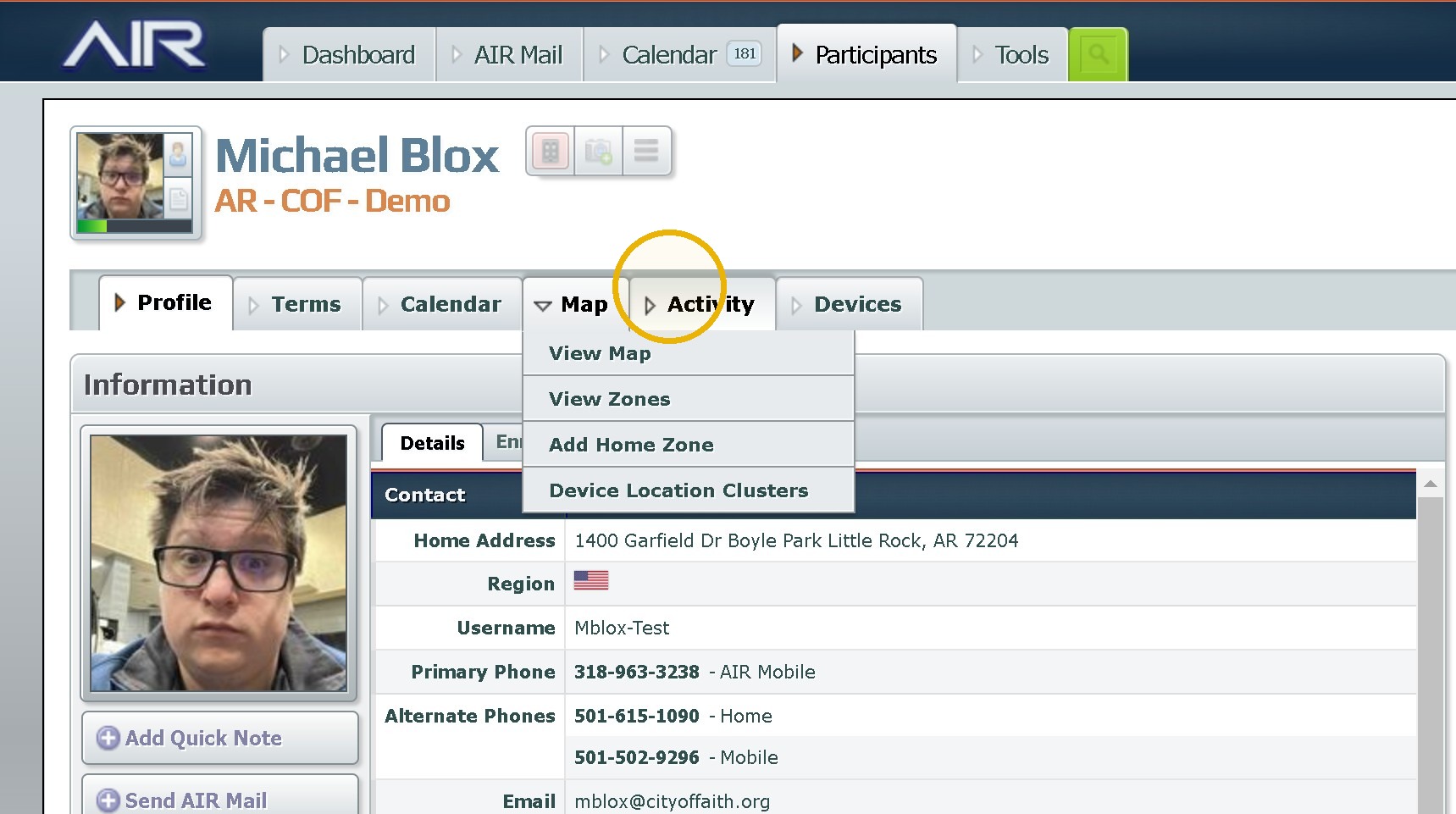
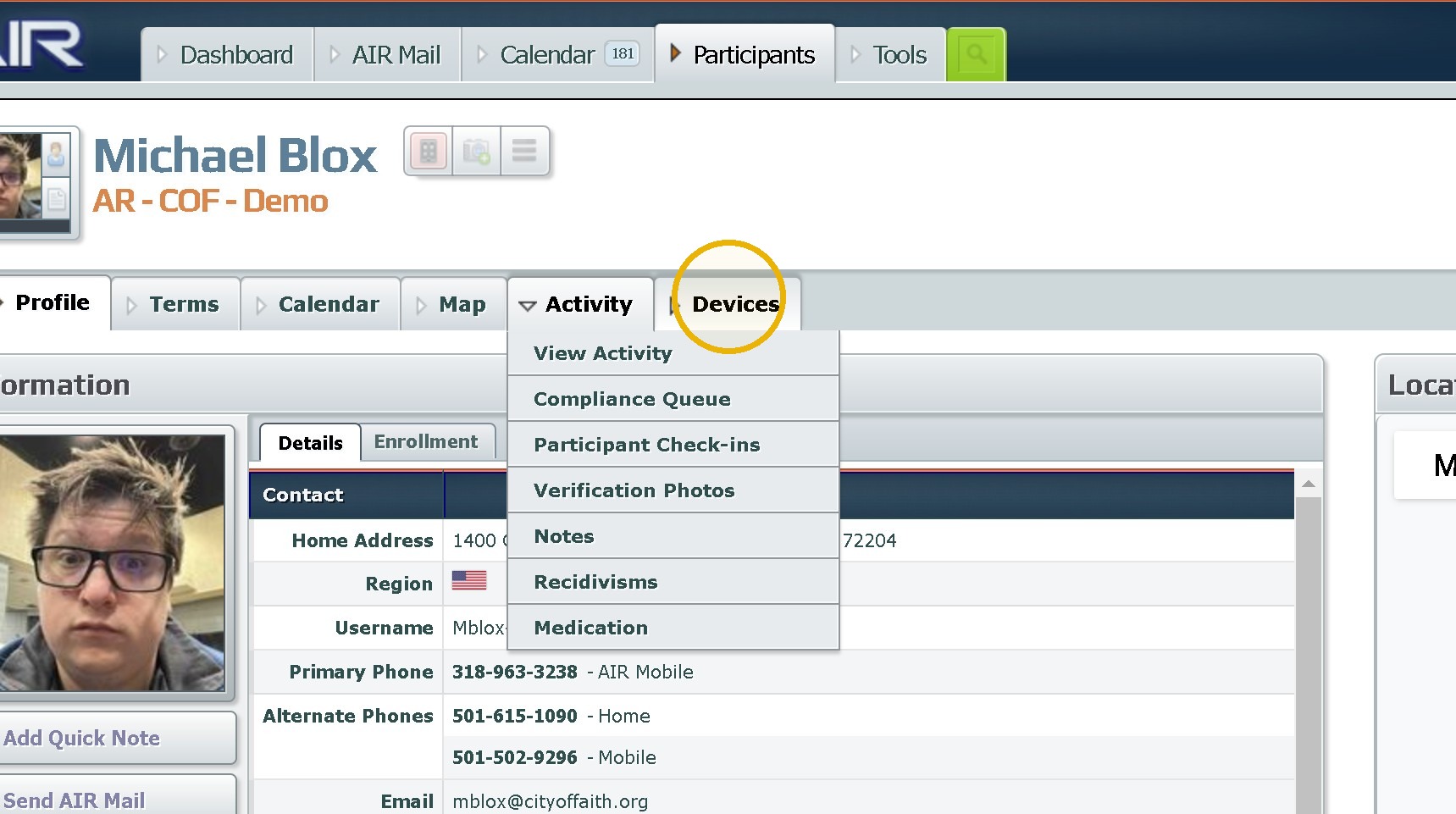
11. Activity allows you to review all historical data pertaining to the participant their movements, and compliances.
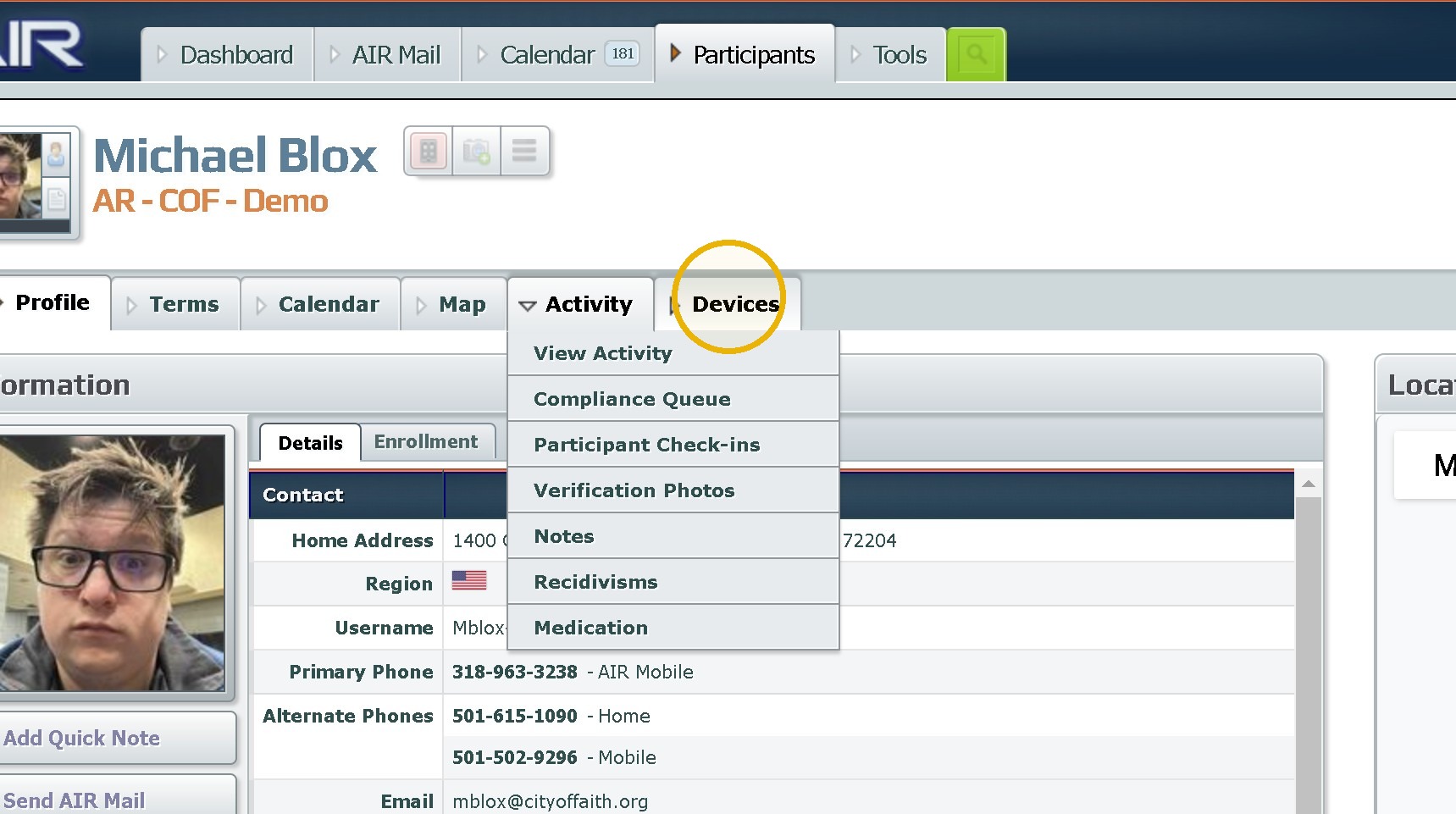
12. The devices tab allows you to review call logs, battery reports and a list of every device currently or previously assigned.
Information
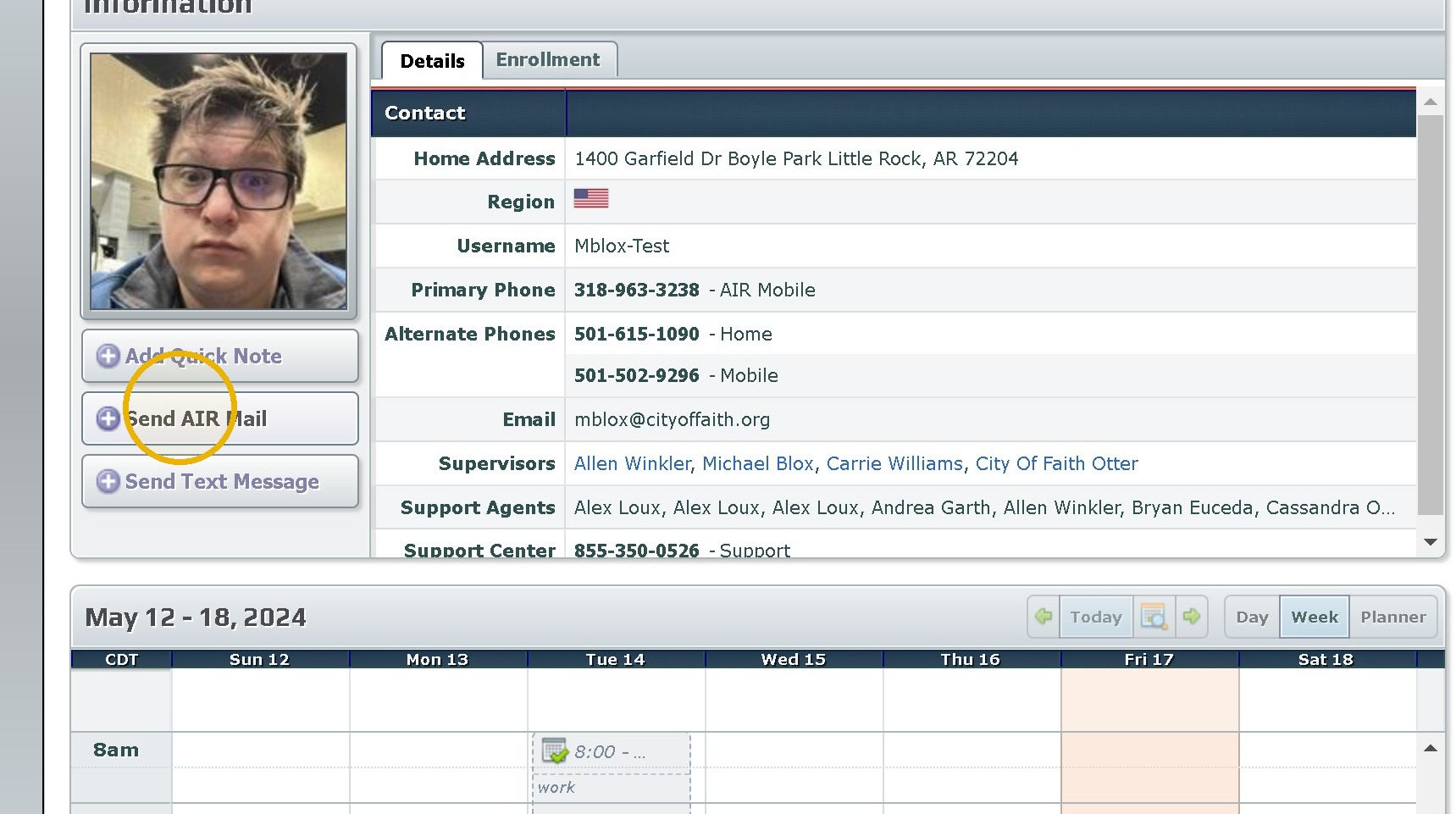
13. The Information section allows you to quickly and easily review demographic information phone numbers and any custom ids.
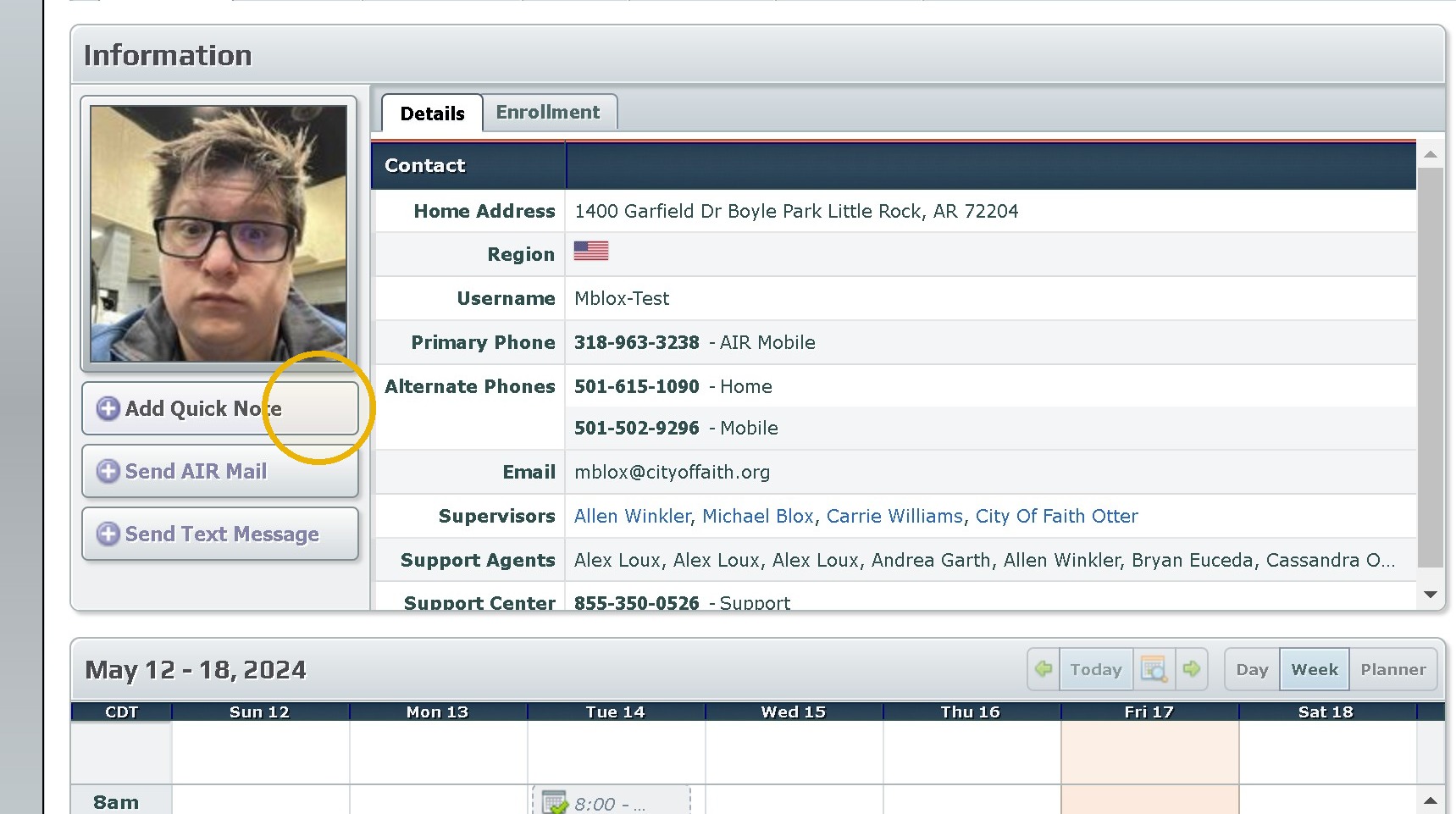
14. It also allows for the use of these three quick actions.
The Map
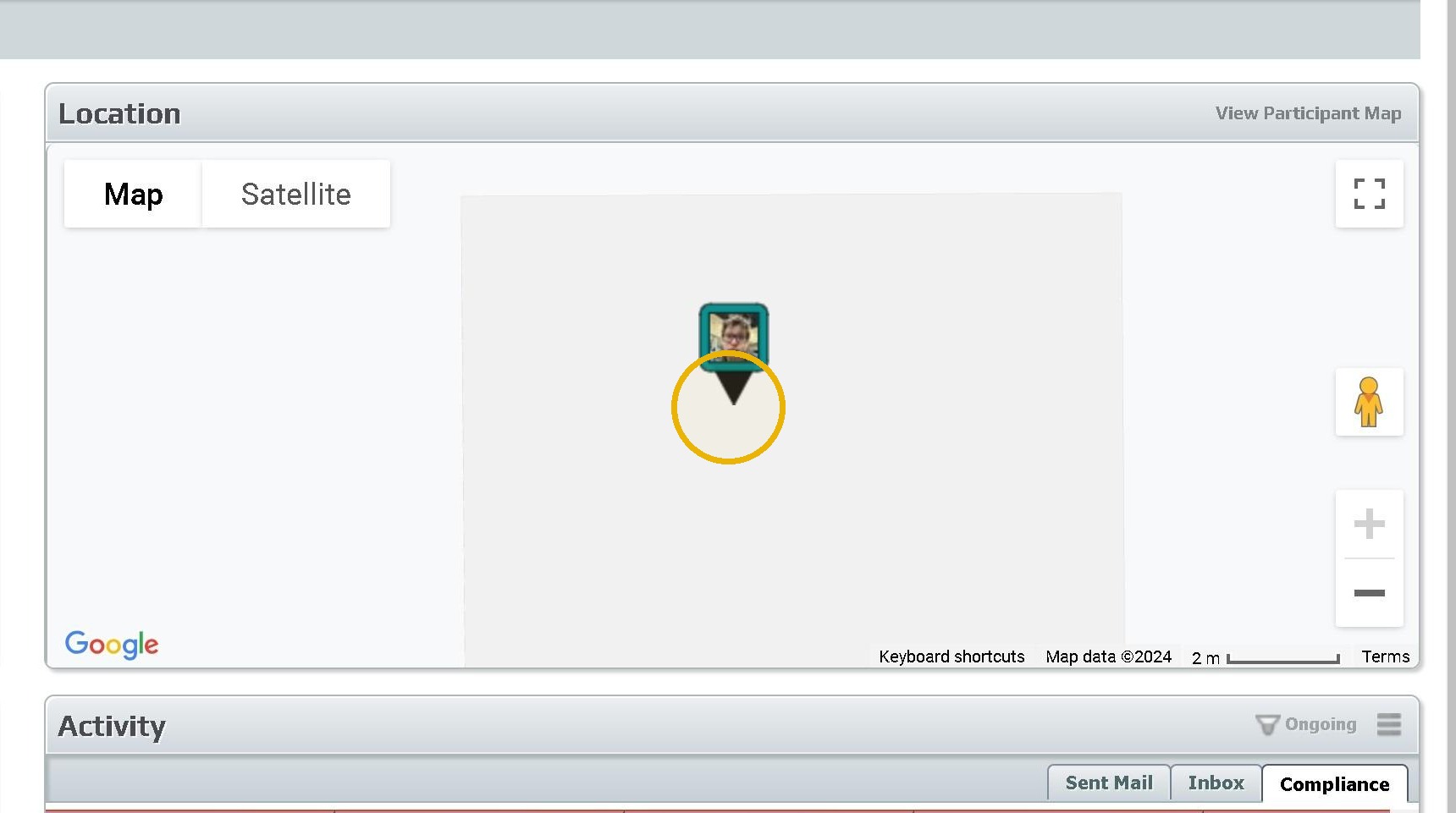
15. The Map section allows for the review of current location and can be expanded to view specific times if needed.
Calendar
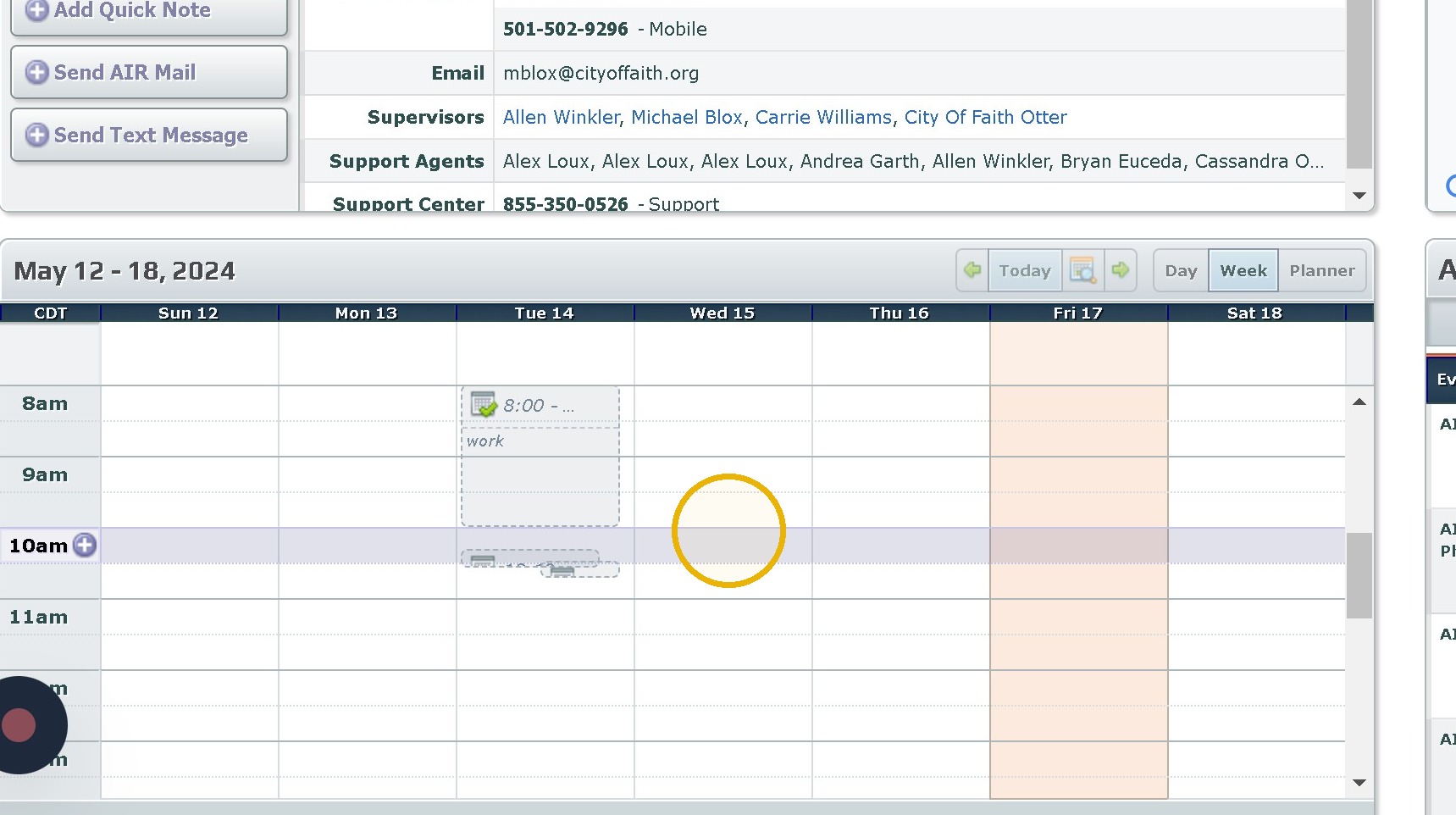
16. The Calendar by default displays as the current week however Day or Planner can be selected with each one showing slightly different views. This section allows you to add, or review events on the calendar requested by the participant or placed their by a member of admin staff.
Activity
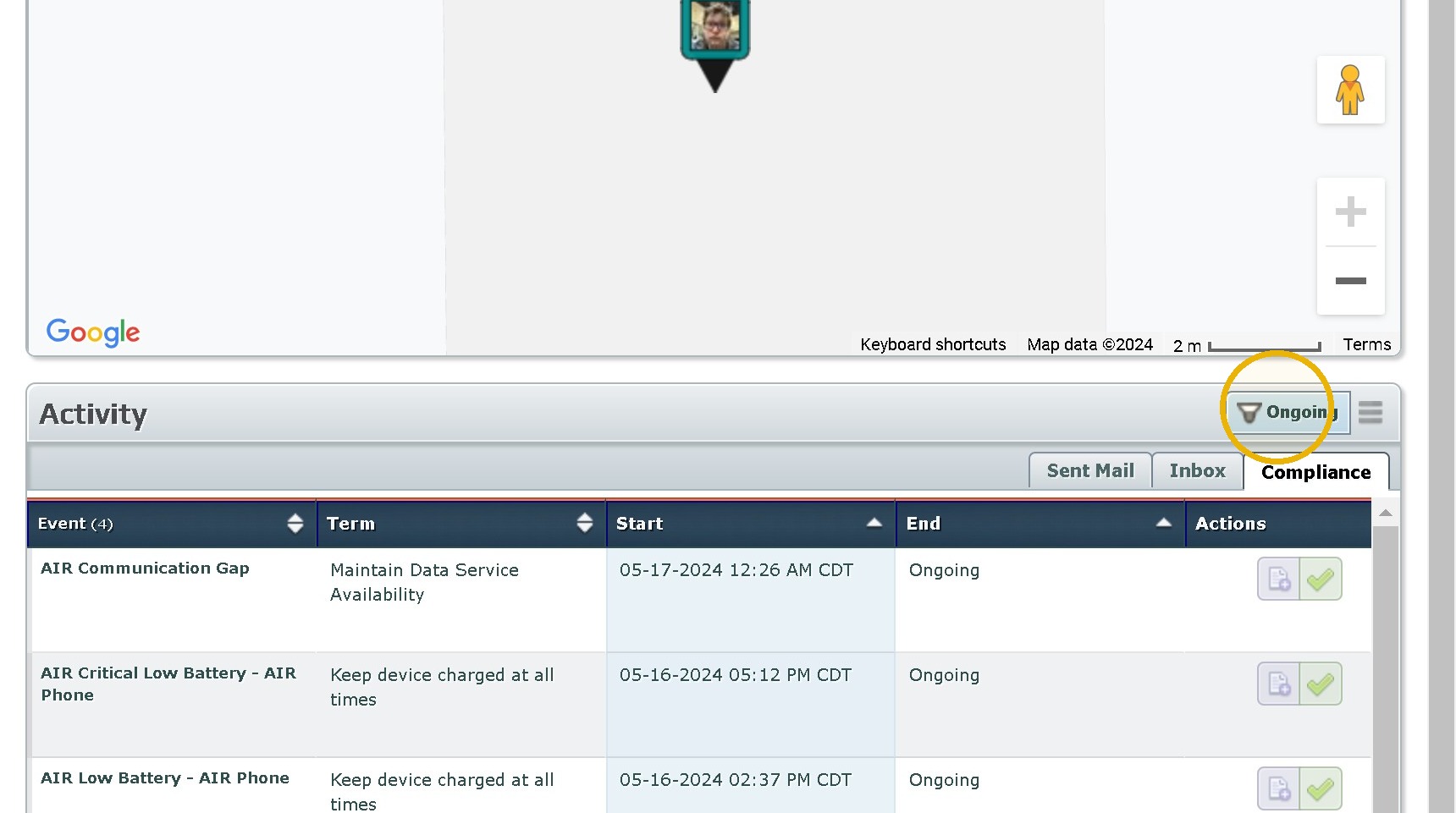
17. Finally we have Activity which allows you to review compliances , and air mail.
Use the Hamburger menu to see completed items.
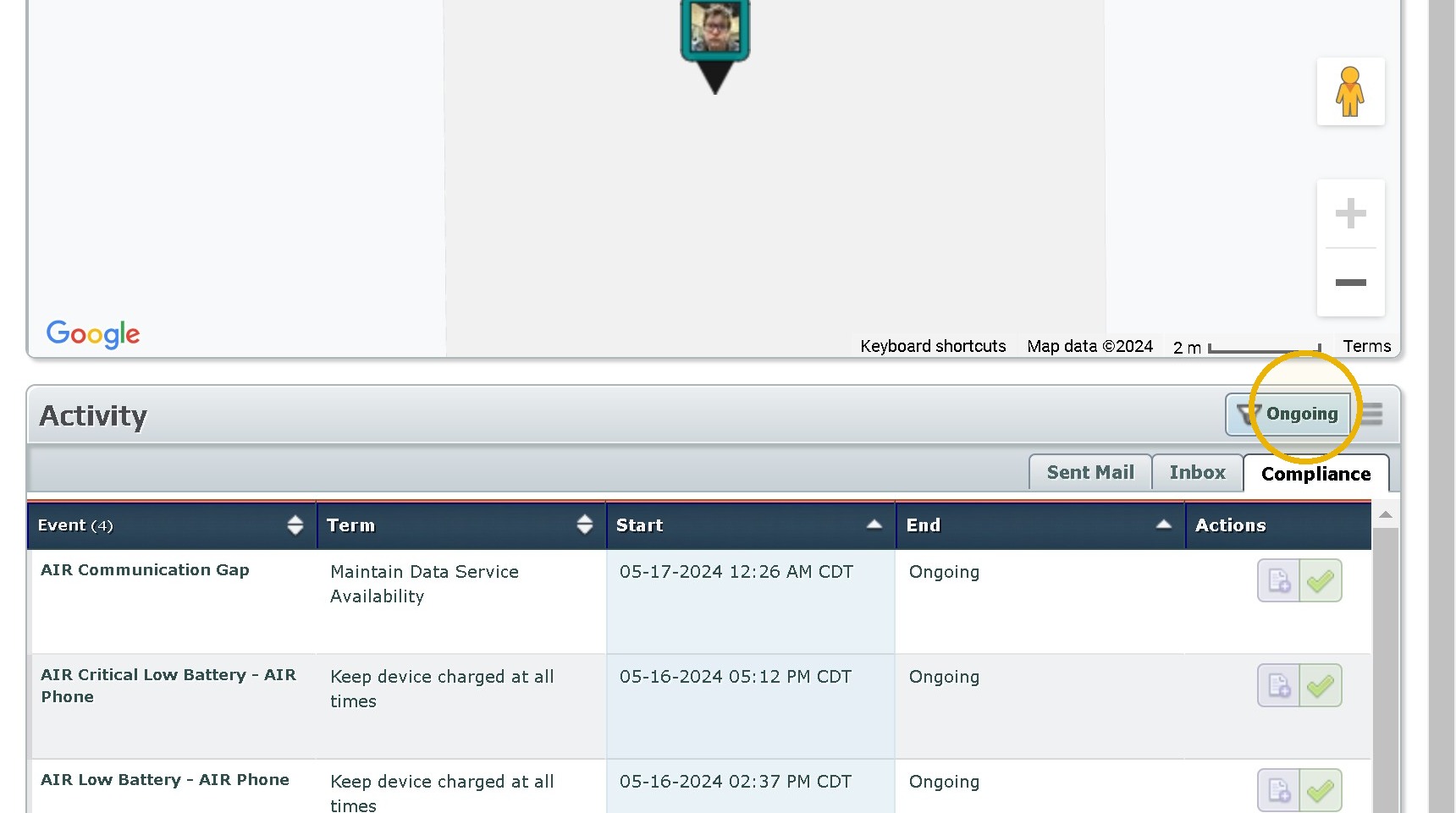
18. Ongoing can be toggled on or off to see current events as needed.
Was this article helpful?
That’s Great!
Thank you for your feedback
Sorry! We couldn't be helpful
Thank you for your feedback
Feedback sent
We appreciate your effort and will try to fix the article