TABLE OF CONTENTS
Adding Tags
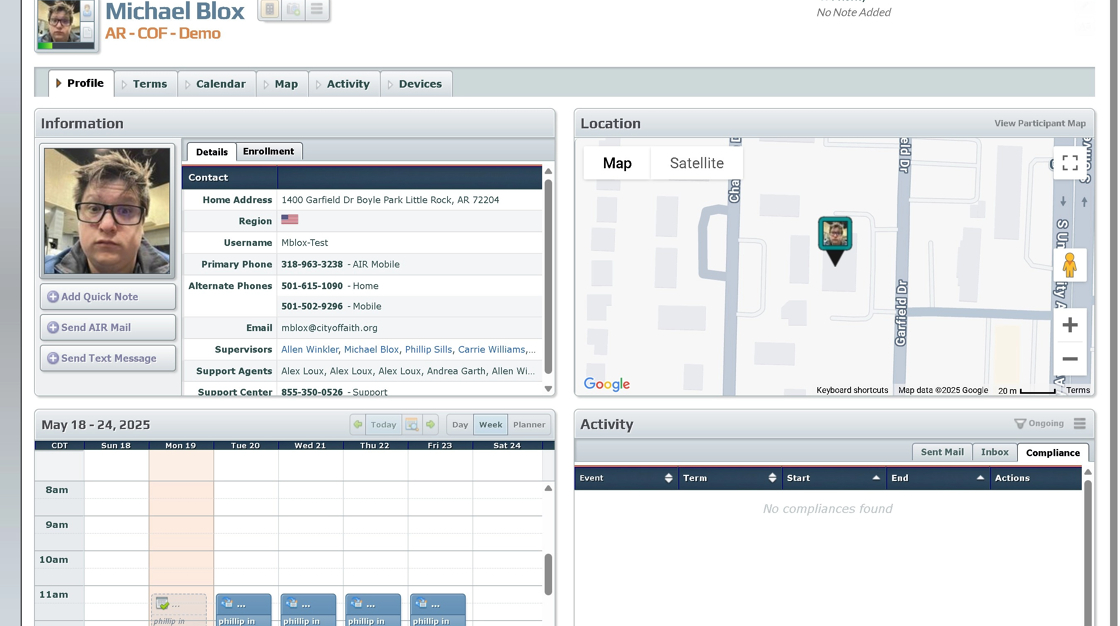
2. Click "Enrollment"
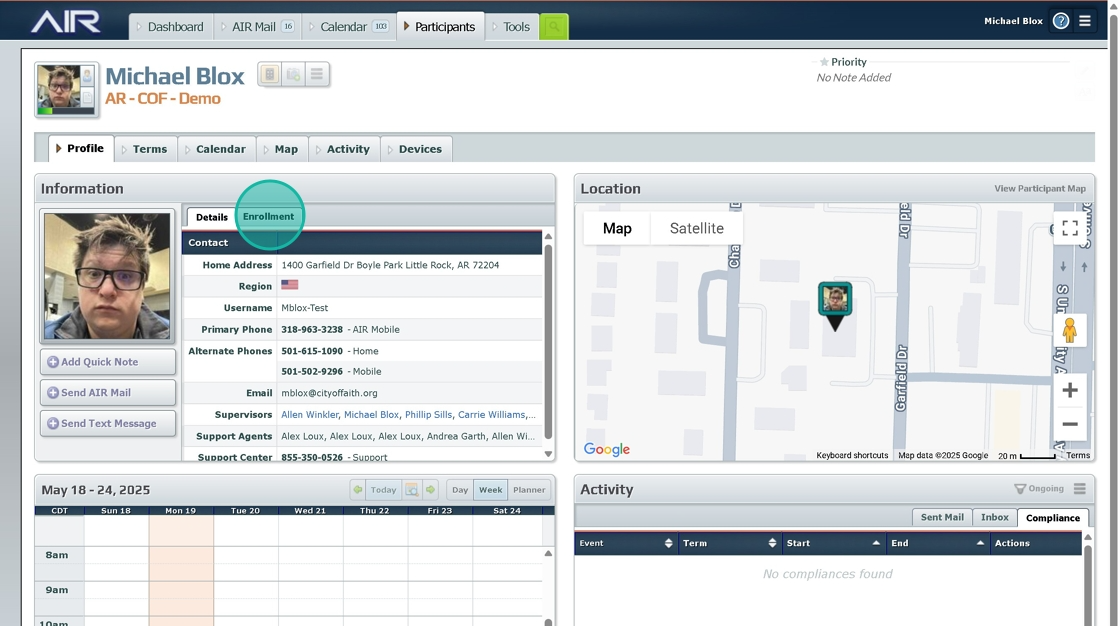
3. Click the "Add a tag..." field.
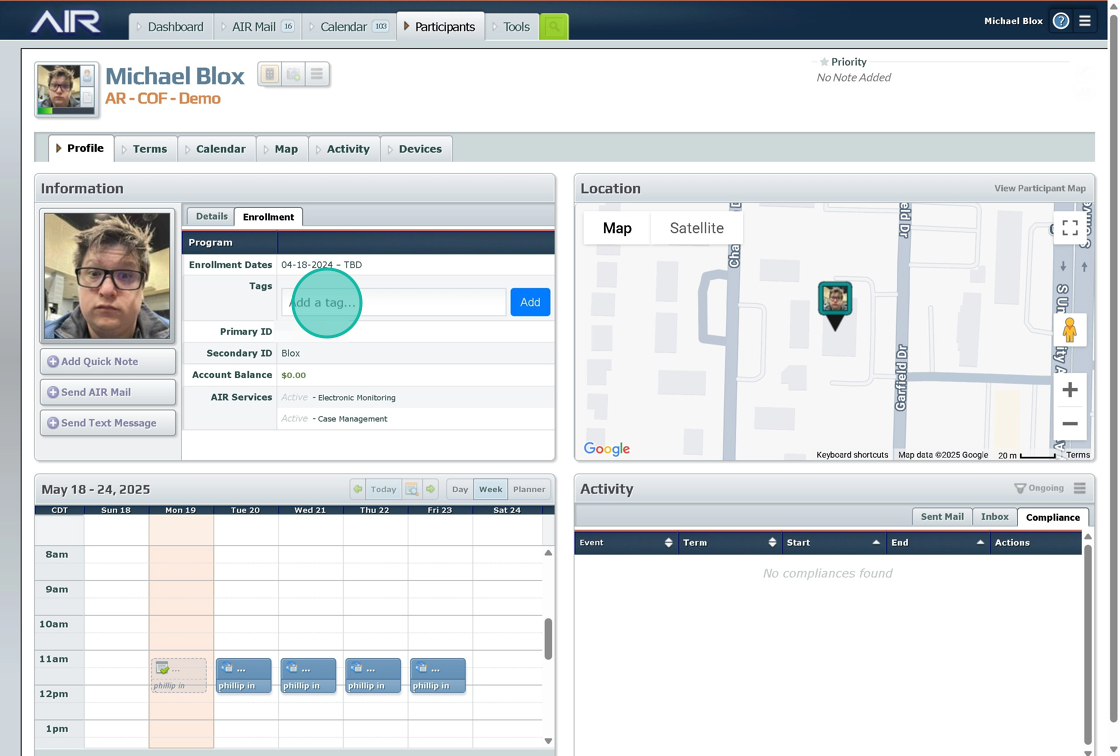
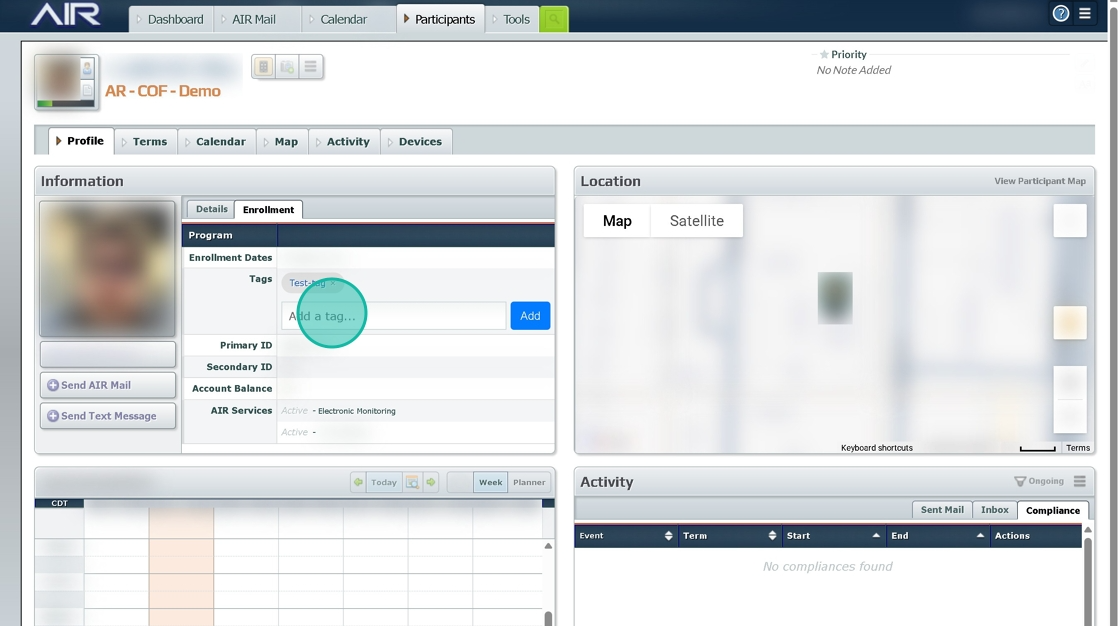
4. Click the "Add a tag..." field. Type in a new tag or one that already exists
Send a Message Using Tags
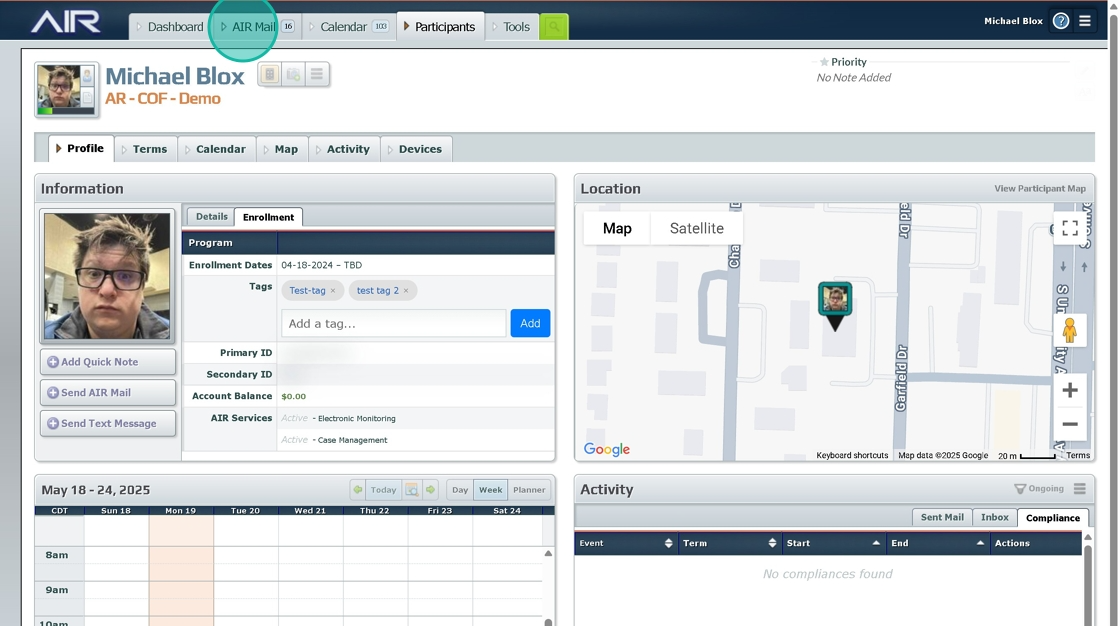
5. Click "AIR Mail"
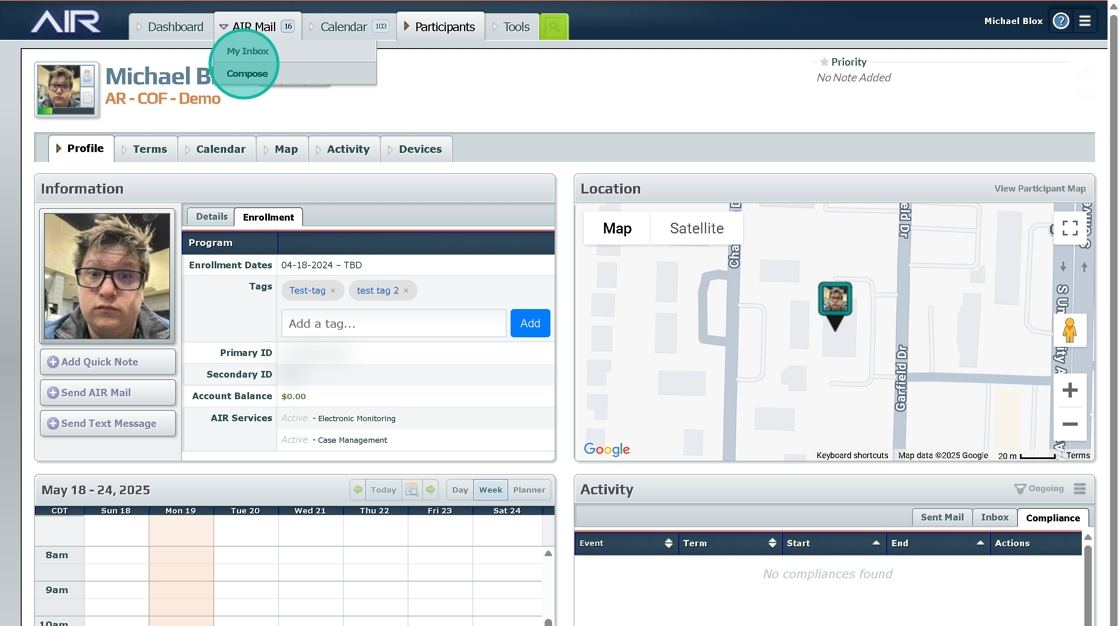
6. Click "Compose"
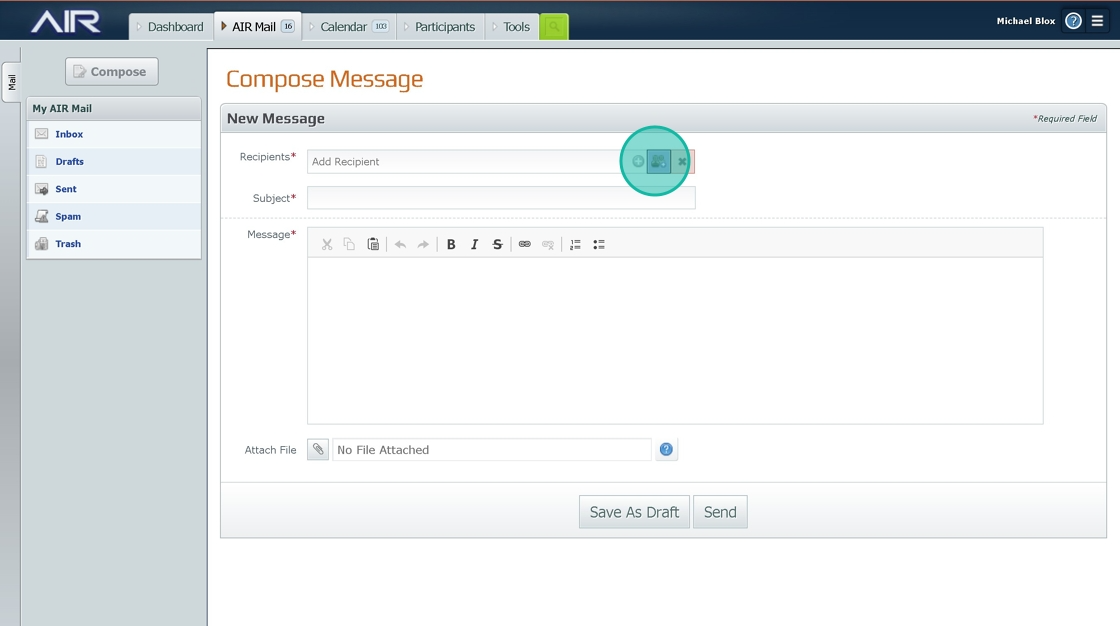
7. Click "+"
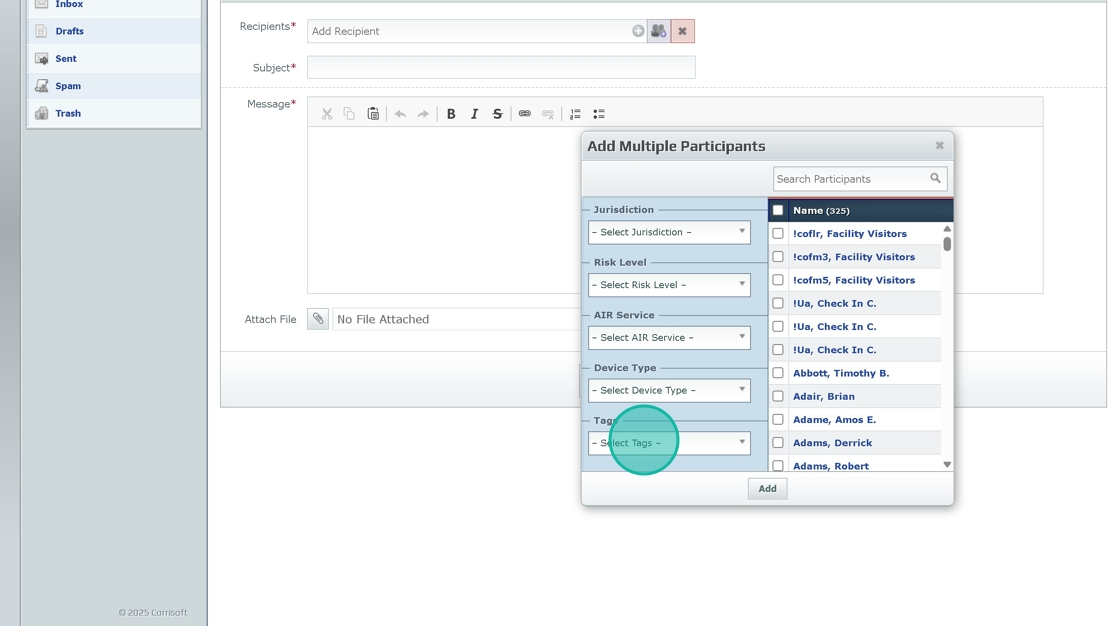
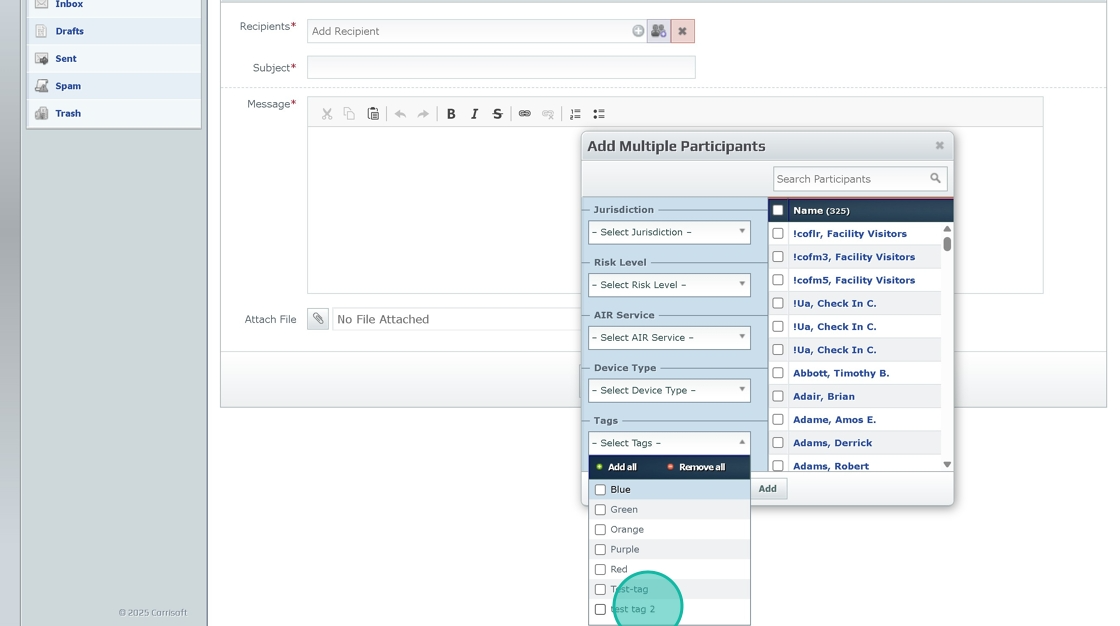
8. Click "– Select Tags –"
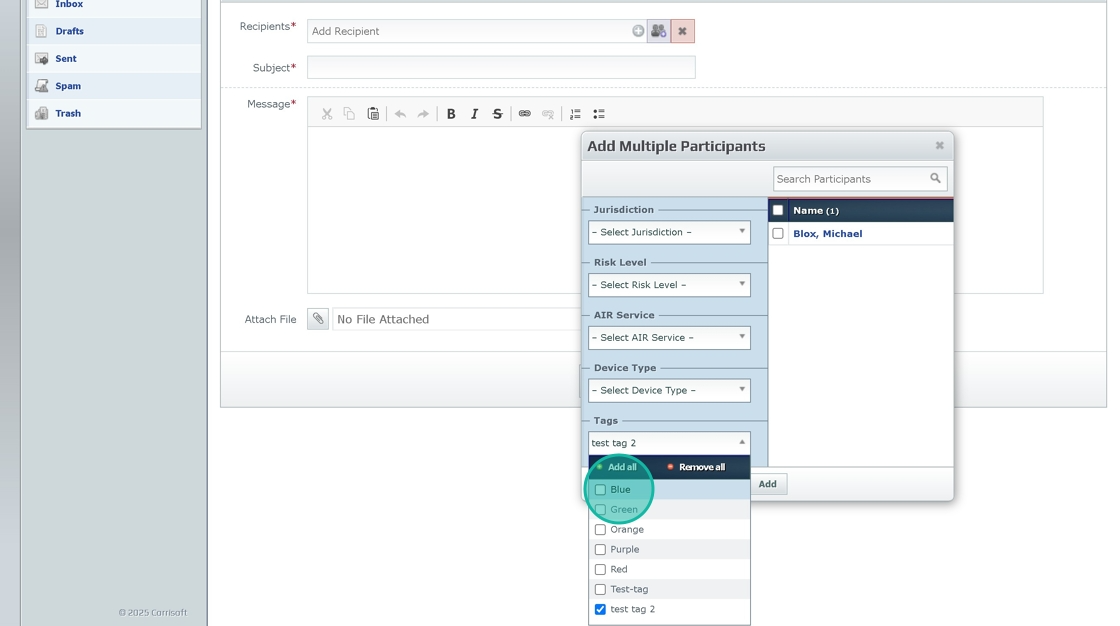
9. Click "test tag 2"
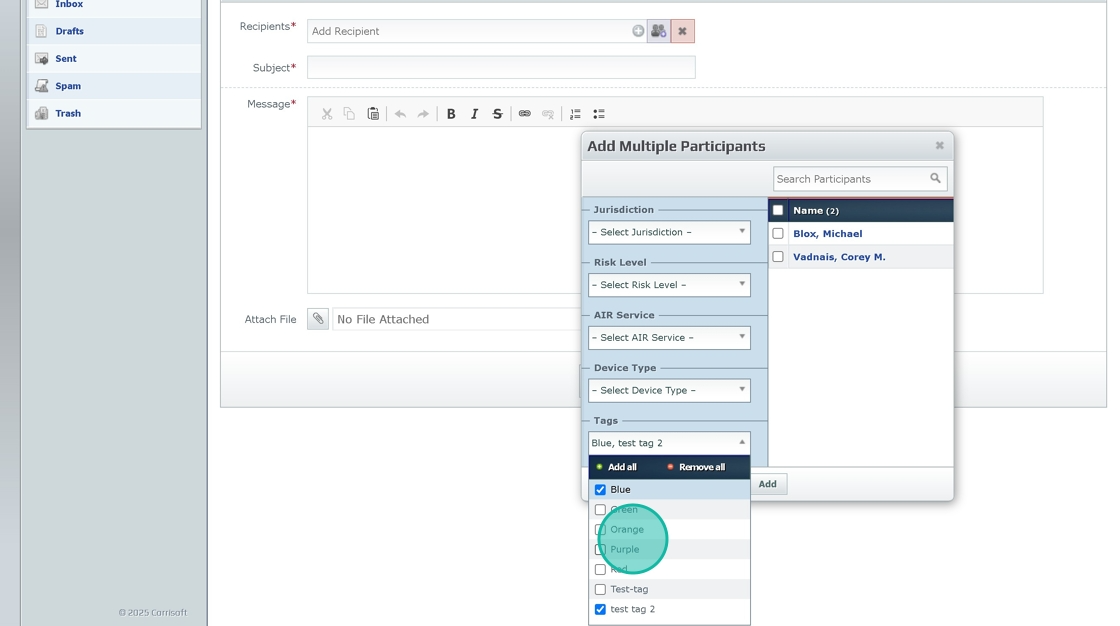
10. Click "Blue"
11. Click "Purple"
Tags in The Participant Filter
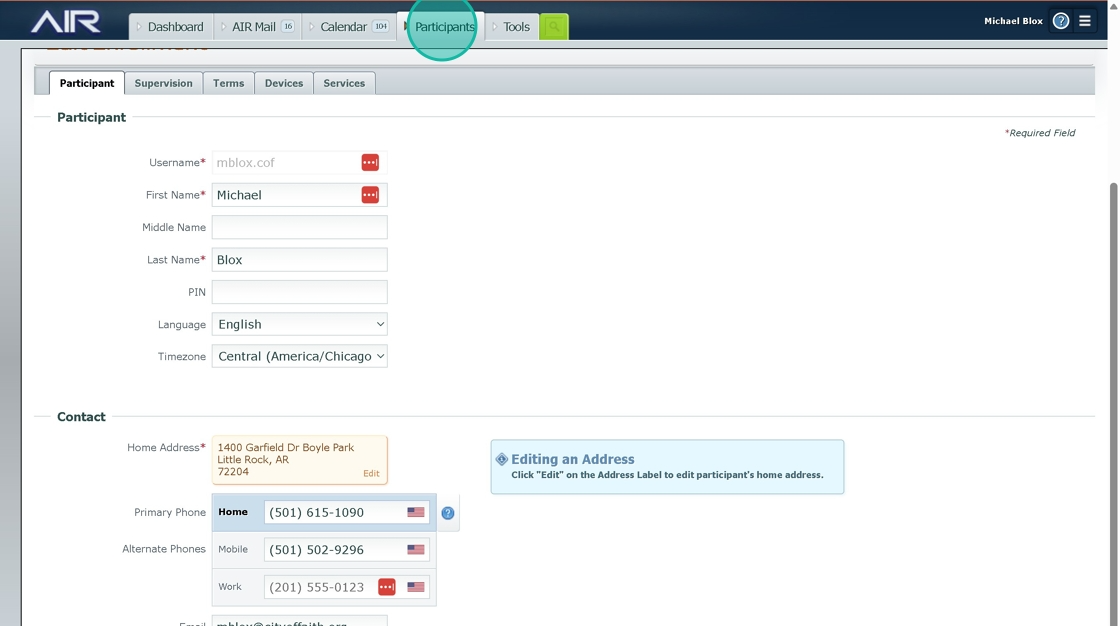
1. Click "Participants"
2. Click "Participant Filter"
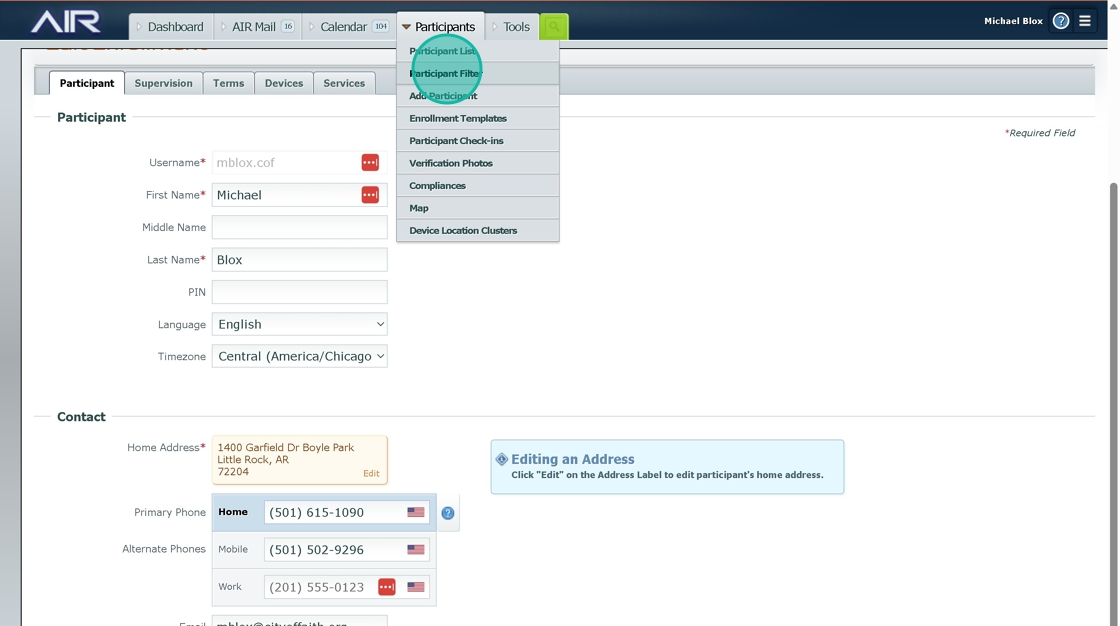
3. Click "The Display Drop Down"
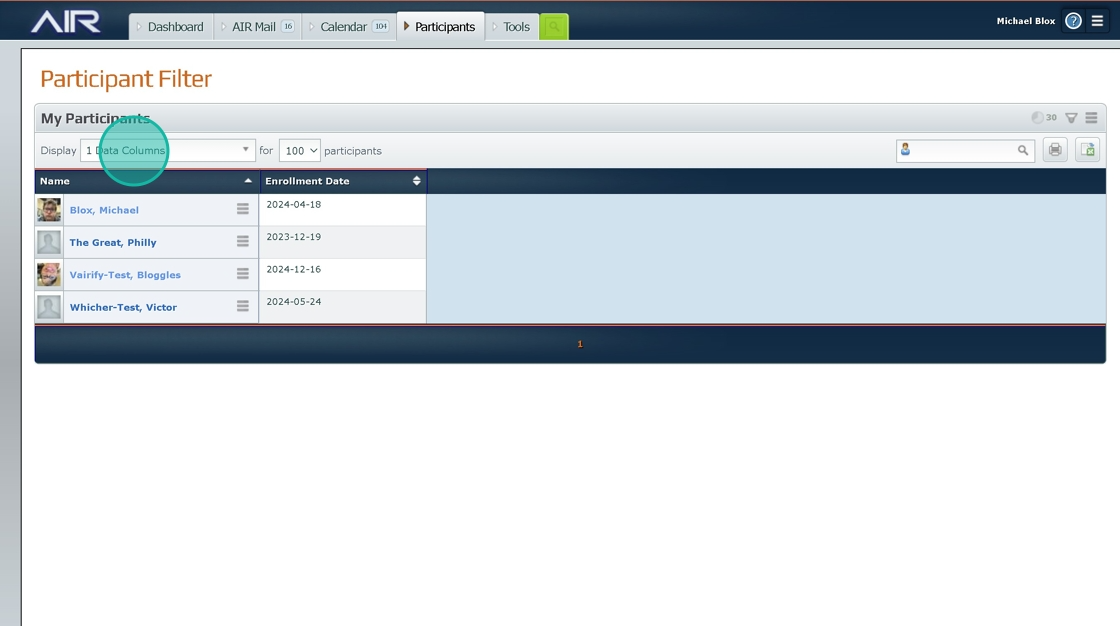
4. Click "Tags"
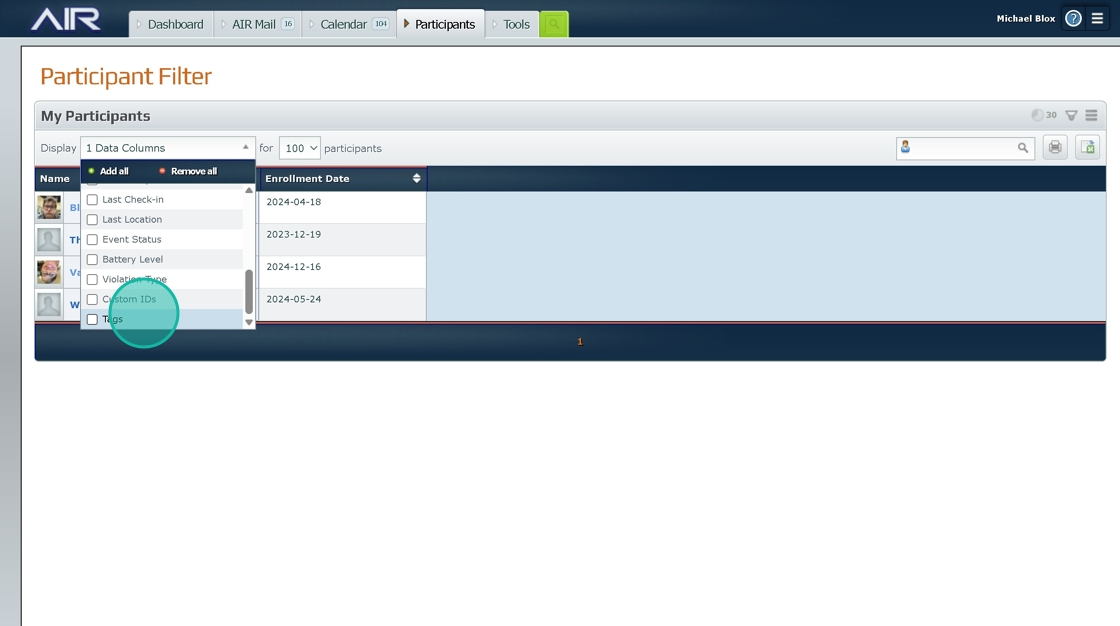
5. Click "Custom IDs" and Both Items will display in the filter.
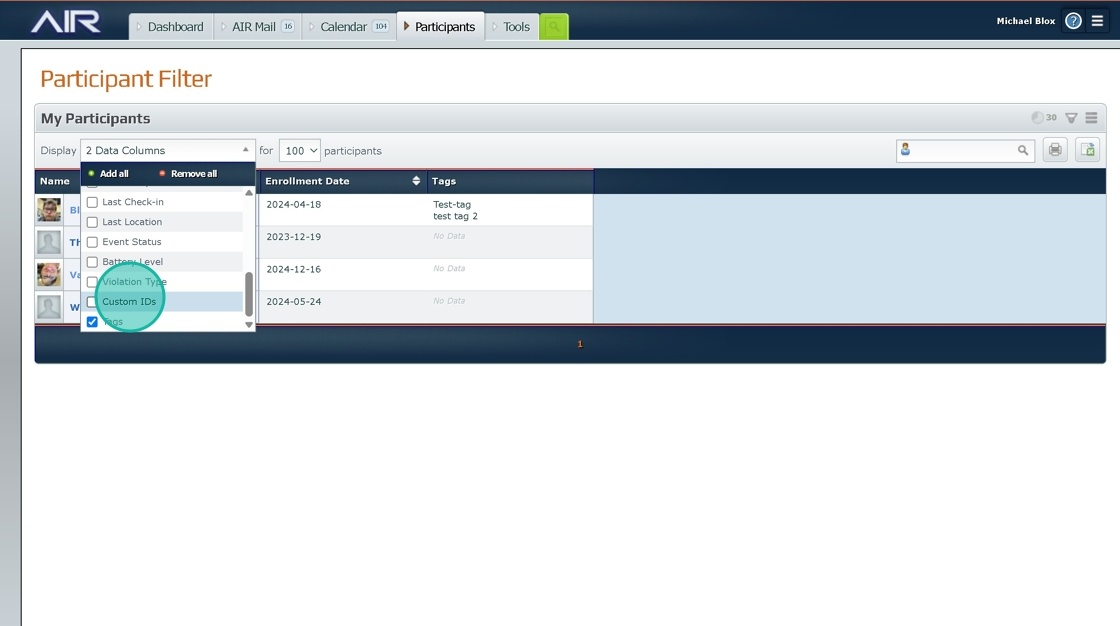
Tip: Tip! To verify the change navigate to the participant page and see the custom IDs make sure it matches the info put in.
6. Click "Enrollment"
7. Click "2021 Nissan Rogue"
Was this article helpful?
That’s Great!
Thank you for your feedback
Sorry! We couldn't be helpful
Thank you for your feedback
Feedback sent
We appreciate your effort and will try to fix the article