Add ADM Settings Override for AIR Mobile Device.
1. Navigate to the requested pass
Tip: While filling out a pass you can adjust specific settings based on the pass itself that prevent events from firing off. It's as simple as one extra click.
Silence the Device
2. Click "Add ADM Settings (will override default device settings for assigned AIR Mobile)"

3. Click the "Add ADM Settings (will override default device settings for assigned AIR Mobile)" field.
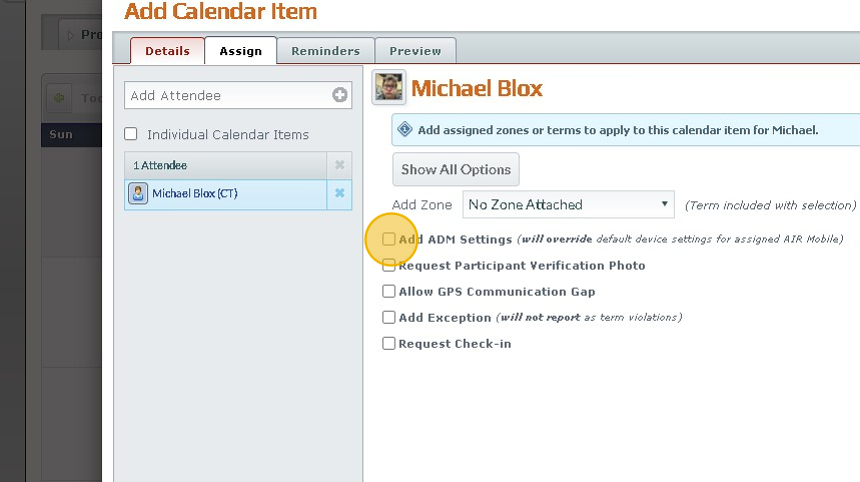
4. Click the Silence device to make the device silent or the "Override Wi-Fi Setting" to default the devices wifi permissions.

Communication Gaps
Tip: If a person works in a metal building or has frequent issues with signal in a particular work area with no wifi available this setting is for you.
5. Click the "Allow GPS Communication Gap" field.
This does not prevent the device from collecting points when able, it just recognizes that device is in an area with poor signal and isn't providing data normally and won't cause an alert during it's time here.

6. Do all other Pass information normally.
Made with Scribe
Was this article helpful?
That’s Great!
Thank you for your feedback
Sorry! We couldn't be helpful
Thank you for your feedback
Feedback sent
We appreciate your effort and will try to fix the article