How to Set Up Participant Filter
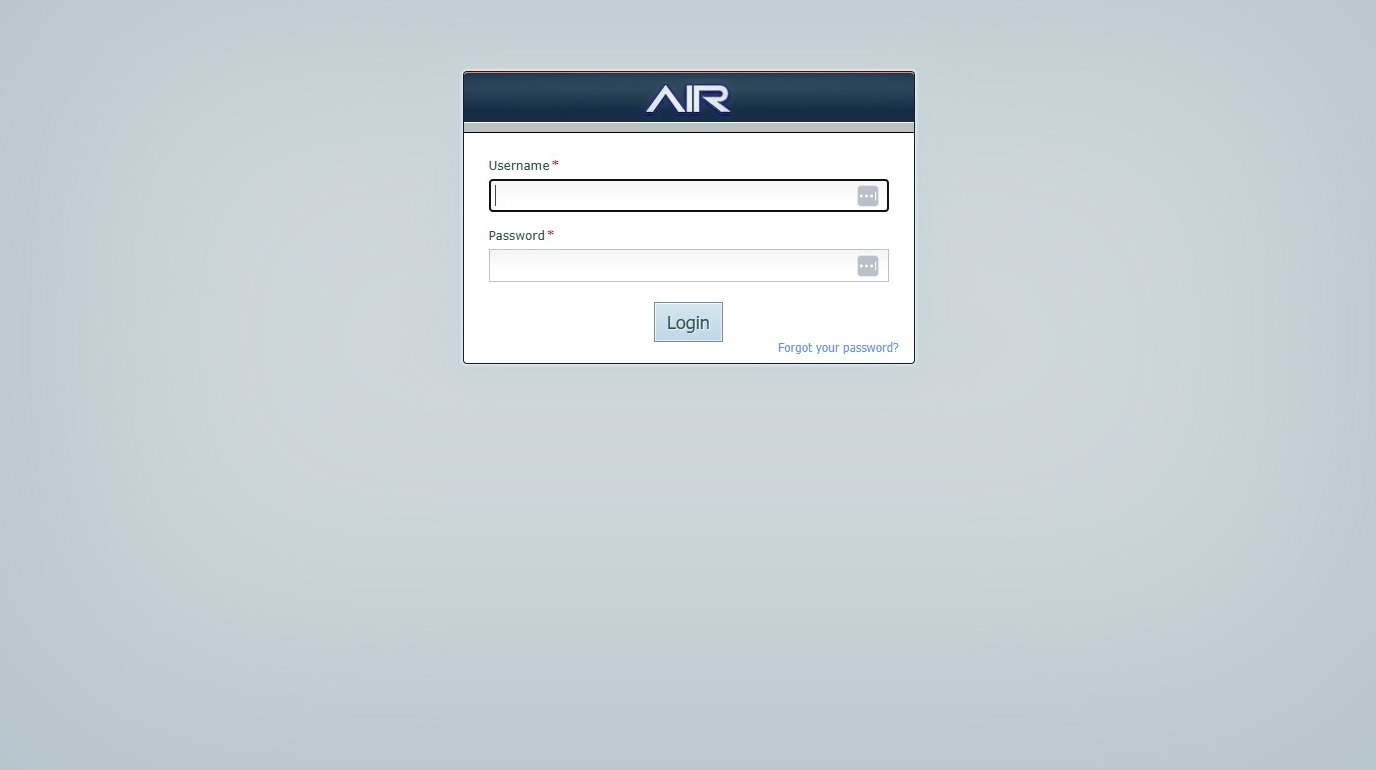
1. Navigate to https://air.corrisoft.com/users/login and login.
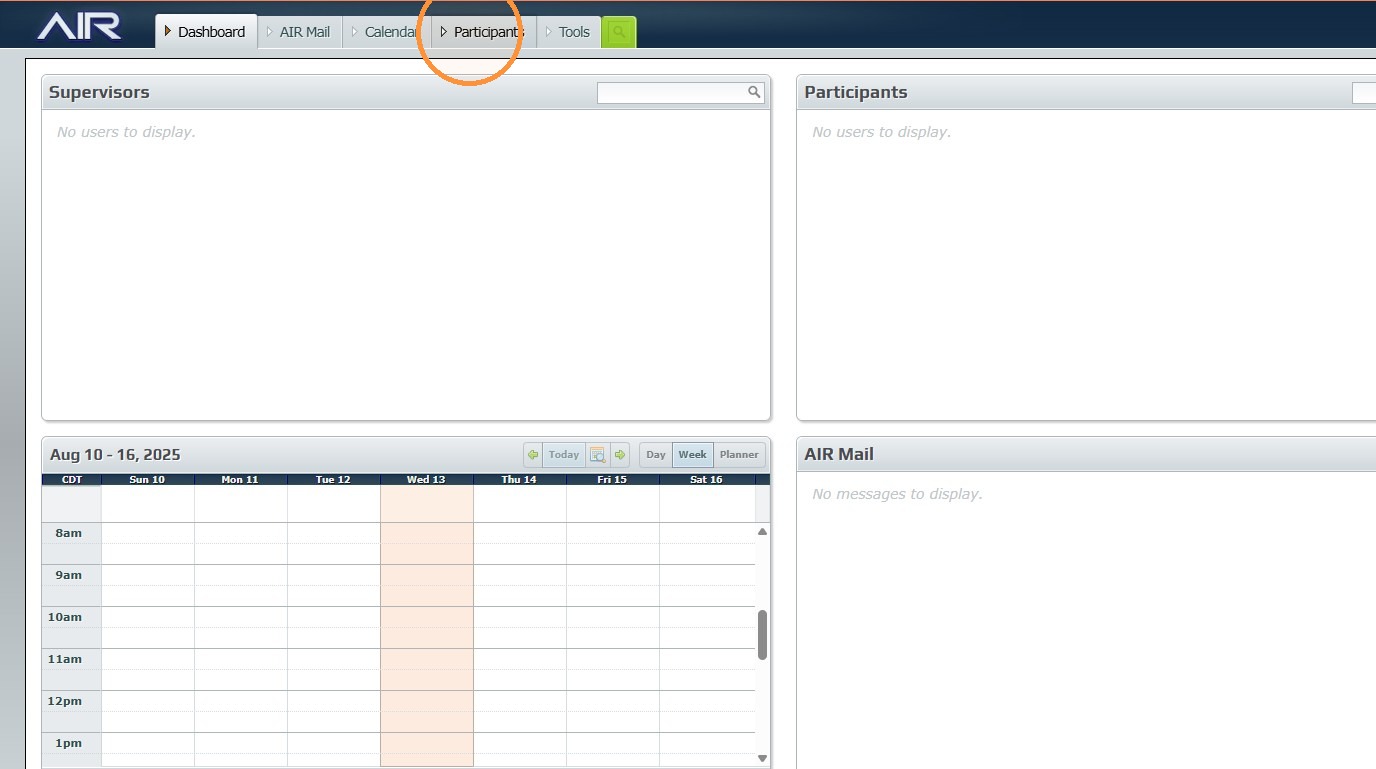
2. Click "Participants"
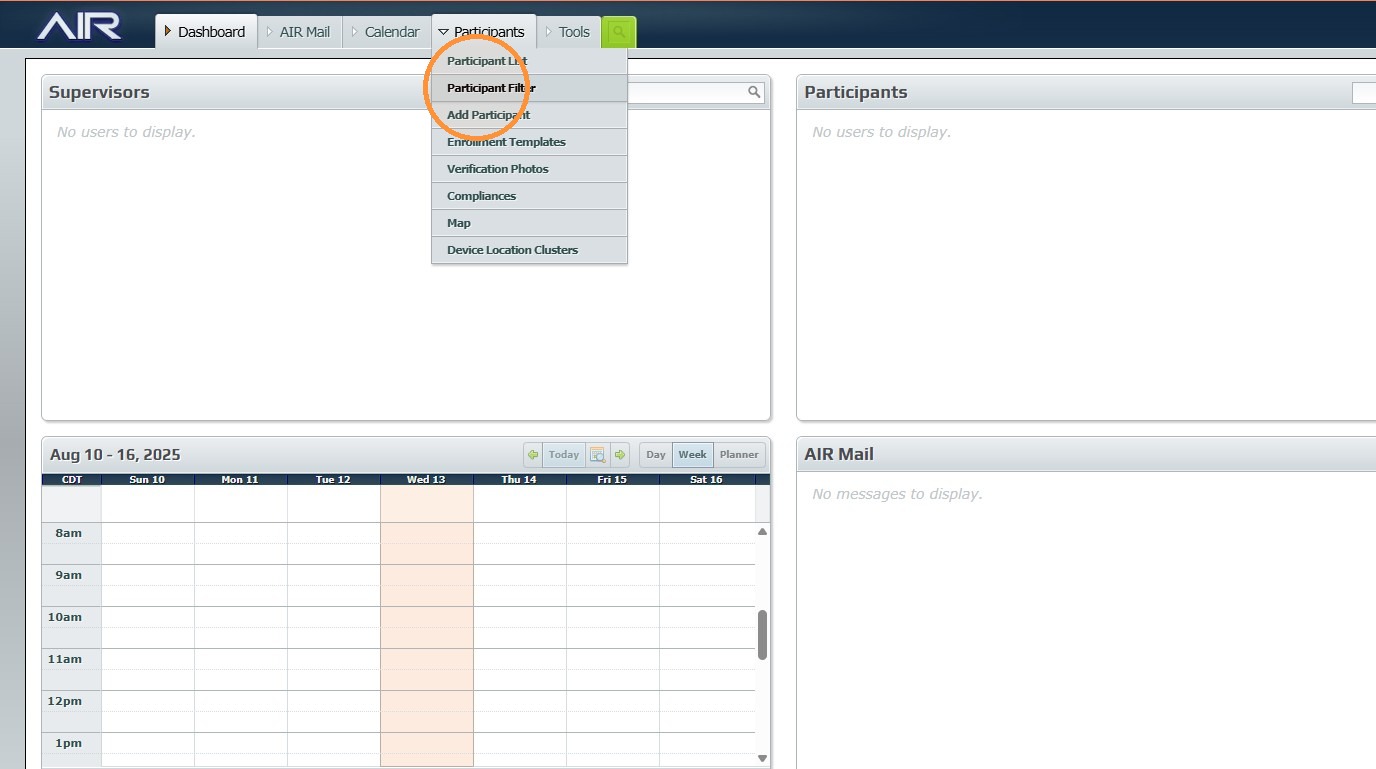
3. Click "Participant Filter"
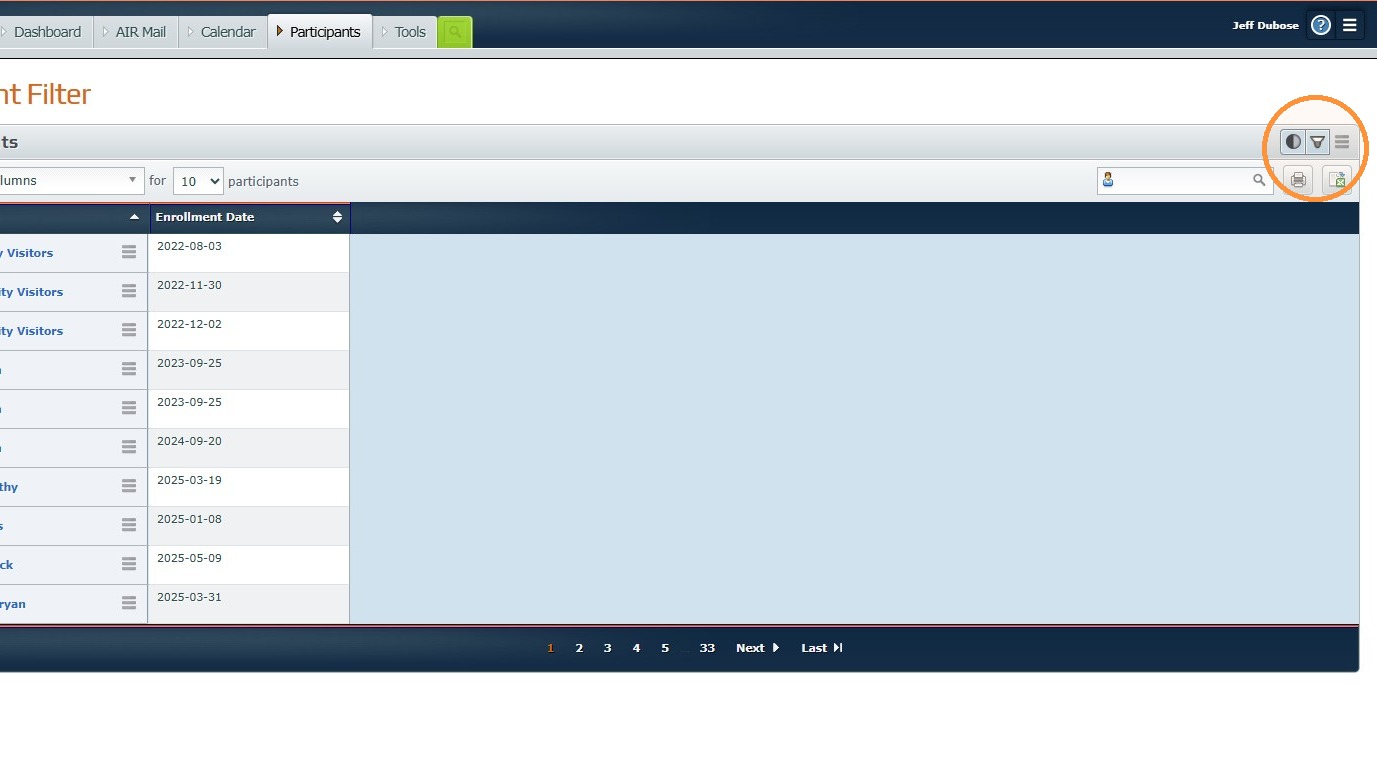
4. Click "Filters" in upper right side of the window.
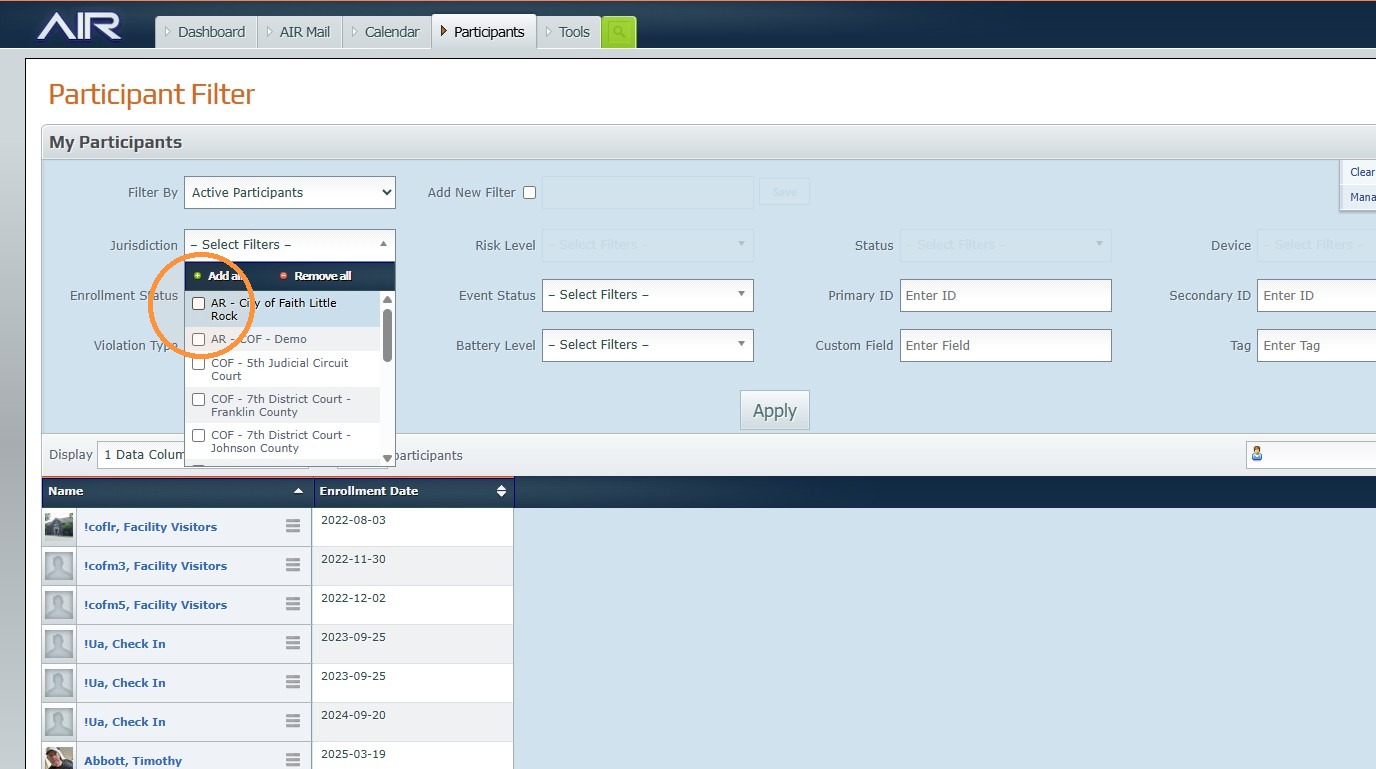
5. Select "Jurisdiction"
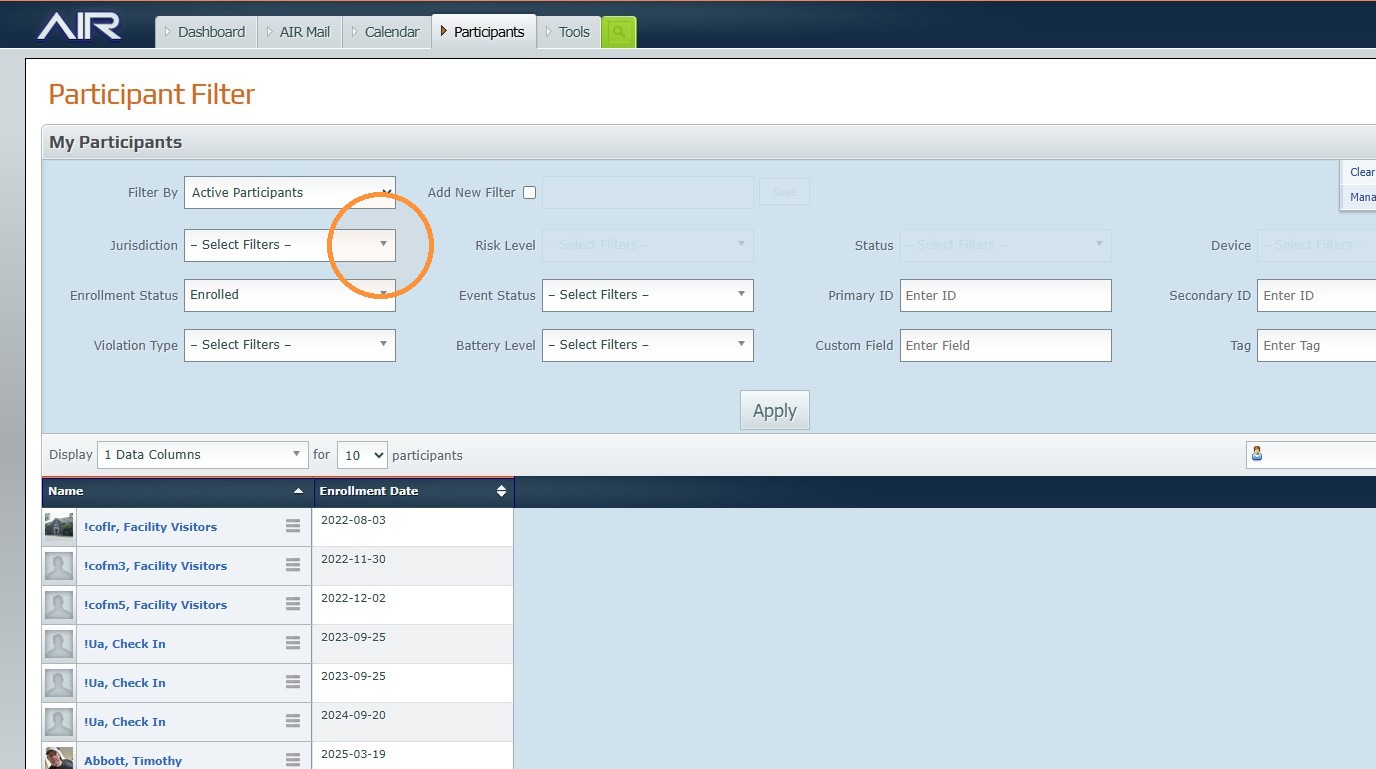
6. Select your desired Jurisdiction.
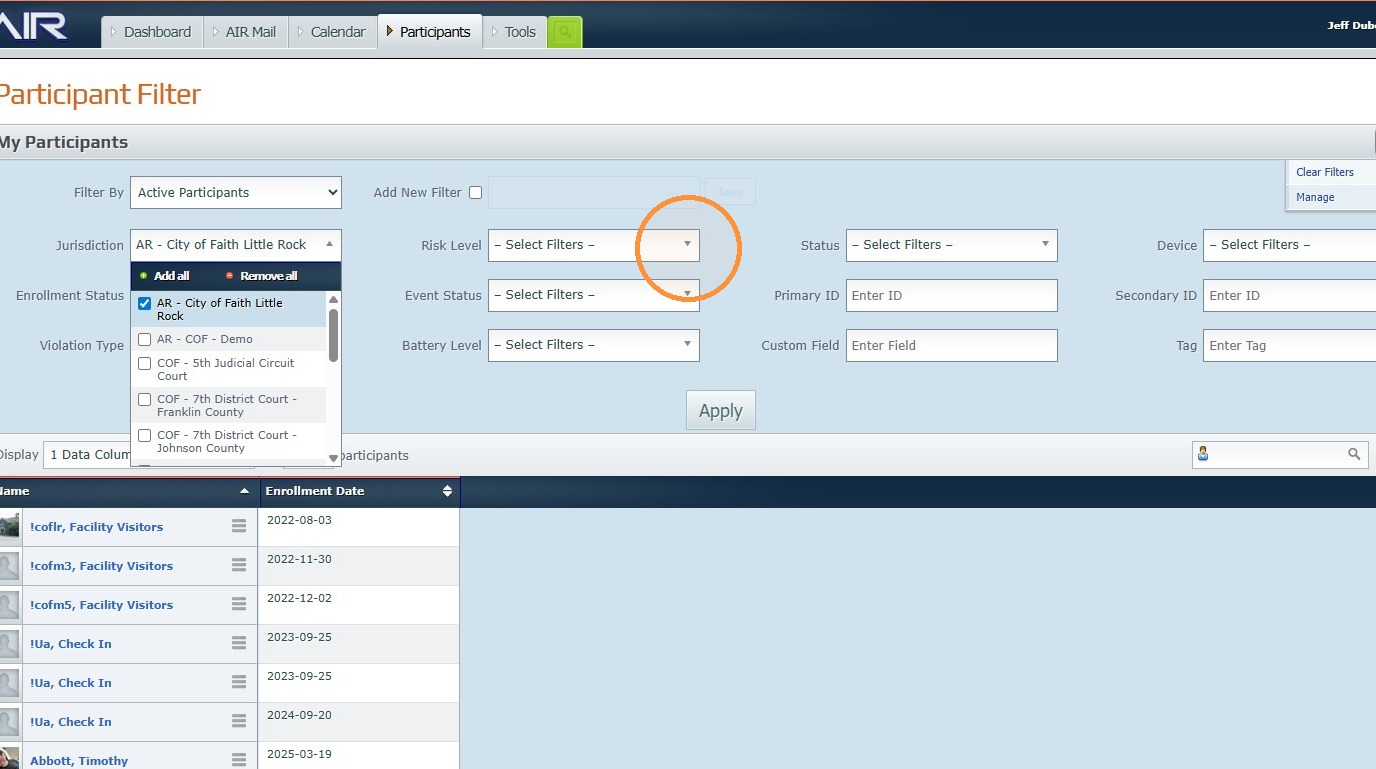
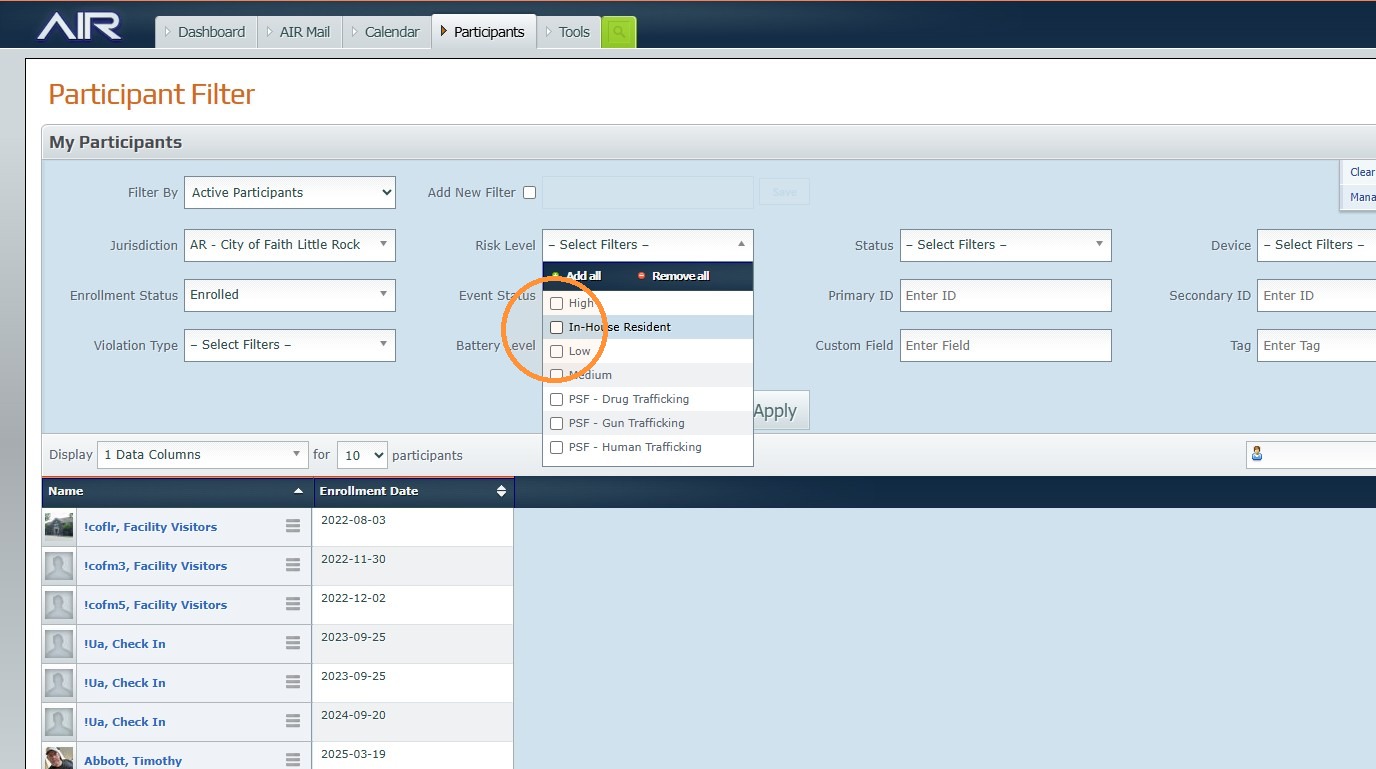
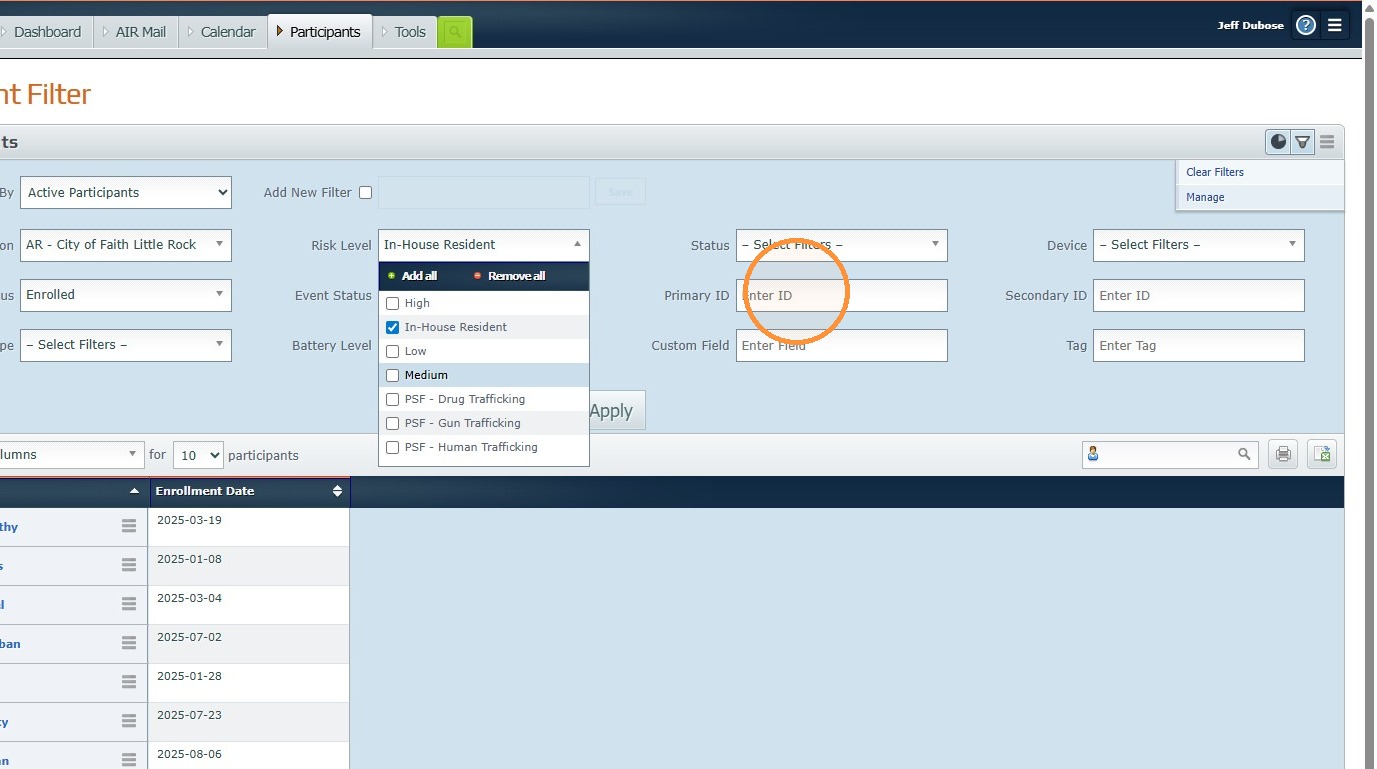
7. Open "Risk Level" drop down list.
8. Select your desired Risk Level.
9. Click the "Primary ID" field. Enter Primary ID (If applicable)
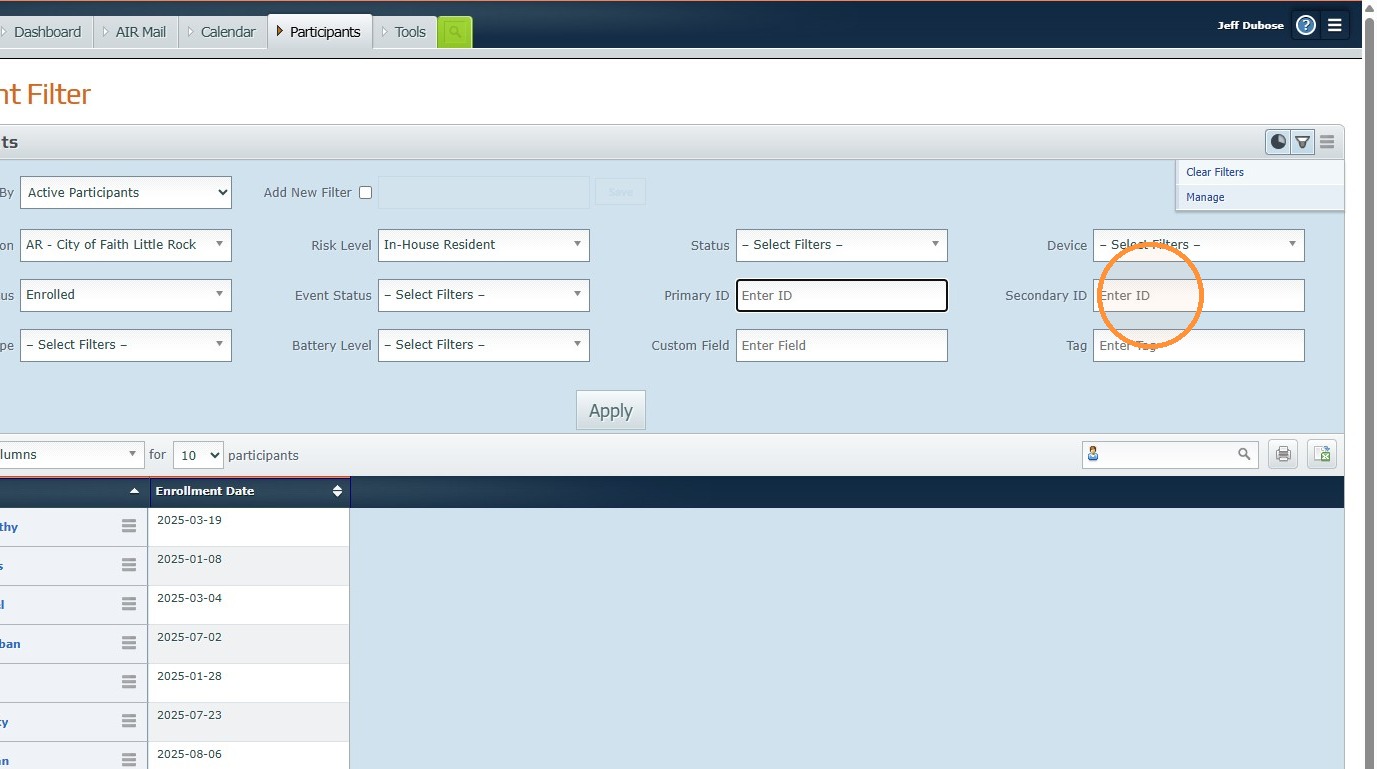
10. Click the "Secondary ID" field. Enter Secondary ID (If applicable)
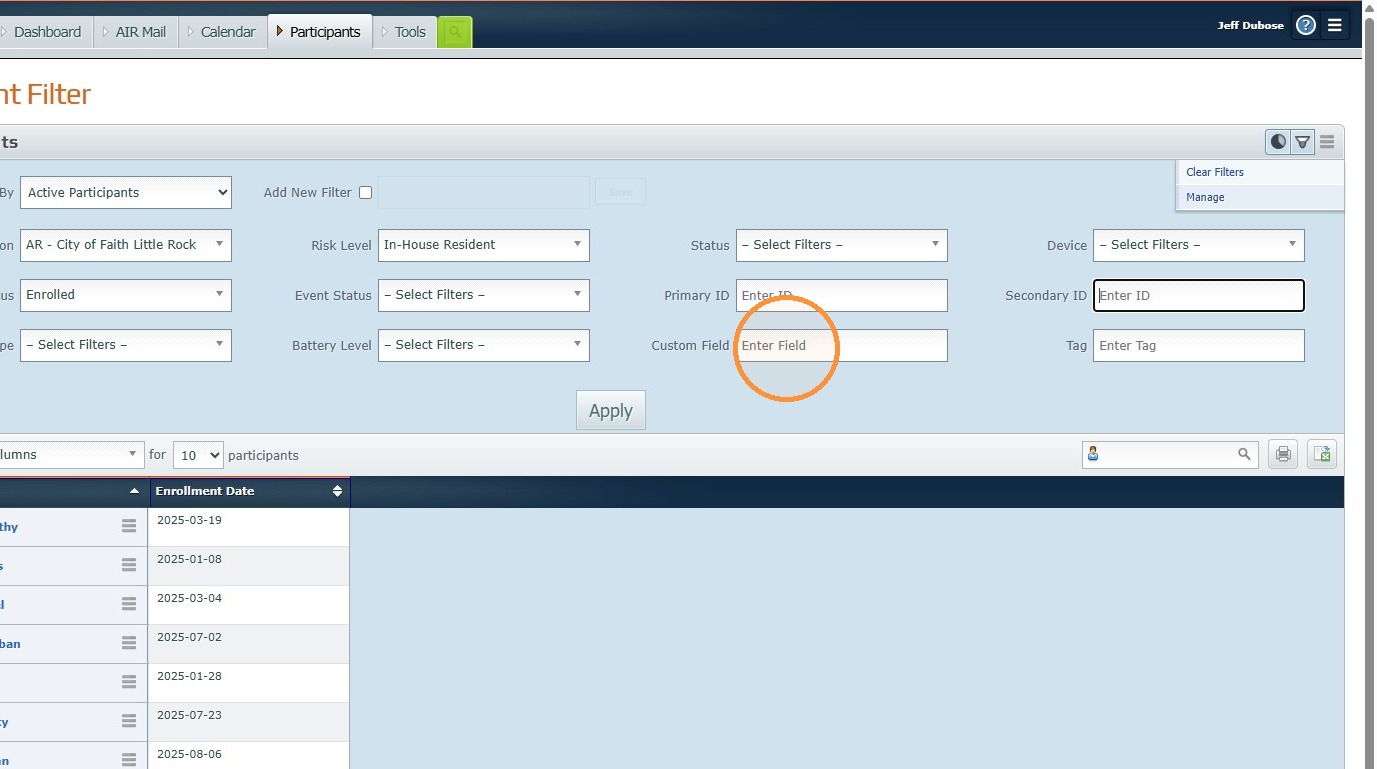
11. Click the "Custom Field" field. Enter any custom information about the resident. (If applicable)
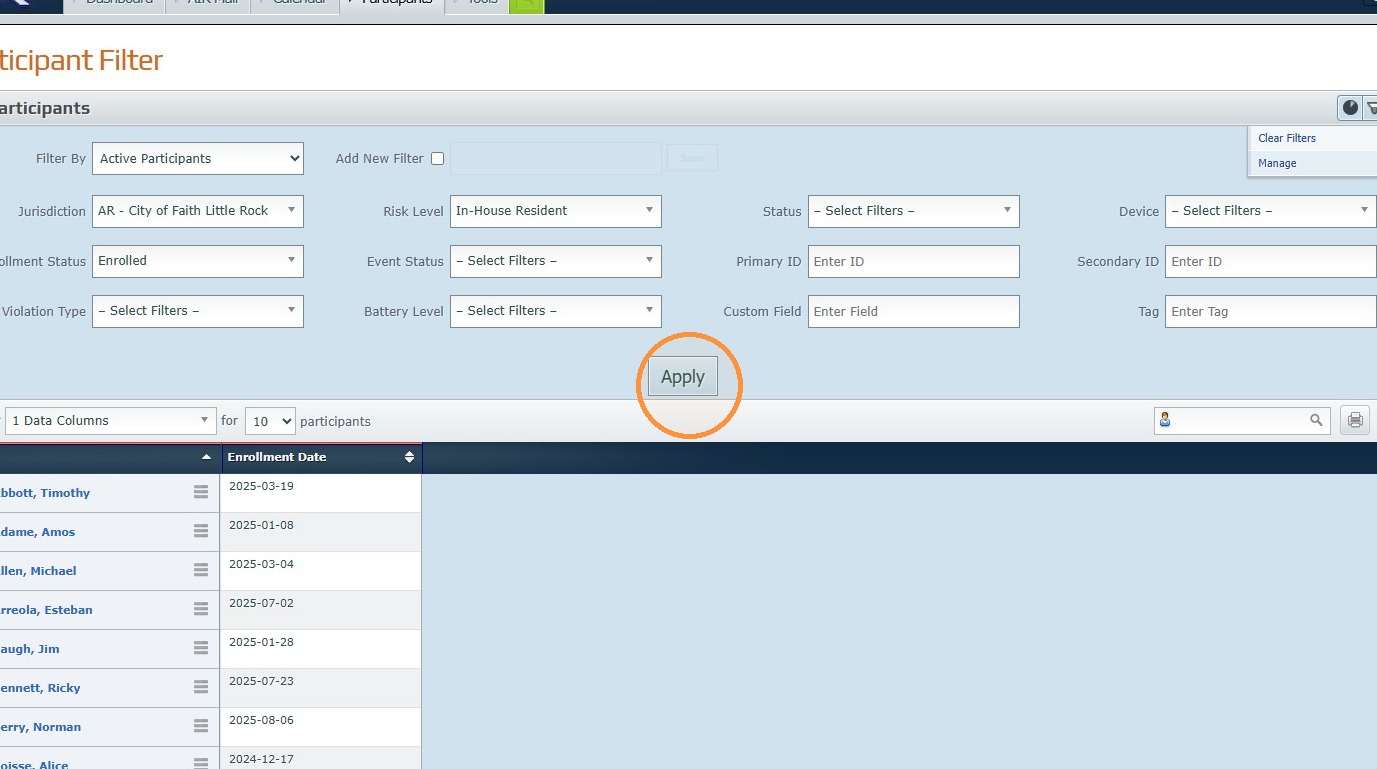
12. Click "Apply"
13. How to Save a Participant Filter Template.
14. Navigate to https://air.corrisoft.com/users/participant_filter
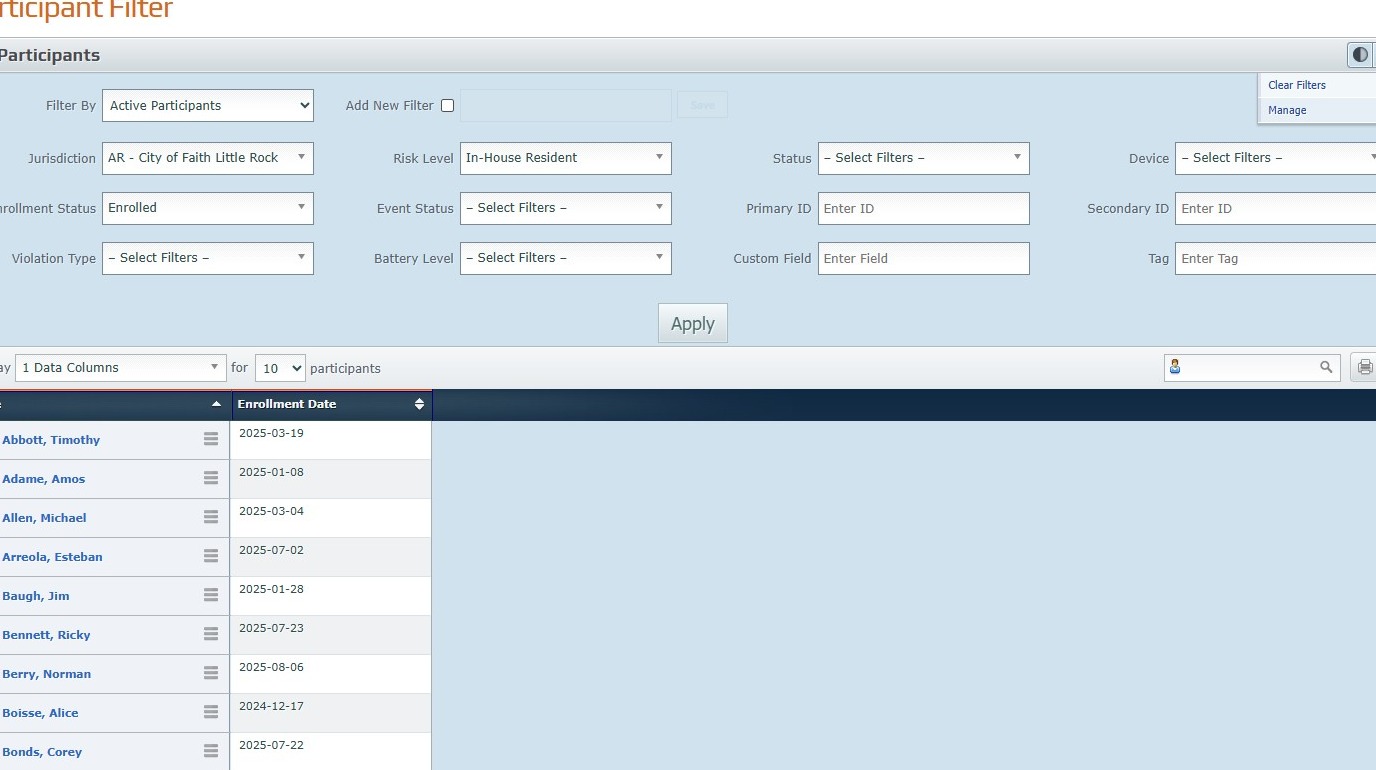
15. Click the "Add New Filter" field.
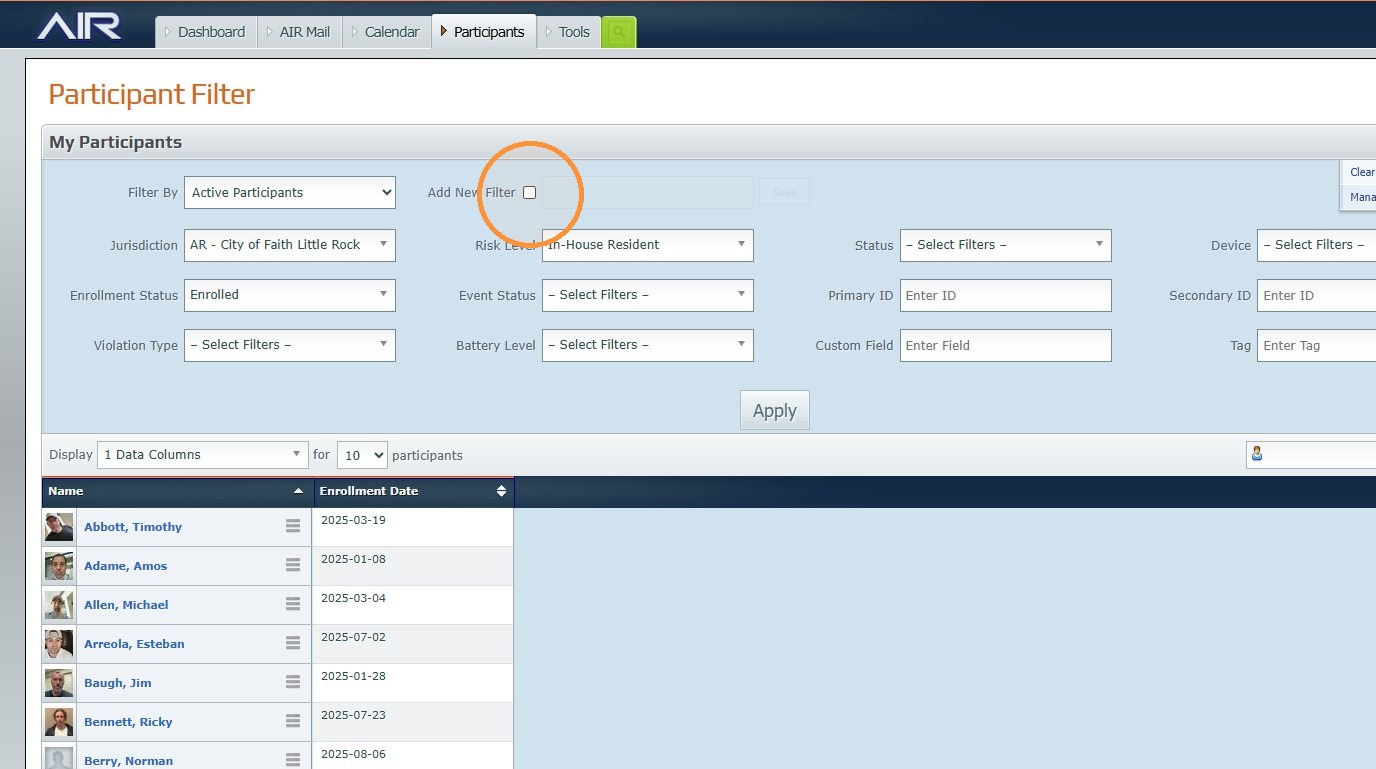
16. Click the "Enter Name" field.
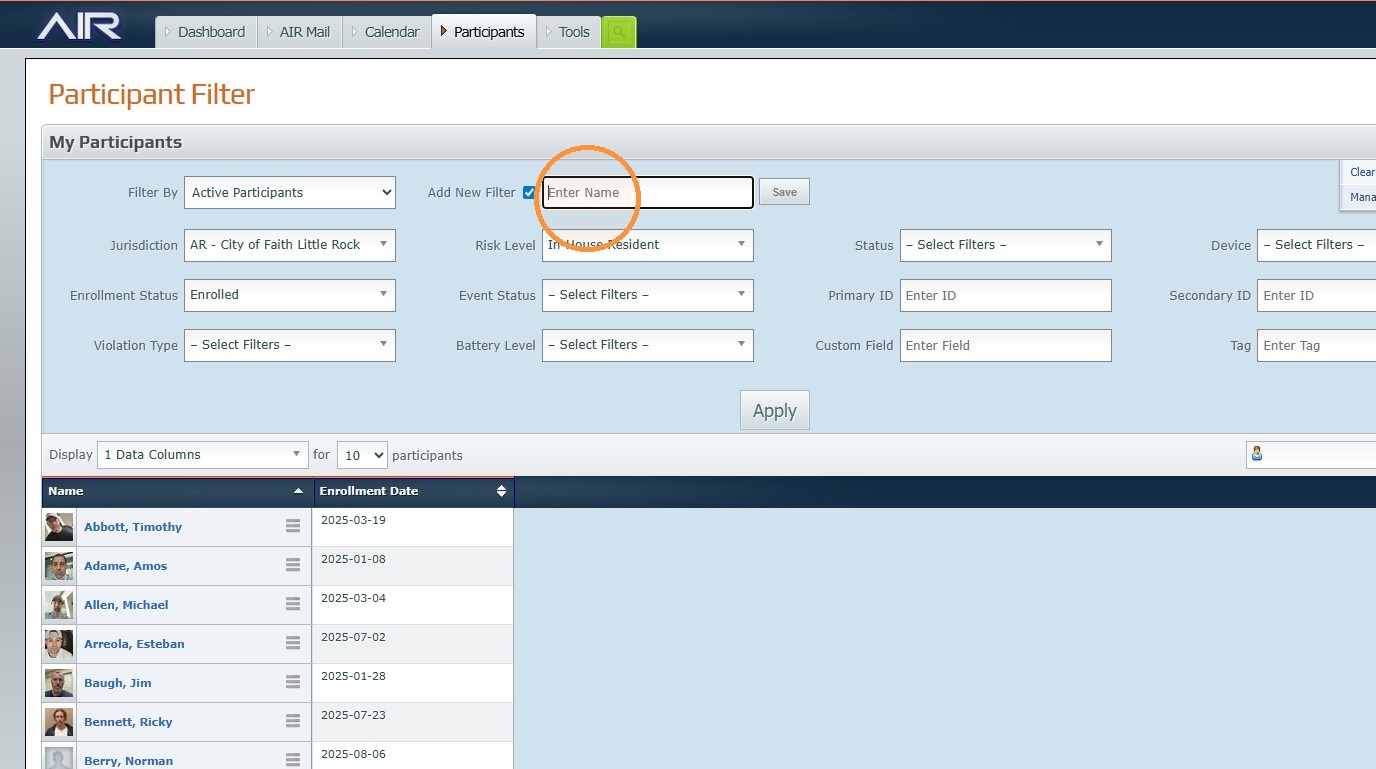
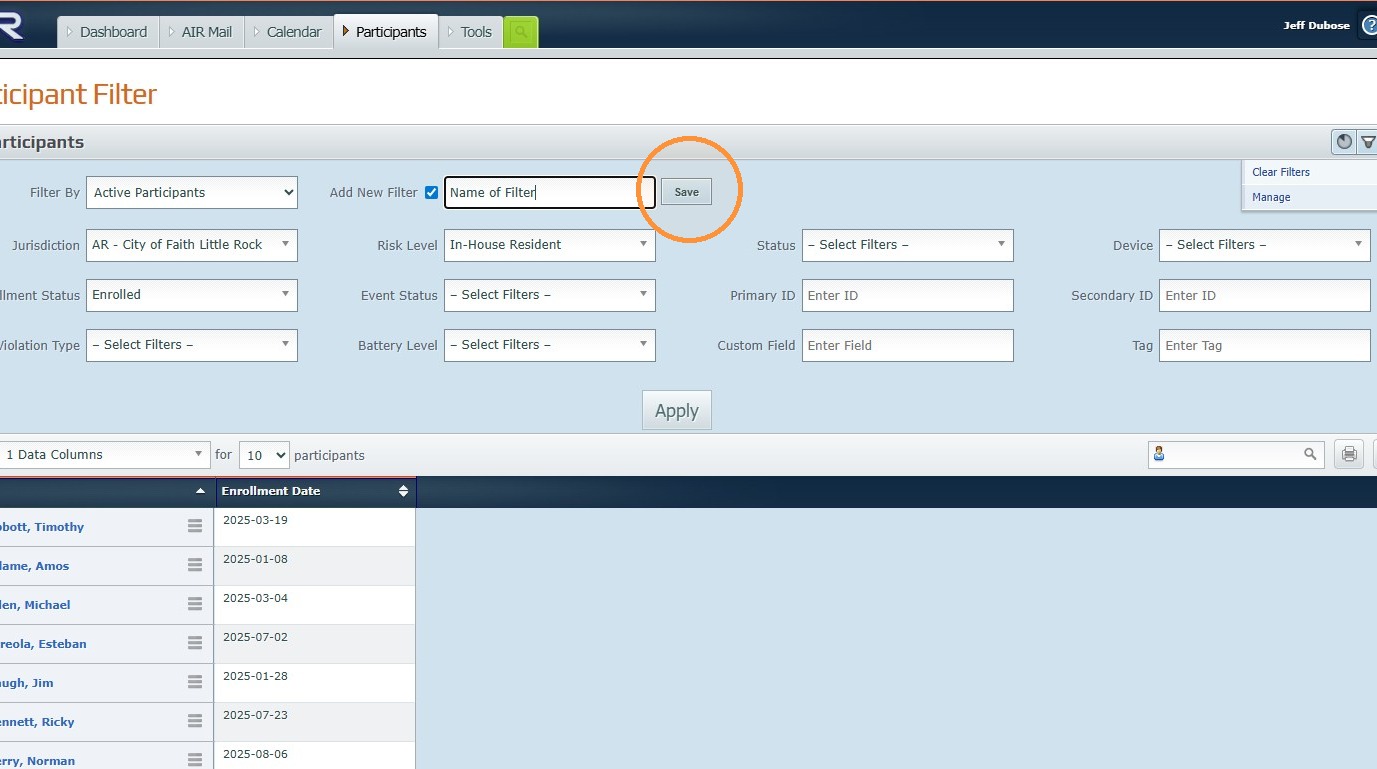
17. Enter a name for your template. Click "Save"
18. How to open a saved Participant Filter.
19. Navigate to https://air.corrisoft.com/users/participant_filter
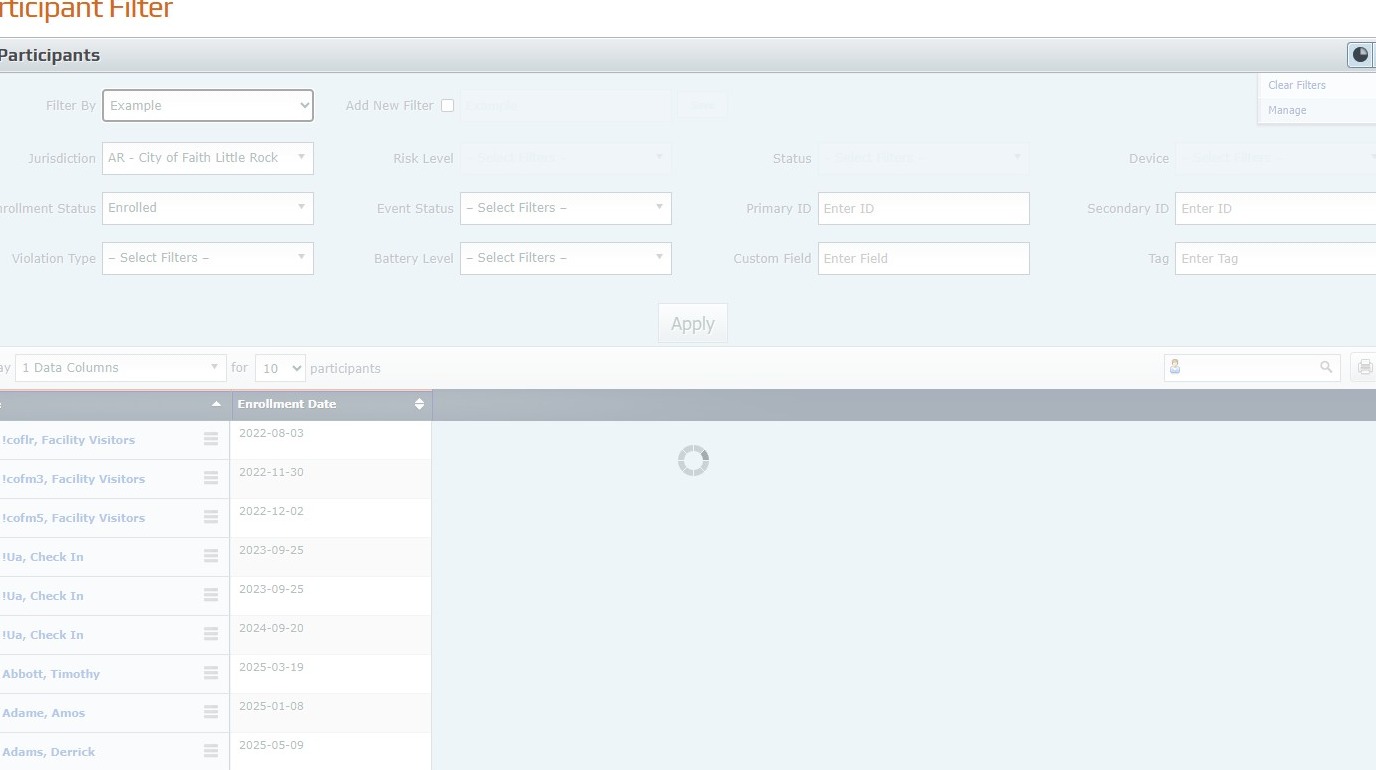
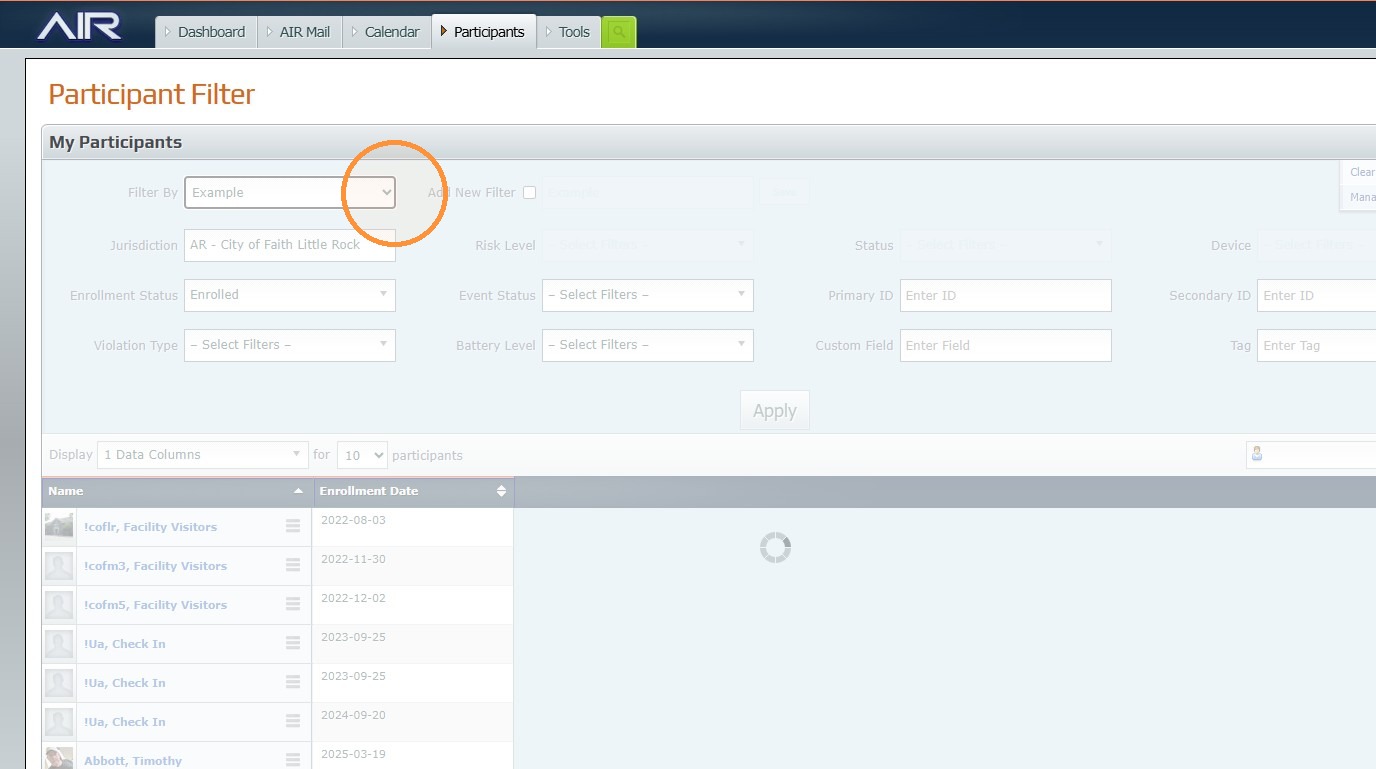
20. Select the name of your filter in the drop down box.
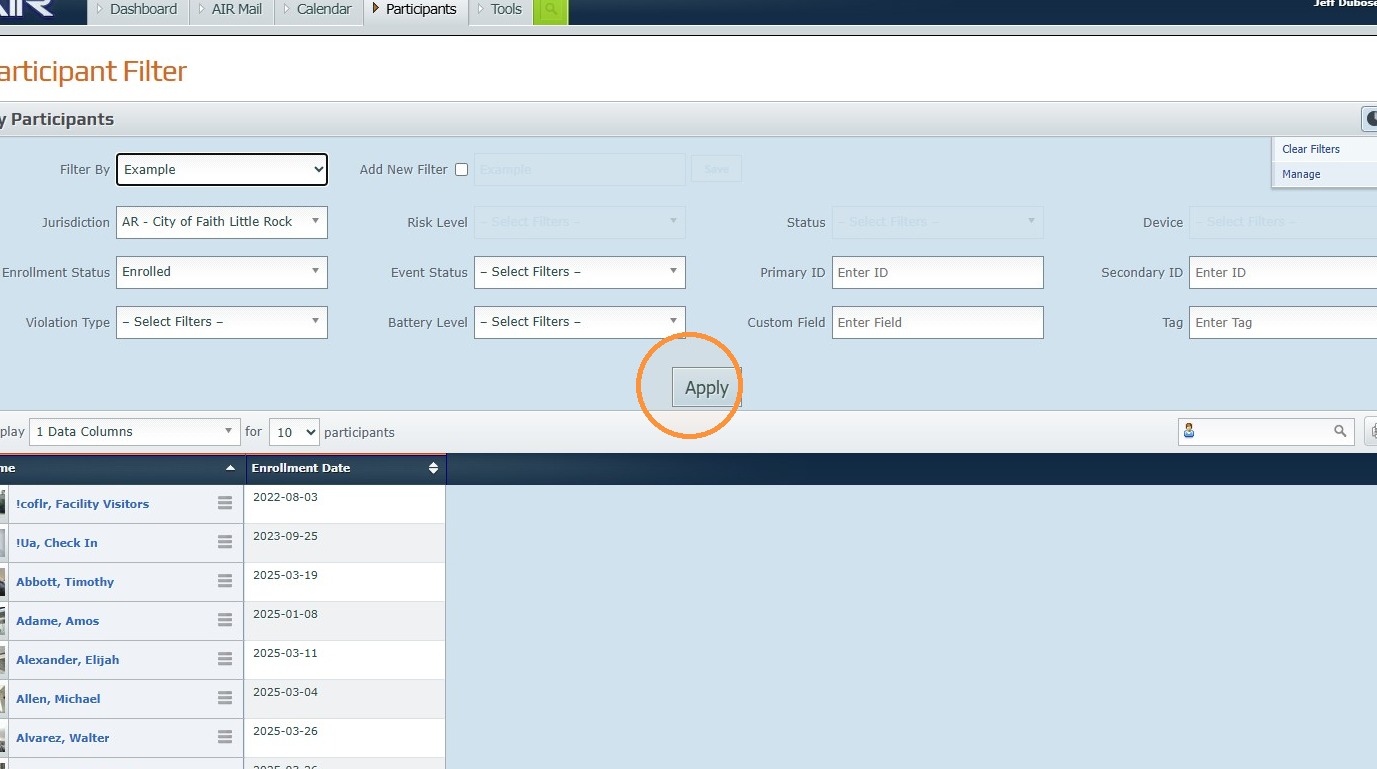
21. Find Click "Apply"
Was this article helpful?
That’s Great!
Thank you for your feedback
Sorry! We couldn't be helpful
Thank you for your feedback
Feedback sent
We appreciate your effort and will try to fix the article